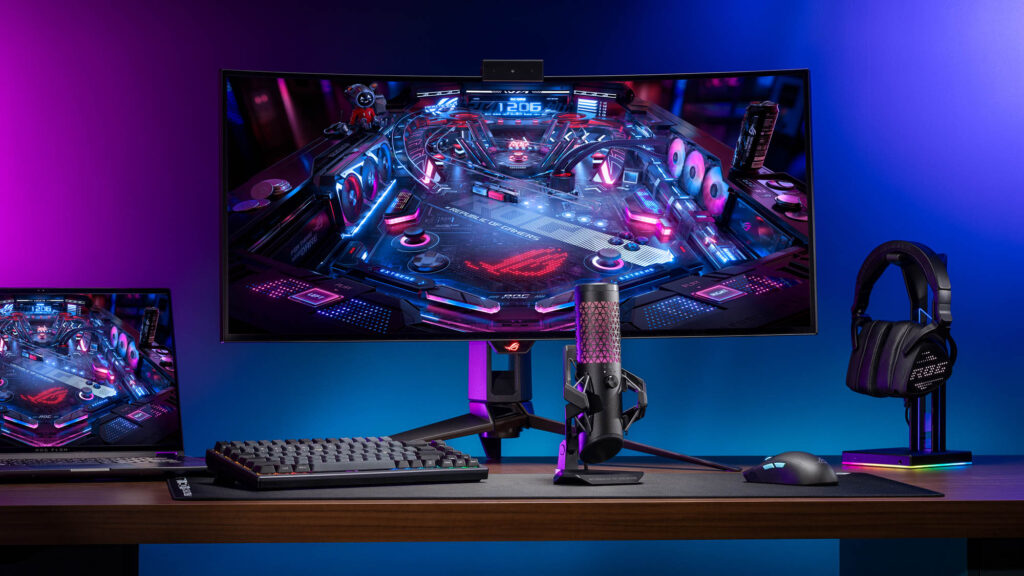
You press the button, but your character reacts a half-second late. That split-second delay between your input and the on-screen response is input lag, and it will cost you fights, races, and ranked matches until you fix it. The good news: most input lag comes from settings you can change right now. I have spent way too long testing every variable that adds delay to a gaming setup, and this guide covers the fixes that actually matter, from the biggest wins to the smallest tweaks.
TL;DR: How to Reduce Input Lag
- Turn on Game Mode on your TV or set your monitor to its fastest response time preset. This alone can cut 40-100ms of delay.
- Disable V-Sync. It adds 30-50ms of input lag. Use NVIDIA Reflex or AMD Anti-Lag instead.
- Set “Maximum Pre-Rendered Frames” to 1 in your GPU control panel.
- Use a wired connection for your mouse and controller. Plug your mouse into a USB port directly on the motherboard.
- Set your mouse polling rate to 1000Hz or higher.
- For online games, use ethernet over Wi-Fi. Network lag is a separate beast from input lag, but it stacks on top.
What Input Lag Actually Is
Input lag is the total time between pressing a button and seeing the result on screen. It is not one single thing. It is a chain: your peripheral sends a signal, your PC processes it, the GPU renders a frame, and your display shows that frame. Delay can build up at every link in that chain.
Here is a rough breakdown of where delay lives in a typical setup:
| Source | Typical Delay | Can You Fix It? |
|---|---|---|
| Display processing | 5-80ms | Yes (Game Mode, faster monitor) |
| V-Sync / frame buffering | 30-50ms | Yes (disable or use Reflex) |
| GPU render time | 10-30ms | Partially (lower settings, higher FPS) |
| Peripheral latency | 1-15ms | Yes (wired, higher polling rate) |
| USB polling | 1-8ms | Yes (1000Hz+ polling rate) |
The numbers add up fast. A TV without Game Mode, V-Sync on, and a wireless controller on Bluetooth can add over 150ms of combined delay. That is nearly a tenth of a second before anything happens on screen.
Display Settings: The Biggest Win to Reduce Input Lag
Your display is the single largest source of input lag, and it is also the easiest to fix. If you only do one thing on this list, fix your display settings.
TV Game Mode
Every modern TV applies post-processing to the image: motion smoothing, noise reduction, sharpening. Each of those filters adds delay. Game Mode disables most of that processing and typically saves 40-100ms of input lag. On an LG C-series OLED, Game Mode drops input lag from around 80ms to under 10ms. That is a night-and-day difference.
Check your TV’s picture settings and enable Game Mode. Some TVs also support ALLM (Auto Low Latency Mode), which activates Game Mode automatically when a console is detected.
Monitor Response Time
If you are on a gaming monitor, you are already ahead. Most gaming monitors have 1-5ms of display processing lag compared to 10-80ms on TVs. But check your monitor’s OSD for a response time or overdrive setting. Set it to its fastest mode without visible ghosting. If you see inverse ghosting (bright trails behind moving objects), back it down one notch.
Refresh Rate Matters
A 60Hz monitor shows a new frame every 16.7ms. A 144Hz monitor does it every 6.9ms. A 240Hz monitor, every 4.2ms. Higher refresh rate means less time waiting for the next frame to appear. Going from 60Hz to 144Hz is the biggest jump you will feel. If you are still on a 60Hz display and play competitive games, upgrading your monitor will do more for your responsiveness than any settings tweak.
For a deep dive on which panels are worth buying, check our best gaming monitors guide.
Our Pick for Low-Lag Gaming
If you want a fast, affordable monitor that keeps input lag to a minimum, the ASUS VG248QG is hard to beat at its price point. 165Hz refresh rate, 0.5ms response time, and G-SYNC Compatible for tear-free gaming without the V-Sync penalty.
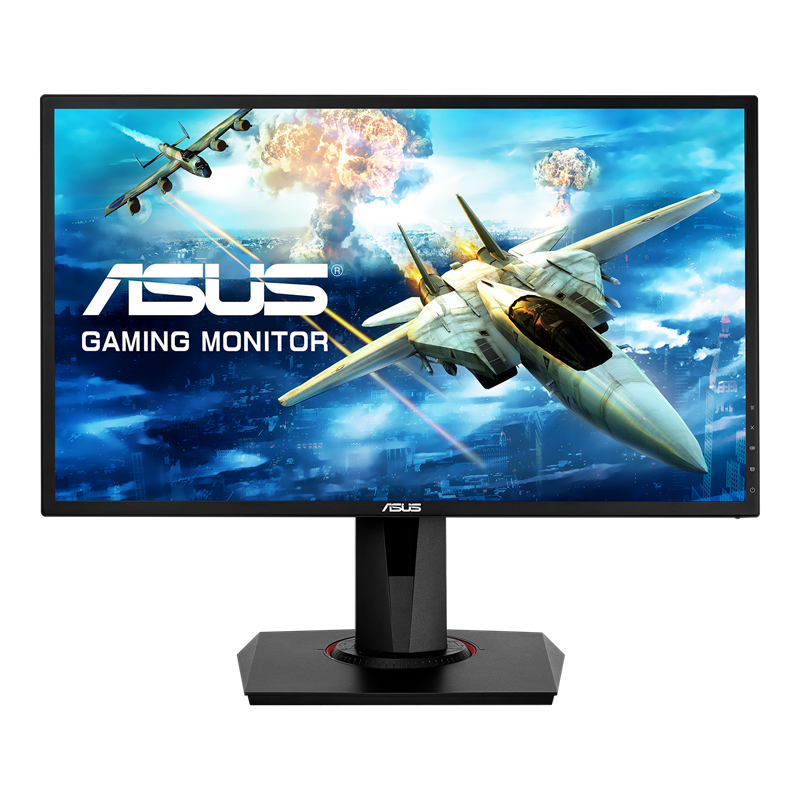
The VG248QG hits the sweet spot for competitive gaming on a budget. 165Hz with G-SYNC Compatible support means you get smooth, tear-free visuals without touching V-Sync. The 0.5ms response time and minimal display processing keep input lag in the single digits. It is a TN panel, so viewing angles are not great, but for head-on competitive gaming, the speed is what counts.
GPU and In-Game Settings
After your display, GPU-side settings are the next biggest source of avoidable lag.
Disable V-Sync (Seriously)
V-Sync locks your frame rate to your monitor’s refresh rate to prevent screen tearing. The trade-off is brutal: according to DisplayLag’s testing, V-Sync adds roughly 44ms of input lag on top of what you would have without it (59ms with V-Sync off vs 103ms with it on in their tests). That is almost three extra frames of delay at 60Hz.
If screen tearing bothers you, use NVIDIA Reflex or AMD Anti-Lag instead. NVIDIA Reflex reduces latency by an average of 50% in supported games, and the newer Reflex 2 (available in Overwatch 2, The Finals, and others) cuts it by up to 75%. These work at the engine level, letting the GPU render frames just-in-time rather than queuing them up.
⚡ Quick tip: If your game supports NVIDIA Reflex, enable it in the game’s settings, not the NVIDIA Control Panel. The in-game toggle is what activates the low-latency render pipeline.
Pre-Rendered Frames
Your GPU queues up frames before they are displayed. More frames in the queue means smoother performance, but also more lag. Open NVIDIA Control Panel and set “Low Latency Mode” to “Ultra” (this sets pre-rendered frames to 1). For AMD, the equivalent is “Anti-Lag” in Radeon Software. This one setting can shave 10-20ms off your total chain.
Frame Rate and Settings
Higher FPS means lower render time per frame, which means lower input lag. If you are running a competitive shooter like Marvel Rivals or Valorant, prioritize frame rate over visual fidelity. Drop shadows to low, turn off ambient occlusion, and lower post-processing. The goal is to keep your FPS above your monitor’s refresh rate at all times.
Running a game at 300fps on a 144Hz monitor still reduces input lag compared to running at 144fps, because the GPU is always rendering a more recent frame.
Game-specific settings work compounds these wins. For a current example of frame-cap and shader tuning in practice, see our Mistfall Hunter best settings guide.
Peripheral Optimization
Peripheral lag is smaller than display and GPU lag, but at high levels of play, those 5-10ms matter.
Mouse Polling Rate
Your mouse reports its position to your PC at a fixed interval. At 125Hz (the default for many mice), that is every 8ms. At 1000Hz, it is every 1ms. Some newer mice go to 4000Hz (0.25ms) or even 8000Hz. The jump from 125Hz to 1000Hz is the one that matters most. Going from 1000Hz to 4000Hz offers diminishing returns, and some games do not even poll that fast.
Check your mouse software and set the polling rate to at least 1000Hz. Wireless latency on modern gaming mice is effectively the same as wired now, but if your mouse only supports Bluetooth (not a dedicated 2.4GHz dongle), switch to wired.
Our Pick for Low-Lag Mouse
If you want a mouse built for competitive play with minimal latency, the Logitech G Pro X Superlight 2 is the one to beat. 60 grams, 2000Hz polling out of the box, and sub-1ms wireless latency via LIGHTSPEED. It is what half the pros in Valorant and CS2 are using.
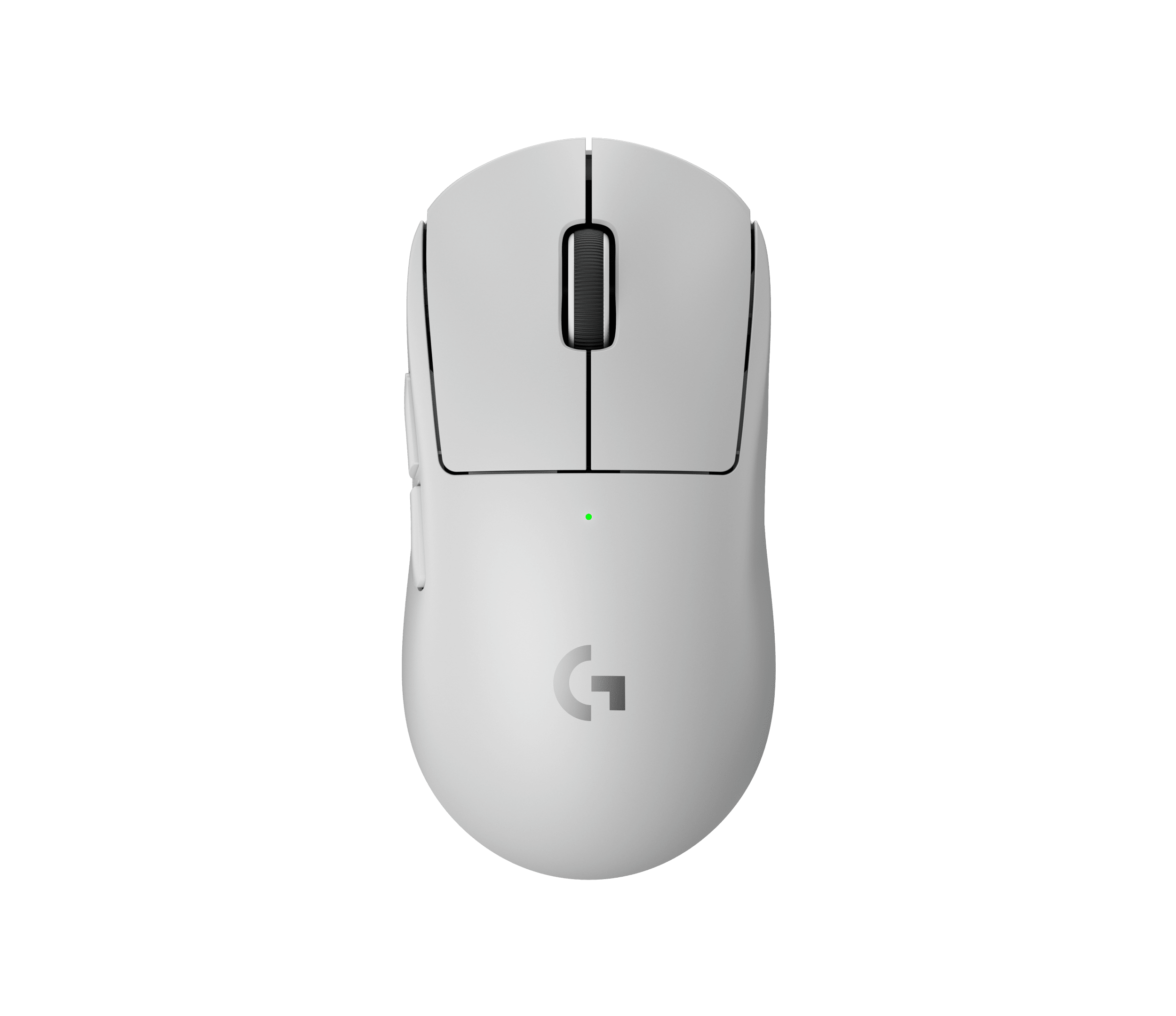
The Superlight 2 trades the cable for a LIGHTSPEED dongle that tests under 1ms in wireless mode. At 2000Hz polling, it reports your aim twice as fast as a standard 1000Hz mouse. The 60-gram weight means zero drag on fast flicks. HERO 2 sensor tracks perfectly on any surface, and the battery lasts around 95 hours. If you are serious about FPS, this is the mouse that removes hardware as an excuse.
USB Connection
Plug your mouse and keyboard directly into your motherboard’s USB ports, not a USB hub. Hubs can add 1-3ms of latency. Also avoid USB 2.0 ports for high-polling-rate mice. USB 3.0 or higher handles the data rate better.
Controller Users
If you play on a controller, use a USB cable. Bluetooth adds 4-10ms of latency depending on the controller. The Xbox Wireless Adapter is faster than Bluetooth (around 2ms) but still slower than wired. For fighting games and precision platformers, always go wired.
Console-Specific Tips
Console players have fewer knobs to turn, but the ones available make a real difference.
PS5 and Xbox Series X
Enable 120Hz output if your TV supports it. Both consoles can output at 120fps in supported games, which halves the frame time. On PS5, go to Settings > Screen and Video > Video Output > Enable 120Hz Output. On Xbox, it is under Settings > General > TV & Display Options > Refresh Rate.
Enable VRR (Variable Refresh Rate). Both consoles support VRR through HDMI 2.1, which eliminates tearing without the input lag penalty of V-Sync. Your TV needs to support it too.
Use HDMI directly. Do not route through a soundbar, AV receiver, or HDMI splitter unless you know it supports passthrough without added delay. Each device in the chain can add 5-30ms.
Nintendo Switch
The Switch is locked to 60fps max, so your options are limited. The biggest win is making sure your TV’s Game Mode is on. If you play docked with a Pro Controller, use a wired USB connection. The Pro Controller’s wireless latency is around 6ms, which is fine for most games, but wired drops it to under 2ms.
If you are looking for a gaming laptop that can double as your main setup, our best gaming laptops under $1500 guide has solid options with 144Hz+ displays built in.
Network Lag vs Input Lag
These are two different things, and they stack. Input lag is local: your hardware chain from button press to display. Network lag (ping) is the round trip between your PC and the game server. You can have perfect input lag and still feel sluggish if your ping is 80ms. Network lag also drops on a fiber connection, which is part of why we recommend switching from cable to Frontier Fiber for online play.
A few rules for keeping network lag low:
- Use ethernet. Wi-Fi adds 2-10ms of latency and is inconsistent. A single dropped packet causes a visible stutter.
- Close bandwidth-heavy apps. Streaming, downloads, and cloud backups competing for bandwidth cause packet loss and jitter.
- Pick the closest server. Most competitive games let you select a region. Choose the one physically nearest to you.
- Avoid gaming over VPN. VPNs route your traffic through an extra server, adding 10-50ms depending on distance.
If your ping is under 30ms and your input lag is optimized, your total system latency (button press to server acknowledgment) should be under 80ms. That is responsive enough for any competitive game.
Frequently Asked Questions
Does input lag matter if I am not a competitive player?
Yes. Even in single-player games, high input lag makes controls feel “floaty” or unresponsive. Action games, platformers, and racing games all feel noticeably better with lower input lag. Racing games are especially sensitive to it, which is part of why we obsess over response in our Forza Horizon 6 car tier list. You do not need to chase single-millisecond improvements, but fixing the big things (Game Mode, V-Sync off) improves any gaming experience.
Is wireless mouse lag still a problem in 2026?
Not with modern gaming mice. Top wireless mice from Logitech, Razer, and Pulsar have wireless latency under 1ms with their 2.4GHz dongles. Bluetooth is a different story and still adds measurable delay. If your mouse came with a USB dongle, use it. If it only supports Bluetooth, consider an upgrade.
Can a better GPU reduce input lag?
Yes. A faster GPU renders frames quicker, reducing the time between your input being processed and the frame appearing on screen. Going from 60fps to 144fps cuts render time from 16.7ms to 6.9ms per frame. But GPU upgrades only help the render portion of the chain. Display and peripheral lag stay the same.
What is the difference between input lag and response time?
Response time is how fast a monitor pixel can change color (measured in ms, like 1ms or 4ms). Input lag is the total delay from button press to on-screen result. A monitor can have a 1ms response time but still have 20ms of input lag from its internal processing. Both matter, but input lag is the number that affects how your controls feel.
Summary
Most input lag comes from three places: your display, your GPU settings, and your peripherals. Fix those in order. Turn on Game Mode (or upgrade to a proper gaming monitor), disable V-Sync and enable NVIDIA Reflex or AMD Anti-Lag, set your mouse polling rate to 1000Hz, and use wired connections wherever possible. Console players should enable 120Hz output and VRR. Do all of that and you will shave 50-100ms off your total latency, which is the difference between your inputs feeling sluggish and feeling instant.