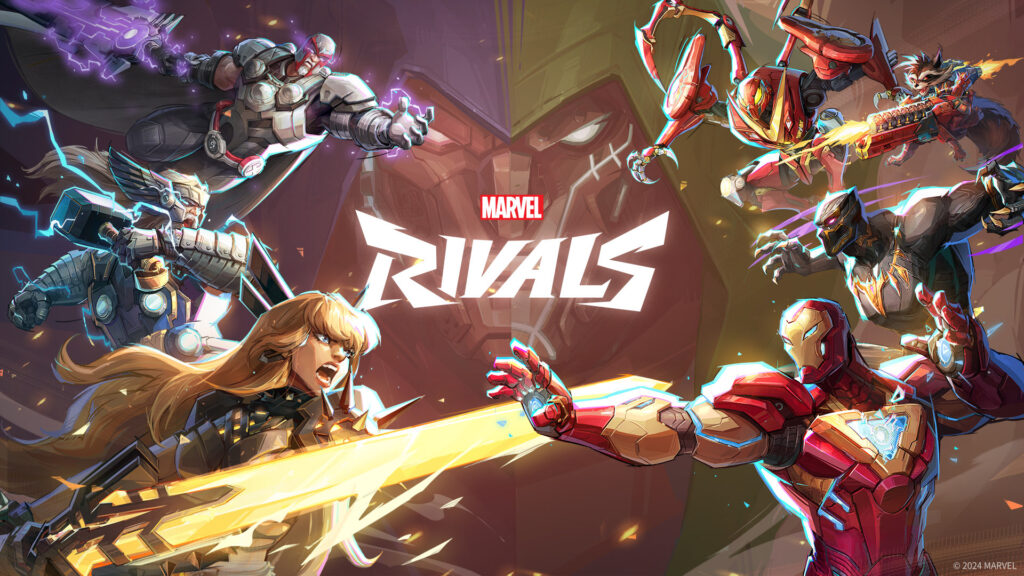
I’ve spent a stupid amount of time testing graphics settings in Marvel Rivals this season. Season 6 (and the 6.5 update with Elsa Bloodstone) brought some under-the-hood rendering changes, so I went back and re-tested everything across a few different hardware configs. Here’s where I landed.
Whether you’re on a mid-range rig or something beefier, these settings will get you smooth, competitive gameplay without turning the game into a smeared watercolor painting.
TL;DR
- Fullscreen + V-Sync off is mandatory — borderless windowed adds 5-10ms input lag that costs fights
- DLSS/FSR on Quality beats dropping resolution — native sharpness matters for tracking fast-moving heroes
- Medium settings hit the sweet spot — targets 120+ FPS on mid-range hardware without sacrificing visual clarity
Quick answer
If you just want the settings and don’t care about the reasoning:
- Resolution: Native (1080p or 1440p)
- Display Mode: Fullscreen (not borderless)
- V-Sync: Off
- DLSS/FSR: Quality or Balanced
- Frame Gen: On if you have RTX 40-series
- Anti-Aliasing: TAA or DLAA
- Everything else: Medium
This gets you 120+ FPS on mid-range hardware while keeping the game sharp enough to track enemies in chaotic team fights.
Display settings
Display settings have the biggest impact on both performance and competitive play. Get these right first.
Resolution and display mode
Fullscreen is mandatory for competitive play. Borderless windowed adds input lag, sometimes 5-10ms extra. That’s the difference between landing Iron Man’s Unibeam or whiffing completely.
Native resolution is ideal if your GPU can handle it. Dropping to 1080p on a 1440p monitor introduces blur that makes tracking fast-moving heroes like Spider-Man or Elsa Bloodstone harder.
If you need more frames, use DLSS/FSR at Quality instead of dropping resolution. You keep the sharpness without the performance hit.
V-Sync and frame rate
Turn V-Sync off. It adds input lag and caps your framerate. Use your GPU’s control panel to cap frames at your monitor’s refresh rate minus 3 (so 141 FPS for a 144Hz monitor). This prevents screen tearing without the lag penalty.
Reflex Low Latency: Set to On + Boost if you have an NVIDIA card. It reduces render queue latency and makes everything feel snappier. This alone made more difference than any graphical setting change in my testing.
Graphics settings breakdown
Here’s where most guides get it wrong. They tell you to slam everything to Low. That works for raw FPS, but Marvel Rivals’ readability suffers when effects are too low. You need to see ability tells clearly in a 6v6 fight, and Low effects settings can make that harder.
Settings that matter for visibility
| Setting | Recommended | Why |
|---|---|---|
| Texture Quality | High | Minimal FPS impact, helps identify heroes at a glance |
| Shadow Quality | Medium | Low removes depth cues you actually use for positioning |
| Effects Quality | Medium | Too low and you can’t read ability tells in team fights |
| Post-Processing | Low | Removes blur effects that hurt visibility |
| Ambient Occlusion | Off | Pure FPS gain, minimal visual loss |
Settings to lower
Volumetric Quality: Set to Low. The fog and light shafts look nice in screenshots but tank performance and obscure sightlines during actual gameplay.
Foliage Quality: Low or Medium. Trees and plants don’t factor into gameplay. They’re just eating GPU cycles.
Reflection Quality: Low. SSR reflections are expensive and you won’t notice them mid-fight. Not once have I thought “wow, nice reflections” while getting combo’d by Magik.
Anti-aliasing
TAA gives the best balance for most players. It smooths edges without the performance hit of MSAA.
DLAA (NVIDIA) looks sharper than TAA if you have frames to spare. Worth using at 1440p or higher.
FXAA is a last resort. It blurs the image noticeably and I wouldn’t recommend it unless nothing else works.
NVIDIA-specific optimizations
If you’re running an NVIDIA GPU, these NVIDIA Control Panel settings make a real difference:
- Low Latency Mode: Ultra (if not using Reflex)
- Power Management: Prefer Maximum Performance
- Texture Filtering Quality: High Performance
- Threaded Optimization: On
DLSS settings
Season 6 added DLSS 4.5 support with improved quality at lower performance modes. Here’s what to use based on your card:
- RTX 20-series: Quality mode
- RTX 30-series: Balanced works well
- RTX 40-series: Enable Frame Generation for 30-50% more FPS
One thing to know about Frame Generation: it adds roughly one frame of latency. For casual play and even most ranked games, it’s fine. If you’re grinding top 500, you might prefer raw frames instead.
AMD-specific optimizations
AMD users should enable FSR 3.1 in-game:
- FSR Mode: Quality or Balanced
- Anti-Lag: Enable in Radeon Software
- Sharpening: 50-60% to counteract FSR blur
In Radeon Software, turn these off:
- Radeon Boost: Off (adds blur during movement, which is the opposite of what you want)
- Radeon Chill: Off (caps framerate unpredictably)
- Surface Format Optimization: On (this one’s fine to leave enabled)
Windows optimizations
A few OS-level tweaks that actually help. Most “optimization guides” list 30 registry hacks that do nothing, so I’m only including the ones that made a measurable difference:
- Game Mode: On (Windows Settings > Gaming)
- Hardware-Accelerated GPU Scheduling: On
- Variable Refresh Rate: On if you have a compatible monitor
- Background apps: Close Discord overlays and streaming software when you need every frame
After driver updates, rebuild your shaders: Graphics Settings > scroll down > Rebuild Shaders. Takes 2-3 minutes but prevents the stuttering that shows up in your first few games after a patch.
Pro tips
- Cap your framerate at your monitor’s refresh rate minus 3 for the best frame pacing
- Disable motion blur — it’s on by default and it hurts visibility in fast combat
- Set Enemy Outline Color to bright orange or yellow for better visibility on dark maps
- Lower mouse polling rate to 1000Hz if you’re on wireless to save battery
- Only use borderless windowed if you Alt-Tab frequently for streaming. Otherwise fullscreen is always better.
Gear for competitive play
Settings only get you so far. If your monitor or mouse is adding unnecessary delay, you’re leaving performance on the table regardless of how well you tune the software. These two upgrades make the biggest difference for competitive Marvel Rivals. For a full breakdown of every setting that affects delay, check our complete input lag guide.
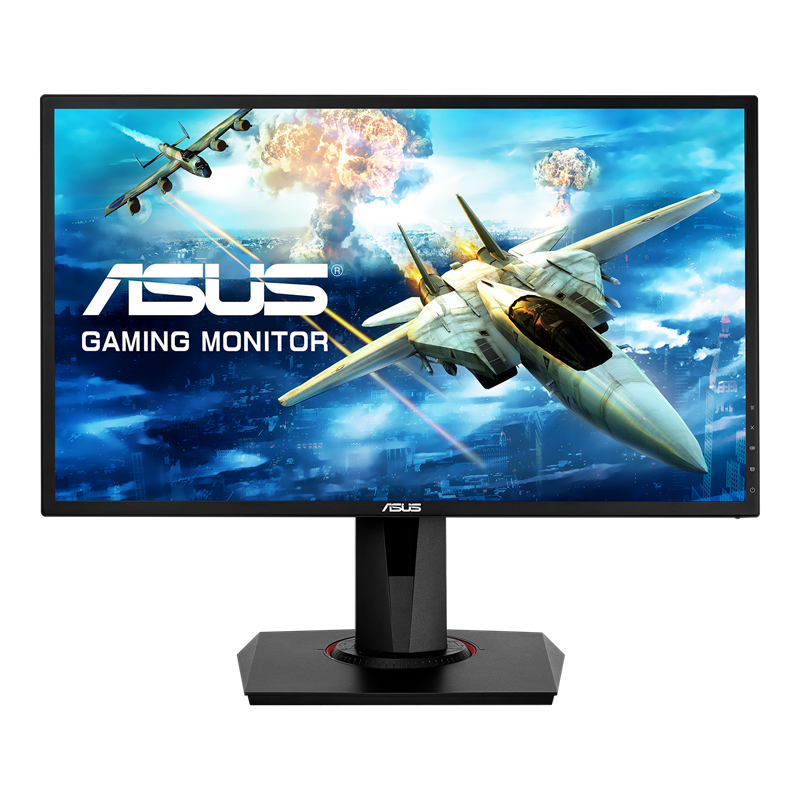
ASUS VG248QG
24″ 165Hz 0.5ms G-SYNC Compatible
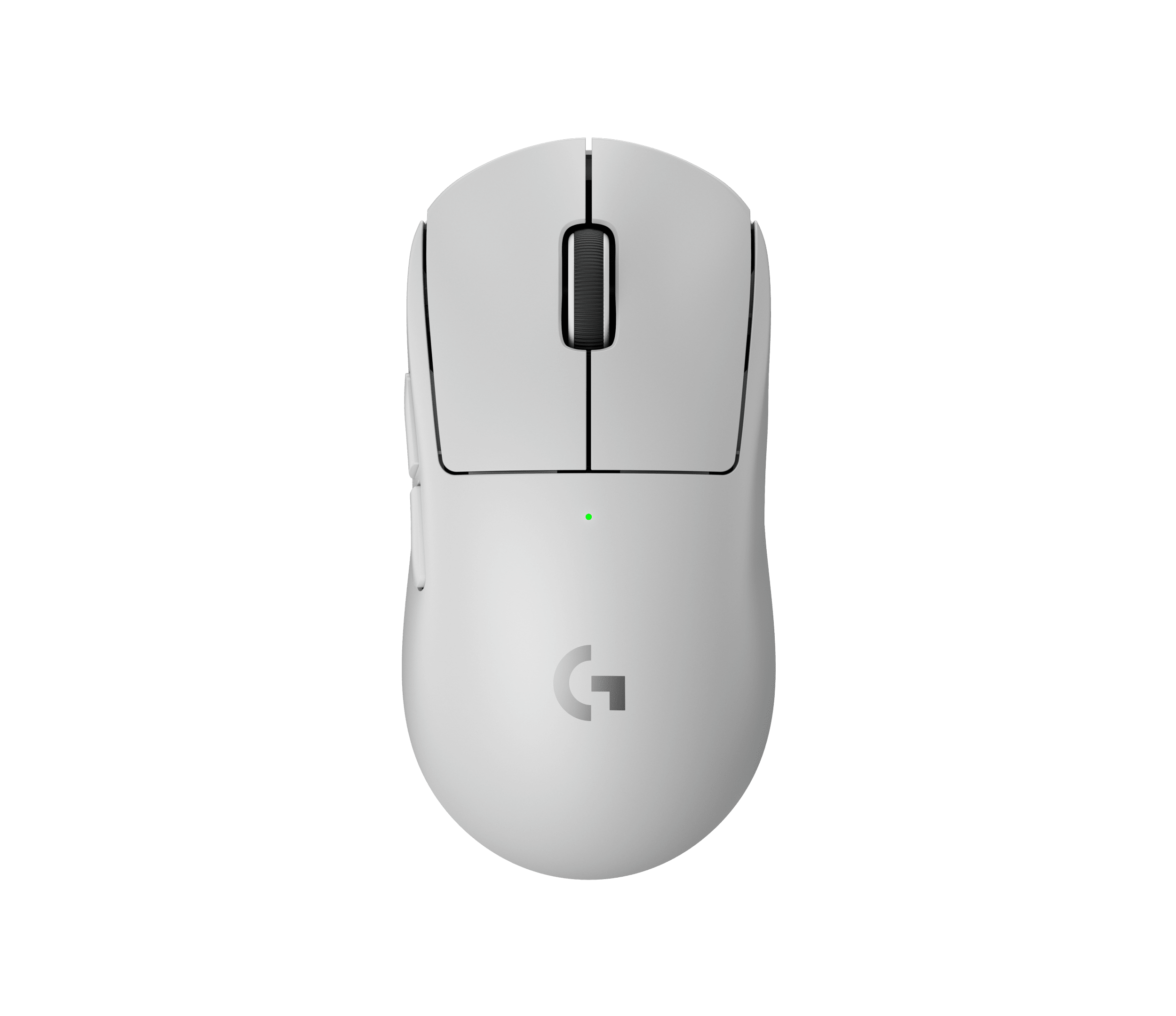
Logitech G Pro X Superlight 2
60g wireless, 2000Hz polling
The ASUS VG248QG is one of the fastest affordable monitors you can buy. 165Hz with G-SYNC Compatible support eliminates tearing without V-Sync, and the TN panel response times keep input lag in single digits. The Logitech G Pro X Superlight 2 weighs 60 grams with sub-1ms wireless latency via LIGHTSPEED. At 2000Hz polling, it reports your aim faster than most wired mice.
Frequently asked questions
What FPS should I target for competitive play?
120+ FPS is the sweet spot. Above that, diminishing returns. Below 90, you’re at a real disadvantage in ranked. If your hardware can’t hold 120 stable, prioritize framerate consistency over peak numbers.
Is DLSS better than FSR?
DLSS Quality looks slightly sharper than FSR Quality, but FSR 3.1 has closed the gap a lot. Use whichever your GPU supports. If you have the choice, DLSS still has the edge, but it’s close enough that it shouldn’t factor into a GPU purchase decision.
Why does my game stutter after updates?
Shader cache needs rebuilding. Go to Graphics Settings and click “Rebuild Shaders.” This fixes most post-patch stuttering. It takes a few minutes but saves you from choppy gameplay in your first session after updating.
Should I use Ray Tracing?
No. The performance hit is not worth it in a fast-paced shooter. Save RT for single-player games where you actually have time to look at the pretty reflections.
What’s the best resolution for competitive play?
1080p gives you the highest FPS and is still used by plenty of pros. 1440p is the sweet spot if your GPU can maintain 120+ FPS at that resolution. 4K is overkill for competitive play.
Summary
Start with Medium across the board, enable DLSS/FSR at Quality, turn off V-Sync, and adjust from there based on your framerate. The goal is consistent frames above your monitor’s refresh rate, not maximum visual fidelity. Your opponents running optimized settings will have a timing advantage if you don’t.
Season 7 drops March 20, so expect another round of shader rebuilding then. I’ll update this guide if anything changes significantly with the new season. For the deeper dive on reducing input delay across your whole setup, check our input lag guide.