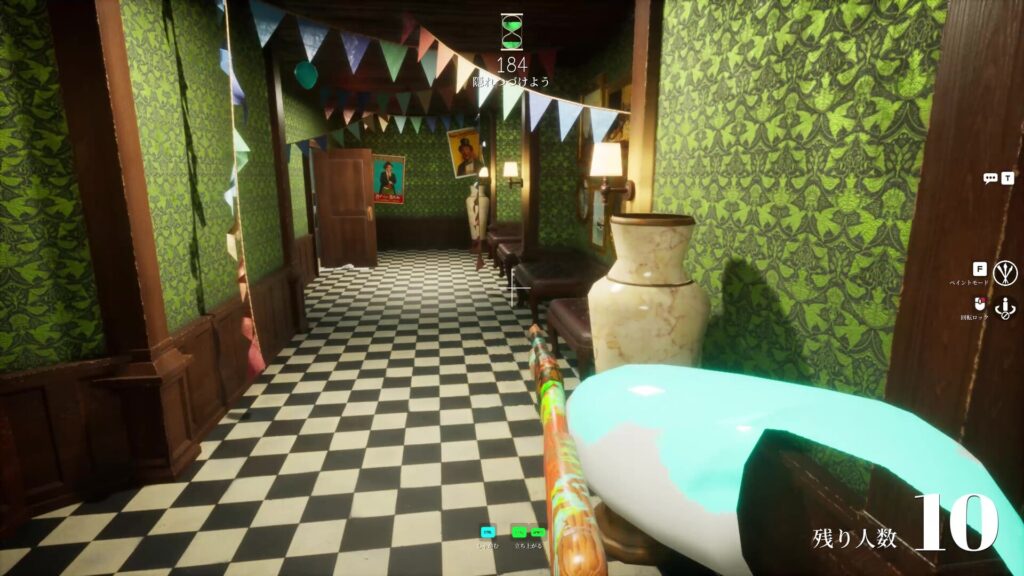
MECCHA CHAMELEON controls are simple to list and easy to fumble in the heat of a round. The game is keyboard and mouse only, with no official controller support, and most of what you do comes down to four keys: move, paint, pose, and rotate. It is also PC-only, so if you landed here wondering about PS5 or Xbox, our guide to every platform MECCHA CHAMELEON runs on has the console status. The catch is the prep timer. You have a short window to reach a spot, paint yourself, and lock a pose before the seekers are released, so knowing every keybind by reflex is the difference between a clean disguise and getting caught mid-brushstroke. Here is the full default control scheme, what each key does, and how to rebind anything that feels wrong.
Key Takeaways
- The four core keys: W A S D to move, F for paint mode, R for poses, and the middle mouse button to rotate while painting.
- No sprint button: movement is a single speed on W A S D, so “running” is just managing the prep timer well.
- Keyboard and mouse only: the game has no official controller support listed on Steam, so a gamepad needs a manual layout.
- Hiding controls: stick to a surface, then use Shift to release and the up and down keys to fine-tune your height.
- Rebind anytime: open Settings from the pause menu, remap one key at a time, and reset to defaults if an update shuffles your binds.
MECCHA CHAMELEON Controls: Full Keybind List
Below is the default PC control scheme. The game also shows live key prompts on the HUD and along the bottom of the screen, and those prompts update if you rebind anything, so treat the in-game Settings screen as the final word after a patch.
| Action | Default Key |
|---|---|
| Move | W A S D |
| Look / aim | Mouse |
| Crouch | Ctrl |
| Stand up / move up while stuck | Space |
| Lower yourself while stuck | Ctrl |
| Release wall-stick | Shift |
| Open paint mode | F |
| Open pose menu | R |
| Apply paint / tag as seeker | Left mouse |
| Sample a color (eyedropper) | Spacebar (in paint menu) |
| Rotate camera / model while painting | Middle mouse |
| Taunt | 1 |
| Toggle nameplates | 2 |
| Toggle see-through drawing view | 3 |
| Chat | T |
| Open Settings / rebind | Esc |
Movement and How to Run
Movement is the standard W A S D, with the mouse to look around. There is no dedicated sprint or run key, so when people ask how to run in MECCHA CHAMELEON, the honest answer is that you move at one steady speed and the real skill is using the prep timer well.
Plan your route during the preparation phase before the seekers are loose. Reach your spot first, then open the paint menu, not the other way around. Standing still in the open with the paint UI up is how you burn ten seconds and end up half-painted when the round starts. Crouch with Ctrl to slip under furniture and tuck into floor-level spots.
Paint Tool Controls
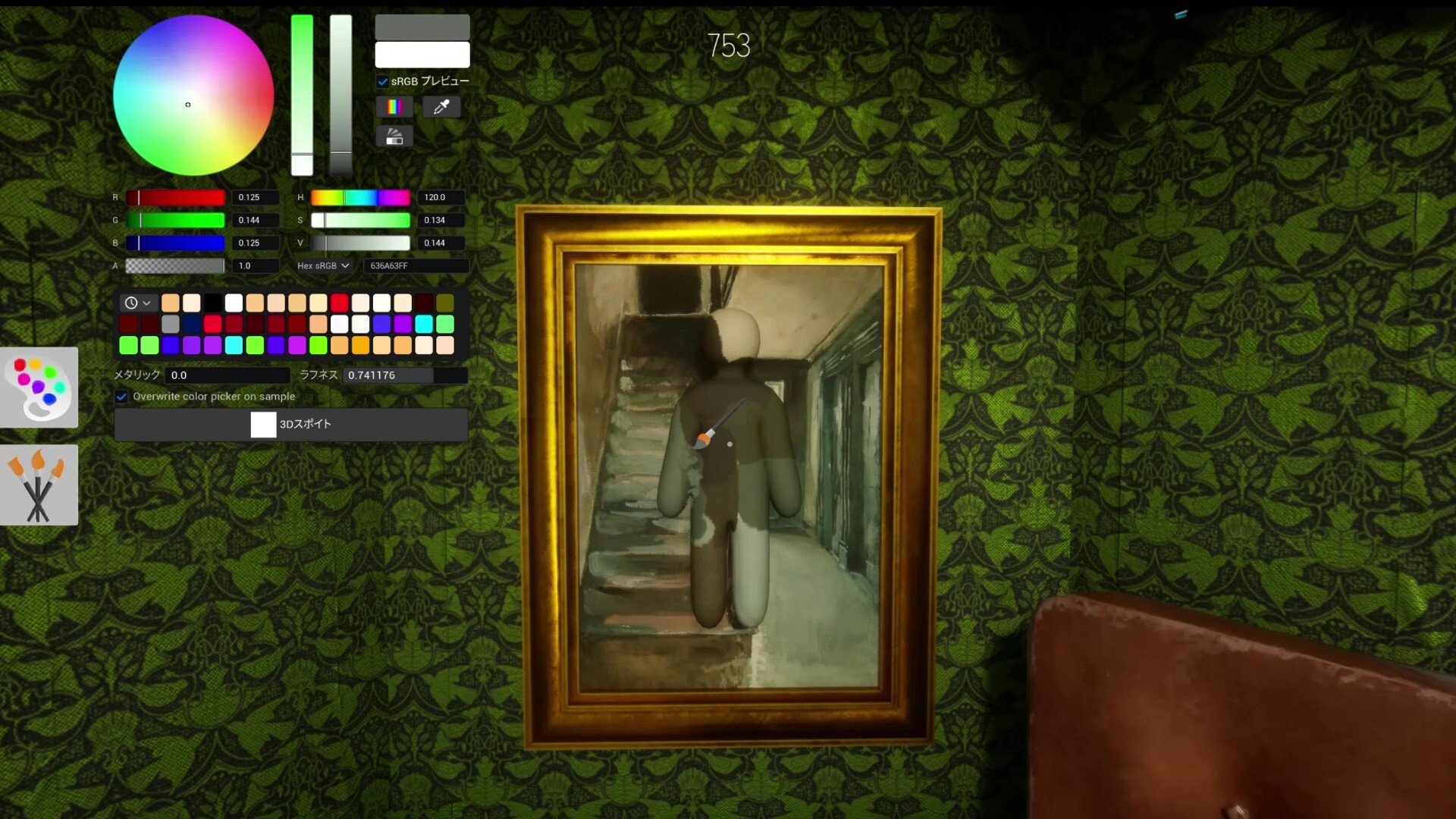
Press F to open paint mode. This is where most of your round happens, and it is closer to a small art program than a shooter menu. You get a color wheel, RGB and hex inputs, a row of preset swatches, and sliders for things like metallic and roughness.
The most useful tool is the eyedropper. Sample a color straight from a nearby surface so your paint matches the wall, floor, or object you are blending into instead of guessing from the wheel. Left mouse applies paint, and the middle mouse button rotates your view so you can paint every angle of your body. Match the lighting and texture of the surface, not just its base color, and a flat disguise turns into one a seeker walks right past.
⚡ Quick tip: Use the eyedropper on the exact surface you are touching, then take one step back and check your shading from the seeker’s likely sightline. A color that looks right up close often reads too bright from across the room.
Pose and Hiding Controls
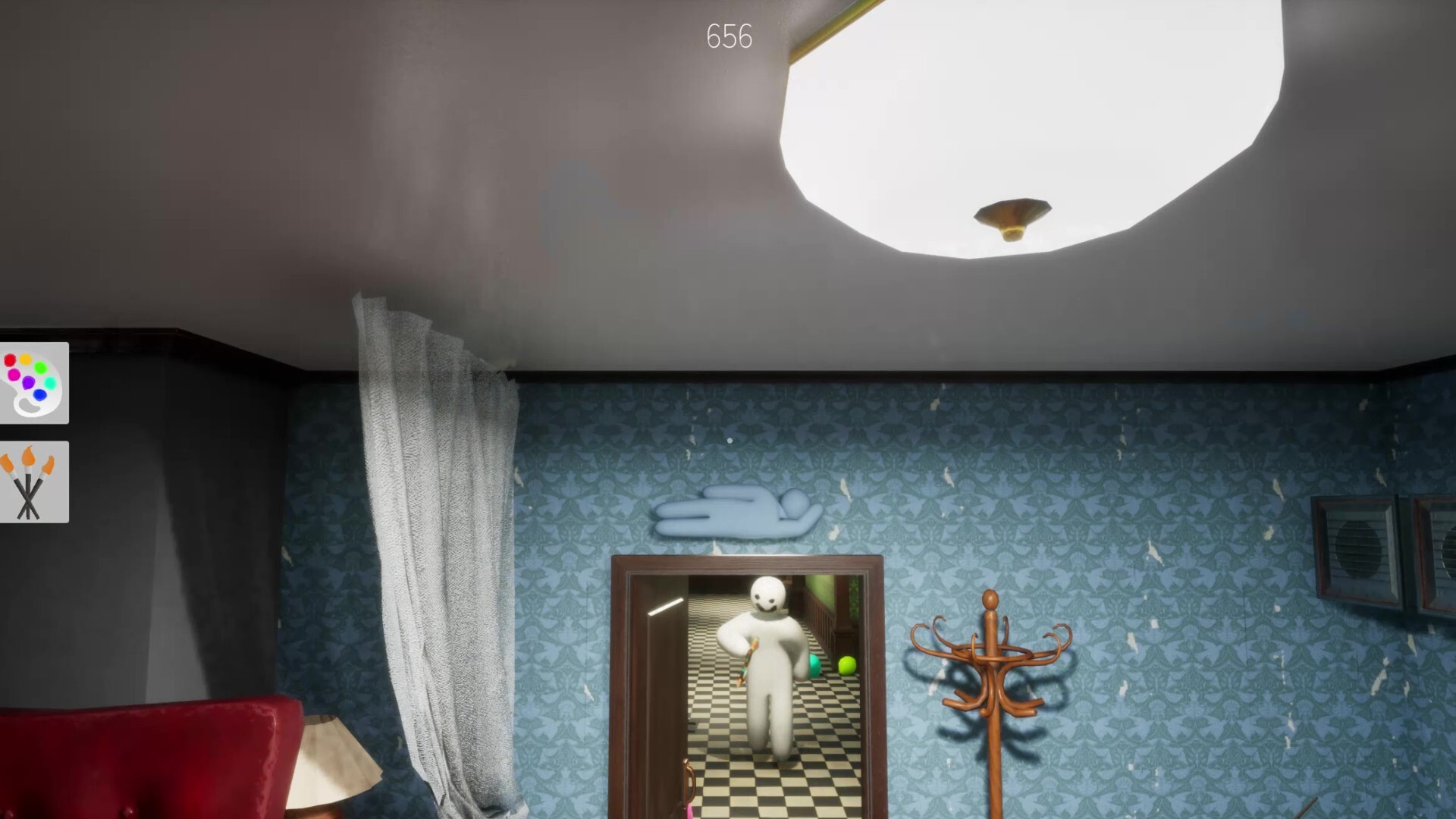
Press R to open the pose menu and lock your body into a shape that fits the spot. The right pose is the one that makes your silhouette read as an object instead of a crouched player.
You can also stick to surfaces to hide off the floor, posing as wall art, a vent, or a ceiling fixture. While stuck, Space raises your position and Ctrl lowers it, so you can line up flush with a picture frame or a shelf. Shift releases the stick and drops you back down when you need to move. These prompts appear along the bottom of the screen whenever they are available, so watch that bar while you set up.
Seeker Controls
Seekers play with the same movement and camera controls, with a couple of extra tools. Left mouse is your tag, used to confirm a suspected hider once you are close and aimed at them.
Two toggles help you read the room. The number keys switch on a see-through drawing view that highlights painted players through clutter, and a nameplate toggle that cleans up the screen when tags get in the way. Use 1 to taunt, T to chat with the lobby, and keep the see-through view in mind when a room looks too perfect to be empty.
Those are all the seeker inputs. Once you are hunting, reading shapes instead of colors matters more than any single keybind. If a seeker seems to know too much, our guide to cheats and hacks explains when it is the see-through view, a bug, or an actual cheater.
Controller Support and Steam Deck
MECCHA CHAMELEON has no official controller support. Steam does not list it under controller support, and the game is built around keyboard and mouse, so a gamepad will not map cleanly out of the box.
On Steam Deck the game is rated Playable rather than Verified, and the lack of native controller support is the reason. You will want a community control layout from the Deck’s controller settings, and painting is far easier with the touchscreen or trackpad than with a thumbstick because of the precision the color work needs. For the full Steam Input walkthrough, button mapping, and Steam Deck setup, see our dedicated guide on Meccha Chameleon controller support and Steam Deck.
How to Rebind Controls
Open Settings from the main menu or the pause screen to remap keys. Rebind one key at a time so you do not lose track of what moved, and test the new layout in a private room before you take it into a ranked lobby.
Because the game still gets frequent updates, a patch can occasionally reset or shuffle binds. If your controls suddenly feel off after an update, reset to defaults and remap only the handful of keys you care about. Bind your most-used poses to keys you can hit without looking, since the prep timer does not wait. If you are between modes, our breakdown of the MECCHA CHAMELEON game modes covers how the timers differ.
Precision Input for Painting
Since the whole game runs on keyboard and mouse and the paint tool rewards steady, precise input, your peripherals matter more here than in most party games. A responsive board, a light mouse for fine color work, and a large pad to sweep across give you a real edge during the prep scramble. For getting that color exact, our color picker and eyedropper guide breaks down sampling, the HSV and roughness sliders, and the answer check reveal. Prices are accurate as of June 2026.

Akko 5075 V3
A 75% hot-swappable board with crisp, fast keys for hitting paint and pose binds under the prep timer.

HyperX Pulsefire Haste 2 Mini
A lightweight wireless mouse that keeps the fine color-picking and camera rotation precise.

ASUS ROG Sheath
An extra-large pad so big mouse sweeps for painting and camera rotation never run out of room.
Away from the keyboard, Berry Finds tracks real-time Amazon deals on thousands of everyday products across home, kitchen, beauty, and more, so you never overpay on the stuff you buy regularly.
Frequently Asked Questions
What are the default controls in MECCHA CHAMELEON?
Move with W A S D and look with the mouse. Press F for paint mode, R for poses, left mouse to apply paint or tag, the middle mouse to rotate while painting, Ctrl to crouch, and T for chat. The game shows live key prompts on the HUD.
How do you run in MECCHA CHAMELEON?
There is no separate sprint or run key. You move at one steady speed with W A S D, so the goal is to plan your route and reach your hiding spot before the preparation timer ends rather than trying to move faster.
Does MECCHA CHAMELEON support controllers?
No. The game has no official controller support listed on Steam and is built for keyboard and mouse. On Steam Deck you need a community control layout, and painting is easier with the touchscreen than a thumbstick.
What is the paint key in MECCHA CHAMELEON?
F opens paint mode by default. Inside the menu you use the color wheel, the eyedropper to sample colors from nearby surfaces, left mouse to apply paint, and the middle mouse button to rotate your view.
How do you rebind keys in MECCHA CHAMELEON?
Open Settings from the main menu or pause screen and remap keys one at a time. Test the new layout in a private room first. If a patch shuffles your binds, reset to defaults and remap only the keys you customized.
How do you stick to a wall in MECCHA CHAMELEON?
Stick to a surface to pose off the floor as wall art or a fixture. While stuck, Space raises your position and Ctrl lowers it for alignment, and Shift releases the stick so you can drop down and move.
Summary
MECCHA CHAMELEON runs on a short list of keys: W A S D to move, F to paint, R to pose, left mouse to apply, and the middle mouse to rotate. There is no sprint key and no official controller support, so success comes from knowing the binds cold and using the prep timer instead of fighting the controls.
Set your binds in Settings, practice the paint and pose keys in a private room, and once the controls are muscle memory, our tips for winning as hider and seeker will take you the rest of the way.