If you are wondering about Meccha Chameleon controller support, here is the straight answer: the game has no native gamepad support. Meccha Chameleon is built for keyboard and mouse, and Steam does not list it with any controller support at all. That does not mean a controller is off the table, though. With a Steam Input layout you can wire a gamepad up yourself, and on a Steam Deck the game runs as a Playable title once you set it up. This guide covers exactly how to do that, what to expect, and why the paint mechanic still leans hard on a mouse.
Quick Answer
Meccha Chameleon does not natively support controllers. It is a keyboard-and-mouse game with no gamepad option in its menus. You can still use a controller through a Steam Input layout, and the game is Steam Deck Playable (not Verified), but precise painting is much easier with a mouse, trackpad, or touchscreen than a thumbstick.
Does Meccha Chameleon Have Controller Support?
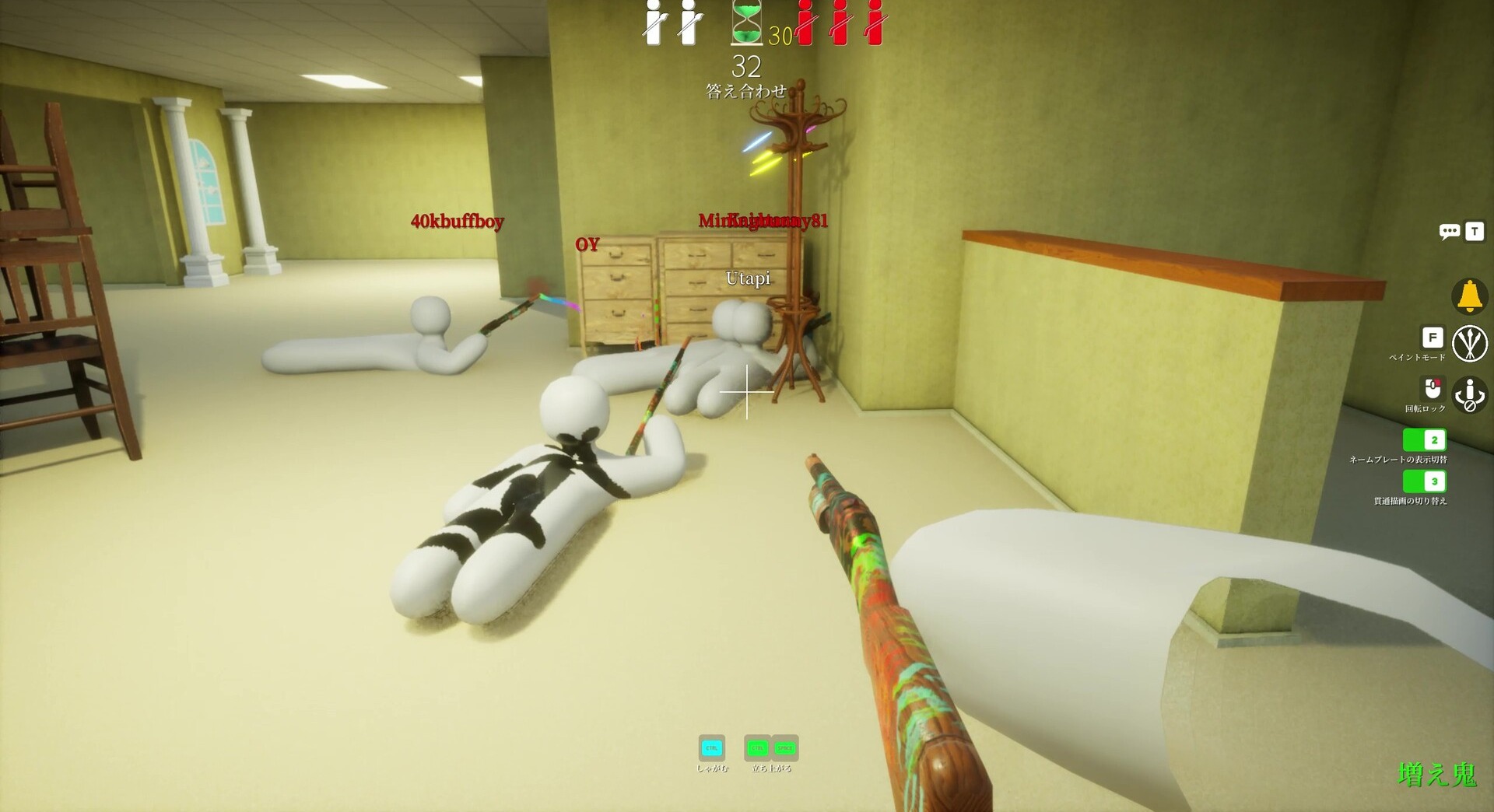
No, Meccha Chameleon does not have official controller support. The Steam store page lists no controller compatibility, the menus offer no gamepad option, and the developer (lemorion_1224) has not announced native support. The game launched on June 9, 2026 for Windows at $5.99, and everything about its design points at a mouse and keyboard.
The demand is clearly there. The game’s Steam discussion boards have threads asking for gamepad support, larger text for TV play, and rebindable keys, with players wanting to play it on handhelds and couch setups. For now those are open requests rather than confirmed features. If you want to know which devices the game even runs on first, our breakdown of every platform Meccha Chameleon supports covers the PS5, Xbox, Switch, and Mac questions.
So a controller is not plug-and-play. It is a project you set up yourself, and the rest of this guide walks through the two ways that actually work: Steam Input on desktop, and a custom layout on Steam Deck.
How to Use a Controller with Steam Input
Steam Input is the built-in tool that maps controller buttons to keyboard and mouse actions, and it is the cleanest way to get a gamepad working in a game that does not natively read one. Because Meccha Chameleon sees only keyboard and mouse, every controller button you use is really triggering a key press or a mouse movement underneath.
- Add the game and open its controller settings. In your Steam Library, select Meccha Chameleon, open the gear or controller icon, and choose to edit the Steam Input layout for it.
- Start from a gamepad-with-mouse template. Pick a layout that maps the right stick or a trackpad to mouse movement, since aiming the paintbrush and looking around both rely on the mouse.
- Map the core actions. Bind movement to the left stick (WASD), the paint menu to a face button (F), apply paint to the right trigger (left mouse), and the pose menu to another button (R). Leave crouch and the menu key on the remaining buttons.
- Lower your look sensitivity. Painting accurately needs slow, controlled aim, so set the stick or trackpad sensitivity well below what you would use in a shooter.
- Test in a private room before a real match. Run through painting, posing, the camera sweep, and joining a lobby so nothing surprises you mid-game.
Third-party remappers like reWASD can do the same job if you prefer them, but Steam Input is free, already installed, and enough for this game. Keep a keyboard and mouse within reach either way, because hosting a lobby and typing in chat are still far easier with them.
Playing Meccha Chameleon on Steam Deck
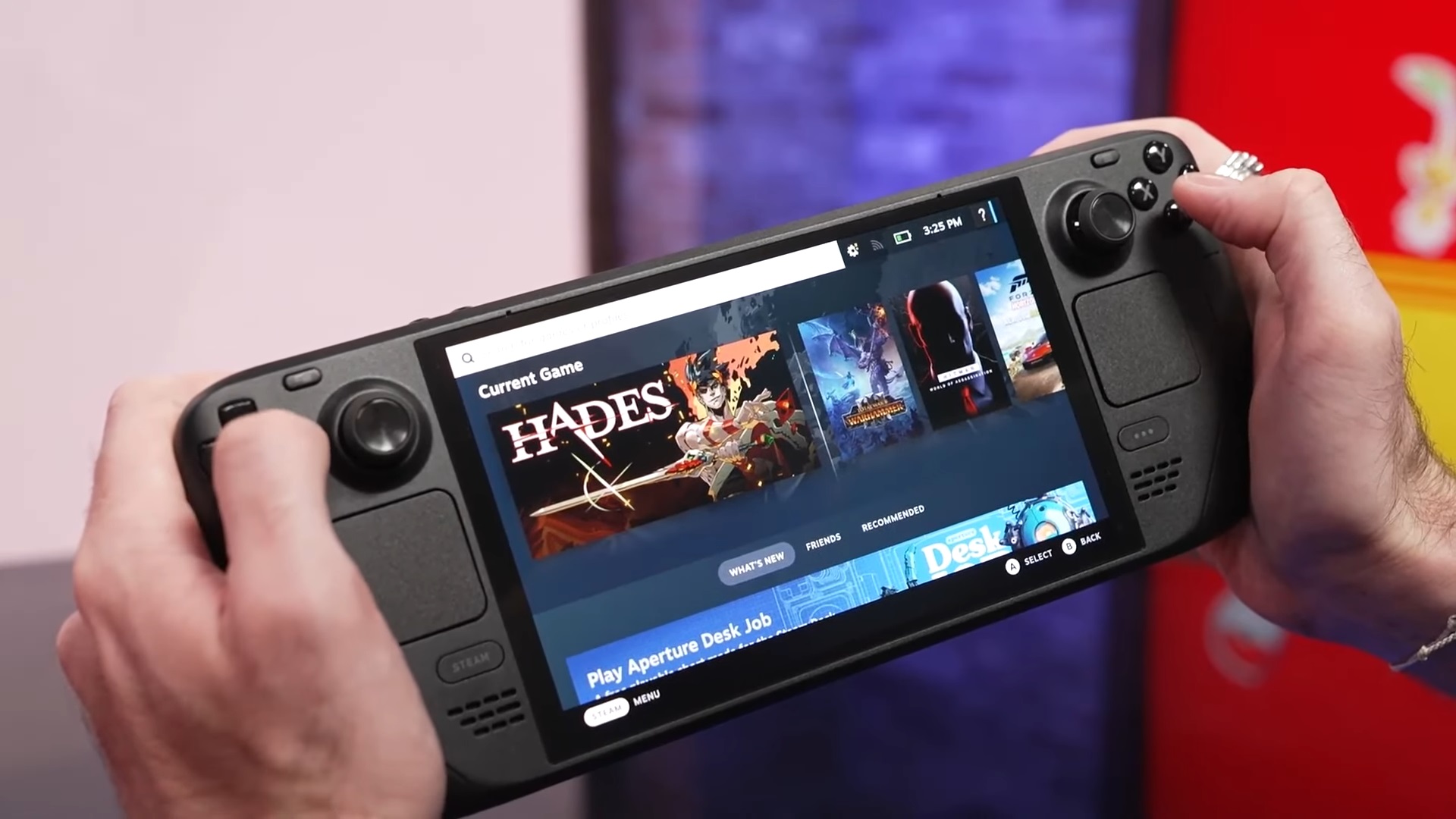
Meccha Chameleon is not Steam Deck Verified. It runs on the Deck, including the OLED model, but Valve has not given it the Verified badge, and the missing native controller support is the reason. Treat it as Playable: it works well once you build a control layout, just not the moment you tap play.
The single most important step is binding the paint action to the right trackpad set to mouse-style input. The trackpad is the closest thing the Deck has to real mouse aiming, and it makes color matching far more accurate than a thumbstick. A few settings that help:
- Paint on the right trackpad, not the stick. Painting a convincing disguise with a thumbstick is the fastest way to get spotted, so reserve the stick for movement.
- Move slowly while painting. Trackpad aim rewards small, deliberate strokes over quick flicks.
- Attach a mouse for serious sessions. If you are grinding ranked-style matches, a Bluetooth or dock-connected mouse gives you full brush control on the Deck.
- Fix a stretched picture with the display toggle. If the resolution looks pixelated or stretched, open the in-game display settings and switch between windowed and full-screen to force it to reapply.
One more option worth knowing: Steam Remote Play and Steam Link let you run the game on a desktop and stream it to the Deck, a laptop, or a phone while keeping mouse-level precision on the host PC. It is a good fit if you want the handheld screen without giving up real painting accuracy. Once you are set up, our crossplay and player count guide covers how to get into a lobby with friends.
Why Painting Still Favors Mouse and Keyboard
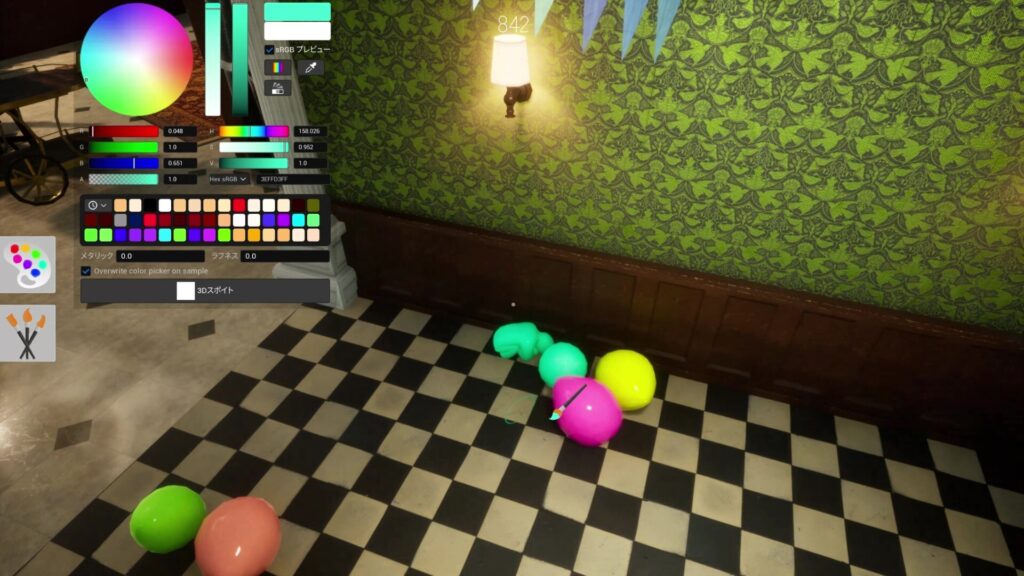
The whole game is built on one fiddly skill: painting your white body to match the surface behind you so the Seekers walk right past you. That means using a full color picker with a hue wheel, RGB and HSV sliders, a hex field, and an eyedropper that samples colors straight from the environment. It is closer to a paint program than a normal game HUD.
A mouse pointer lands on the exact pixel you want to sample and lays down clean strokes. A thumbstick drifts, overshoots, and forces you to correct, and every second you spend fixing a sloppy blend is a second a Seeker can use to spot you. That is why even controller and Deck players are pointed toward a trackpad, touchscreen, or an attached mouse for the painting itself. For the strategy side of blending in, our tips for winning as hider and seeker break down where to hide and how to paint faster.
Core Controls at a Glance
Whether you map these to a controller or play on keyboard, these are the inputs that matter most in a match. The game runs at a single movement speed with no sprint, so positioning early matters more than rushing.
| Action | Default Input |
|---|---|
| Move | W, A, S, D |
| Look / aim brush | Mouse |
| Open paint menu | F |
| Apply paint | Left mouse |
| Pose menu | R |
| Crouch | C |
| Chat | T |
That is the short version. For every keybind, the eyedropper controls, and the wall-stick mechanics, see our full Meccha Chameleon controls and keybinds guide.
Frequently Asked Questions
Does Meccha Chameleon have controller support?
No. Meccha Chameleon has no native controller support. It is built for keyboard and mouse, and Steam does not list it with any gamepad compatibility. You can still use a controller by creating a Steam Input layout that maps the buttons to keyboard and mouse actions.
Can you play Meccha Chameleon with a controller?
Yes, but only through a workaround. Set up a Steam Input layout (or a third-party remapper like reWASD) that maps your gamepad to the game’s keyboard and mouse controls. Map the right stick or a trackpad to mouse movement for aiming the paintbrush, and keep your look sensitivity low for accurate painting.
Is Meccha Chameleon Steam Deck compatible?
It runs on Steam Deck but is not Steam Deck Verified. The lack of native controller support keeps it at Playable status. Build a custom control layout, bind the paint action to the right trackpad as a mouse input, and it plays well, though attaching a mouse helps for precise color matching.
What is the best controller setup for Meccha Chameleon?
Use Steam Input with the right stick or a trackpad mapped to mouse look, movement on the left stick, and a low look sensitivity for accurate painting. On a Steam Deck, the right trackpad in mouse mode is the best tool for the paint brush. For competitive matches, an attached mouse still beats any stick.
Why is Meccha Chameleon keyboard and mouse only?
The core mechanic is painting your body to match a surface using a full color picker and an eyedropper that samples colors from the world. That precision work is much easier with a mouse than a thumbstick, which is why the game is designed around keyboard and mouse and has no built-in gamepad mode.
Is Meccha Chameleon on consoles or Mac?
No. As of June 2026 Meccha Chameleon is a Windows-only Steam game, with no PS5, Xbox, Switch, or Mac version. Console and Mac players are limited to streaming or remote-play workarounds from a Windows PC that owns the game.
Gear for Playing Meccha Chameleon Your Way
Since the game leans on precise input, the right peripherals make a real difference whether you play at a desk or on a Deck. A controller lets you test a Steam Input layout, the Steam Deck OLED is the handheld this whole guide is built around, and a precision mouse gives you the brush control the painting demands. As of June 2026, this lineup covers the console, the controller experiment, and the precise input the paint tool needs.

GameSir Kaleid Wired
A plug-and-play Xbox and PC pad with hall-effect sticks, ideal for testing a Steam Input layout.

Valve Steam Deck OLED 1TB
The handheld this guide is built around, with dual trackpads that make painting far more workable than a thumbstick.

HyperX Pulsefire Haste 2 Wireless
An ultralight 61g wireless mouse with a precision sensor, the input the paint tool was built around.
Between matches, Berry Finds tracks real-time Amazon deals on thousands of everyday products across home, kitchen, beauty, and more, so you never overpay on the stuff you buy regularly.
Summary
Meccha Chameleon has no native controller support, so a gamepad is a setup job rather than a checkbox. Steam Input lets you map a controller to the keyboard and mouse controls on desktop, and on Steam Deck the game is Playable once you bind the paint action to the right trackpad and keep your sensitivity low. It is not Steam Deck Verified, and the painting mechanic always plays better with a mouse, trackpad, or touchscreen than a thumbstick.
If you want to play on the couch or a handheld, set up the layout, lean on a trackpad or an attached mouse for the color work, and you will be blending into walls in no time. For the full input list, keep our controls and keybinds guide open on a second screen.