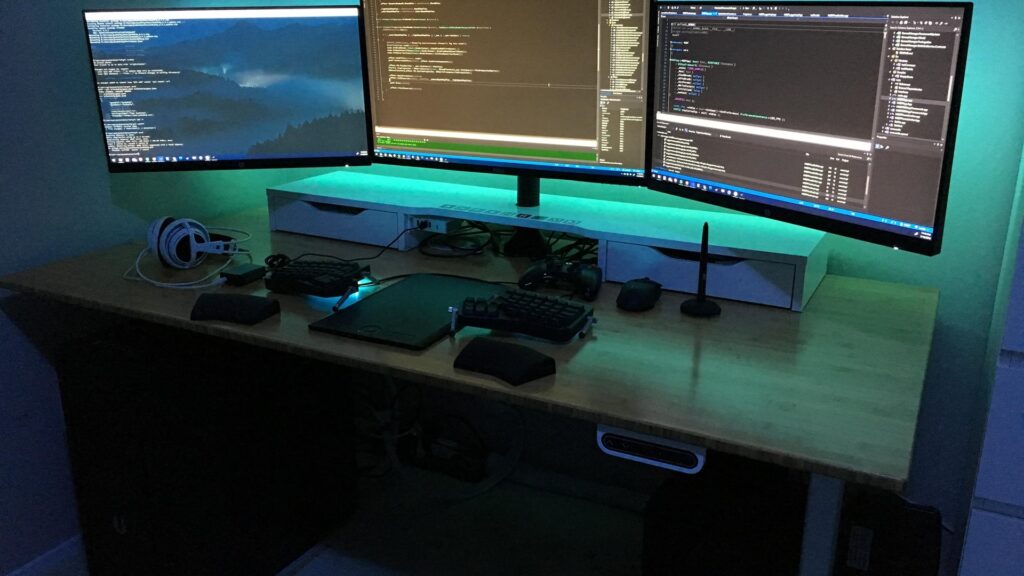
You code all day and game all night, but most monitor guides only care about one half of that equation. Gaming monitor lists obsess over refresh rates and ignore text clarity. Programming monitor lists recommend 60Hz panels that turn every game into a slideshow. If you split your time between an IDE and Steam, you need a monitor that handles both without compromise. We dug through spec sheets, community testing, and developer forums to find the monitors that render code sharply at 8 AM and push smooth frames at 8 PM.
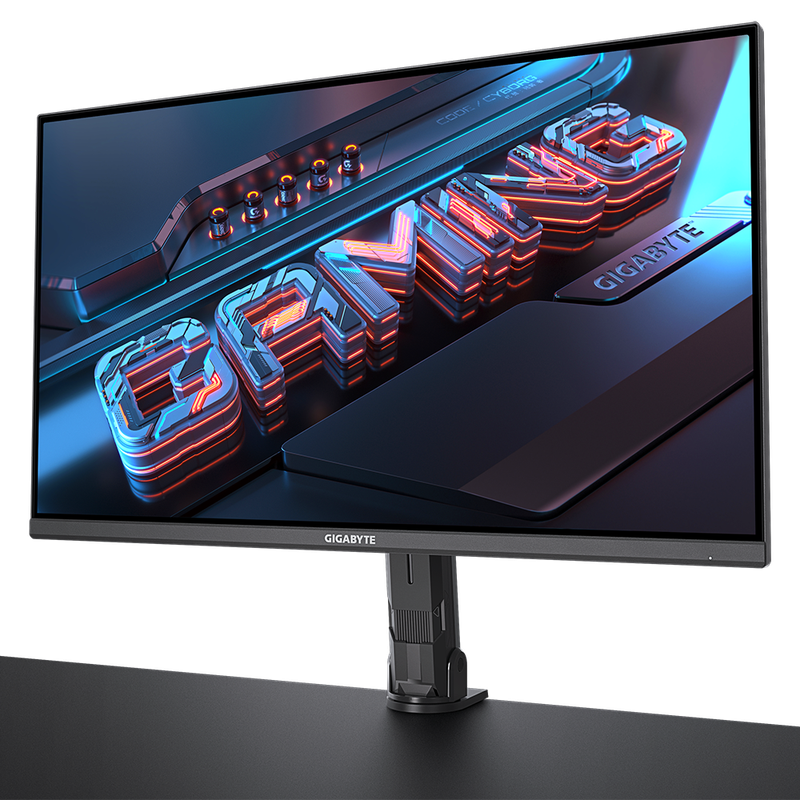
Gigabyte M32U
32″ 4K 144Hz IPS
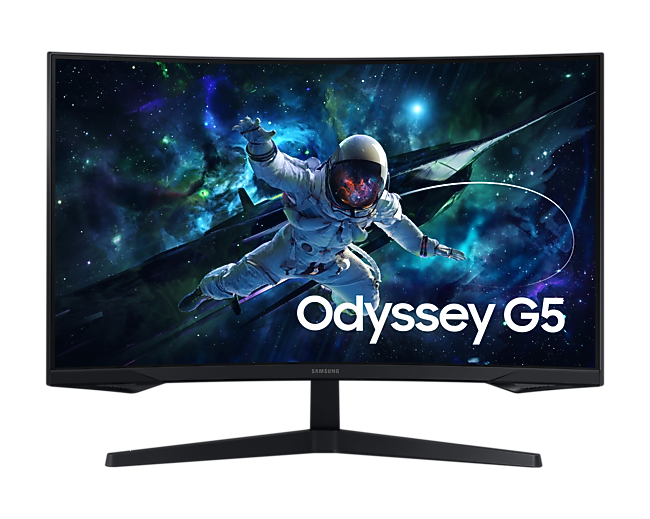
Samsung Odyssey G55C
32″ QHD 165Hz VA
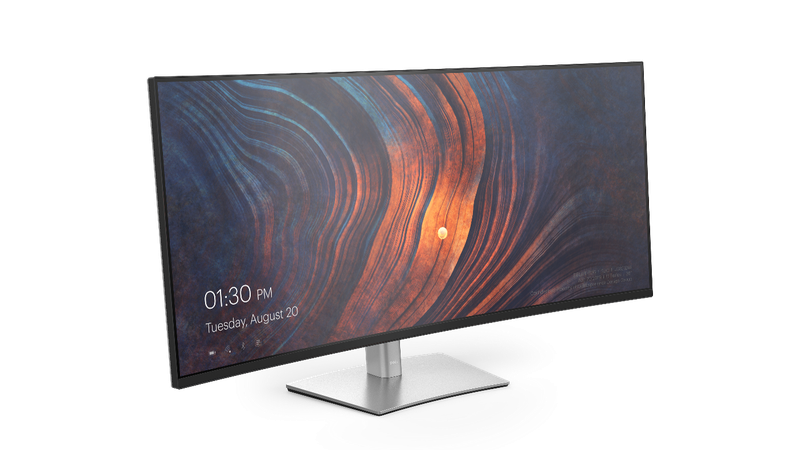
Dell U4025QW
40″ 5K2K 120Hz IPS
TL;DR
- The Gigabyte M32U is the sweet spot for most developer-gamers. 32 inches of 4K at 144Hz means sharp code and smooth frames for around $530.
- The Samsung Odyssey G55C is hard to beat at $200. QHD 165Hz with solid text clarity, though 1440p loses some sharpness at 32 inches compared to 4K.
- 4K resolution is the minimum for comfortable all-day coding in 2026. At 27-32 inches, 4K gives you ~110-163 PPI, which means crisp fonts without squinting. 1080p at 27+ inches looks soft.
- Refresh rate matters for both. 120Hz+ makes code scrolling noticeably smoother AND handles gaming. Avoid paying $600+ for a 60Hz panel unless you genuinely never game.
- What Makes a Good Monitor for Coding and Gaming?
- Quick Comparison
- Best Overall: Gigabyte M32U
- Best Budget: Samsung Odyssey G55C
- Best Ultrawide: LG UltraGear 34GP63A-B
- Best for Mac Developers: Dell U2725QE
- Best for Vertical Code: BenQ RD280U
- Best Premium: Dell U4025QW
- Ultrawide vs Dual Monitor Setup
- How to Choose
- Frequently Asked Questions
- Summary
What Makes a Good Monitor for Coding and Gaming?
Coding and gaming want different things from a monitor. Code needs pixel density for sharp text, wide color accuracy for design work, and USB-C connectivity for laptop docking. Gaming needs high refresh rates, low response times, and adaptive sync to prevent screen tearing. The monitors on this list hit both targets, though some lean harder in one direction than the other.
Here are the specs that matter most when you are shopping for a dual-purpose display:
Resolution and PPI. 4K (3840×2160) at 27-32 inches gives you 110-163 pixels per inch. That is sharp enough for hours of code reading without eye strain. QHD (2560×1440) works at 27 inches but gets soft at 32. Avoid 1080p at anything larger than 24 inches for coding.
Refresh rate. 144Hz is the sweet spot. Code scrolling feels smoother at high refresh rates (not just gaming), and 144Hz handles most competitive titles. It also keeps fast racers smooth, like the cars in our Forza Horizon 6 car tier list. 60Hz monitors save money but feel sluggish once you have experienced 120Hz+ scrolling through a long file.
Panel type. IPS delivers wide viewing angles and accurate colors, which is what you want for coding. IPS Black panels push the contrast ratio to 2000:1 (double standard IPS), making dark themes look noticeably better. VA panels offer even higher contrast (3000:1+) but have slower pixel transitions. OLED looks incredible but has text rendering quirks and burn-in risk from static IDE elements.
USB-C and connectivity. A single USB-C cable that carries video, data, and 65-90W of power delivery turns your monitor into a docking station. Plug in your laptop, start working. This is close to mandatory for MacBook developers and a huge convenience for everyone else. For gaming audio, pair your monitor with a solid headset built for long sessions.
Quick Comparison
| Monitor | Size | Resolution | Refresh | Panel | Price |
|---|---|---|---|---|---|
| Gigabyte M32U | 32″ | 4K (3840×2160) | 144Hz | IPS | ~$530 |
| Samsung G55C | 32″ | QHD (2560×1440) | 165Hz | VA | ~$200 |
| LG 34GP63A-B | 34″ | UWQHD (3440×1440) | 160Hz | VA | ~$280 |
| Dell U2725QE | 27″ | 4K (3840×2160) | 60Hz | IPS Black | ~$600 |
| BenQ RD280U | 28″ | 4K+ (3840×2560) | 60Hz | IPS | ~$660 |
| Dell U4025QW | 40″ | 5K2K (5120×2160) | 120Hz | IPS | ~$1,620 |
Best Overall: Gigabyte M32U
The monitor developer communities recommend most for dual-purpose use. 4K resolution at 32 inches delivers 137 PPI, sharp enough for comfortable code reading at 100% scaling. The 144Hz IPS panel handles competitive gaming without compromise.
The Gigabyte M32U shows up in almost every Reddit thread asking “what monitor for coding and gaming?” and for good reason. It nails the fundamentals: 4K for crisp text, 144Hz for smooth gaming, and IPS for accurate colors and wide viewing angles. You can read ~128 lines of code at once at default scaling versus ~82 on a 25-inch 1440p panel.
The built-in KVM switch is a productivity bonus. Connect your work laptop and gaming PC simultaneously and swap between them with a button press. Color accuracy is strong out of the box (close to Delta E under 2), which matters if you do any front-end work alongside coding. The stand is the weakest point. It feels cheap compared to Dell or BenQ stands, but that is easy to fix with a $30 VESA arm.
Pros
- 4K + 144Hz, the ideal dual-purpose combo
- 137 PPI at 32 inches, sharp text without scaling
- KVM switch for multi-device setups
- Strong color accuracy for design work
- HDMI 2.1 for console gaming
Cons
- Stand feels flimsy, VESA arm recommended
- No USB-C power delivery
- HDR performance is mediocre
Best Budget: Samsung Odyssey G55C
A 32-inch, 165Hz gaming monitor for $200 that pulls double duty as a coding display. The VA panel delivers 3000:1 contrast, which makes dark-themed code editors look noticeably better than IPS alternatives.
The Samsung Odyssey G55C is the entry point for developers who want high refresh gaming without spending $500+. At $200 (regularly on sale for under $200 at Amazon), it is less than half the price of the M32U. The 1000R curve takes some getting used to for coding, but most users adapt within a week.
The trade-off is resolution. QHD (2560×1440) at 32 inches gives you ~93 PPI. That is fine for gaming but noticeably less sharp than 4K for reading small code text. You will want to bump font sizes up a notch in your editor. The VA panel also has slower pixel transitions than IPS, which can produce faint ghosting in fast-paced games. For the price, these are minor sacrifices. If you are upgrading from a basic 1080p monitor and want something that games well on a budget, this is the one.
Pros
- Incredible value at ~$200
- 165Hz for smooth gaming
- 3000:1 contrast ratio (dark themes look great)
- FreeSync Premium, G-Sync compatible
Cons
- QHD at 32″ means lower PPI than 4K
- VA panel can ghost in fast-paced games
- 1000R curve may distort edges for spreadsheet work
- No USB-C connectivity
Best Ultrawide: LG UltraGear 34GP63A-B
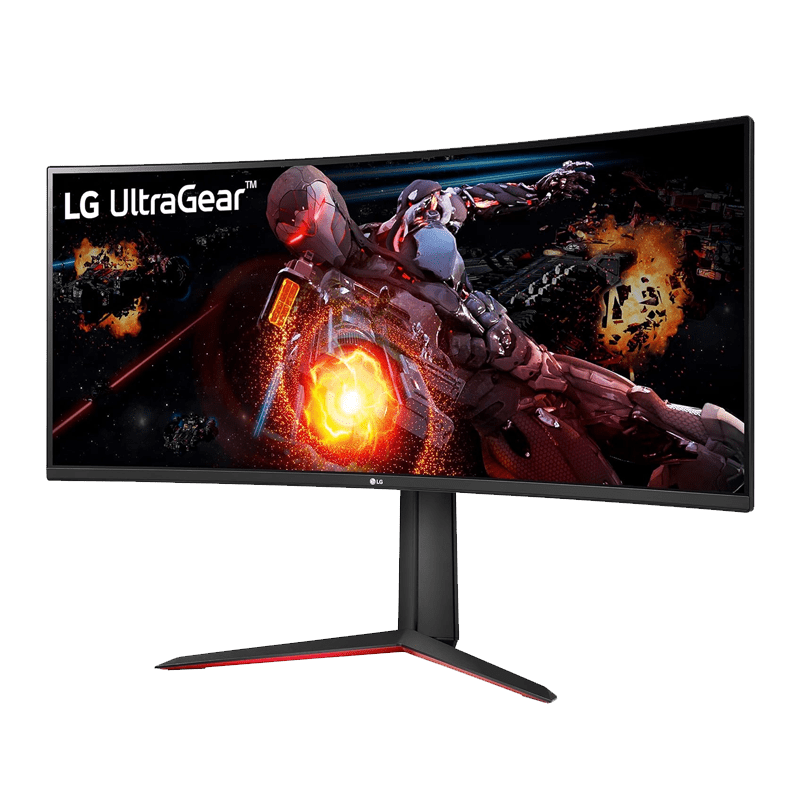
A 34-inch ultrawide that replaces a dual-monitor setup for under $300. The 21:9 aspect ratio fits a code editor, terminal, and browser side by side with no bezel gap in the middle.
Ultrawides are polarizing, but developers who switch to them rarely go back. The LG 34GP63A-B gives you 3440×1440 pixels of horizontal workspace at 160Hz. That is enough room to tile VS Code, a terminal, and Chrome side by side without overlapping. For gaming, the extra-wide field of view is immersive in everything from RPGs to racing games.
The VA panel delivers 3000:1+ contrast, which is fantastic for dark-themed editors and cinematic games alike. AMD FreeSync Premium keeps frame delivery smooth. HDR 10 support is included, though the 350-nit brightness means HDR performance is functional rather than impressive. At ~$280, this is one of the most affordable ways to get into ultrawide gaming and coding. The main downside is the 1440p vertical resolution. If you split the screen into thirds, each column is narrow enough that you will want to increase font size. For your desk audio, check our picks for gaming earbuds that work across platforms.
Pros
- Replaces dual monitors with no bezel gap
- 160Hz for gaming + smooth code scrolling
- 3000:1+ VA contrast for dark themes
- Under $300
Cons
- 1440p vertical resolution limits vertical code lines
- VA ghosting in very fast games
- No USB-C, no built-in hub
- Some apps handle 21:9 aspect ratio poorly
Best for Mac Developers: Dell U2725QE
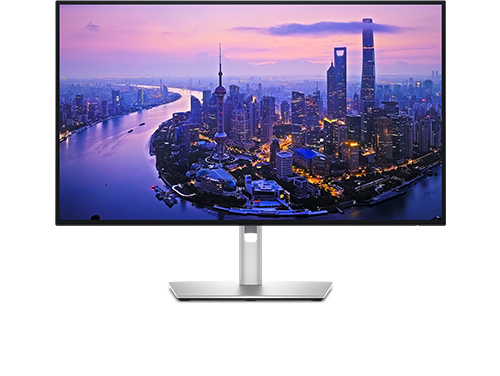
The monitor Apple developers would build if Apple made affordable monitors. 4K at 27 inches (163 PPI, Retina-level sharpness), IPS Black for 3000:1 contrast, and 90W USB-C power delivery through a single cable.
The Dell U2725QE is the successor to the U2723QE, one of the most recommended monitors on developer forums for the past three years. The IPS Black panel doubles the contrast ratio of standard IPS (from ~1000:1 to 3000:1), which means dark themes actually look dark instead of washed-out gray. At 163 PPI, text rendering at 27 inches is the sharpest on this list.
The 90W USB-C port charges your MacBook while carrying video and data through a single cable. The built-in KVM switch lets you share the monitor, keyboard, and mouse between two machines. DisplayPort daisy-chaining means you can connect a second Dell monitor to this one instead of running a second cable to your laptop. The big caveat: 60Hz. This is a productivity-first monitor. If you play competitive shooters, look at the M32U instead. But if you code 8 hours a day and only game casually on weekends, the text clarity and USB-C hub here are worth the refresh rate trade-off.
Pros
- 163 PPI (sharpest text on this list)
- IPS Black with 3000:1 contrast
- 90W USB-C, single-cable docking
- KVM switch + DisplayPort daisy-chain
- Factory-calibrated, Delta E under 2
Cons
- 60Hz only (not suitable for gaming)
- $600 for a 60Hz panel is a tough sell
- 27″ may feel small coming from 32″
Best for Vertical Code: BenQ RD280U
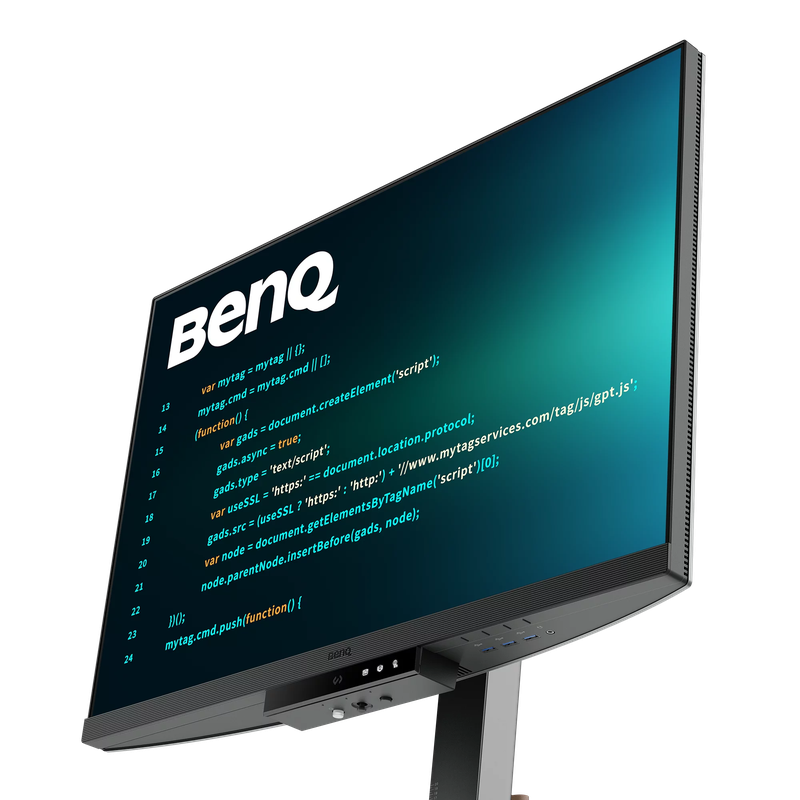
The only monitor on this list built from the ground up for programmers. The 3:2 aspect ratio adds 33% more vertical pixels than standard 16:9, letting you see more lines of code without scrolling.
The BenQ RD280U has a 3:2 aspect ratio (3840×2560), which gives you 400 extra vertical pixels compared to a standard 4K panel. That translates to roughly 20-30 more lines of code visible at any time. If you spend your days scrolling through files, that extra vertical space adds up fast. PCWorld called it “the monitor programmers crave.”
BenQ packed in coding-specific features: dedicated dark and light theme display modes that optimize font rendering, a Nano Matte anti-glare coating, and the MoonHalo ambient backlight that reduces eye strain during late-night sessions. The 90W USB-C port handles laptop charging and data. The KVM switch supports multi-machine setups. The trade-off is the same as the Dell: 60Hz means gaming is limited to casual titles. The 3:2 aspect ratio also means widescreen games will have black bars on the sides. This is a coding-first monitor that tolerates gaming, not the other way around. Pair it with a solid mechanical keyboard and you have a serious coding station.
Pros
- 3:2 ratio shows 33% more vertical code
- Dedicated coding display modes
- MoonHalo ambient backlight for eye comfort
- 90W USB-C with KVM switch
- Nano Matte anti-glare coating
Cons
- 60Hz (not for gaming)
- 3:2 means black bars in widescreen games
- $660 is expensive for a 60Hz panel
- Niche form factor with limited resale value
Best Premium: Dell U4025QW
The endgame monitor for developers and gamers who want one display to rule everything. 5120×2160 resolution across 40 curved inches, 120Hz refresh rate, Thunderbolt 4 hub with 140W power delivery, and a KVM switch.
The Dell U4025QW is what you get when a company builds an ultrawide without cutting corners. The 5K2K resolution (5120×2160) delivers text clarity that rivals 27-inch 4K panels across a 40-inch canvas. The 120Hz refresh rate is adequate for casual and mid-tier gaming, though competitive FPS players will want more. Delta E averages 0.11 out of the box, which is near-perfect color accuracy.
The Thunderbolt 4 hub with 140W power delivery is the standout feature. A single cable connects your MacBook Pro, charges it at full speed, and gives you access to the built-in USB hub, ethernet, and KVM switch. You can connect two machines and toggle between them with a hotkey. The monitor replaces a $200+ Thunderbolt dock entirely. At $1,620 on Amazon (down from $1,920 MSRP), it is expensive. But if you factor in the cost of the Thunderbolt dock it replaces, the gap narrows. Community members on Reddit call this “the king for office work” and multiple refurbished units appear on Dell Outlet for significantly less. If you are running a powerful laptop and want a single monitor that does everything, this is the one.
Pros
- 5K2K resolution across 40 inches
- 120Hz for smooth scrolling and casual gaming
- Thunderbolt 4 with 140W power delivery
- Replaces a Thunderbolt dock entirely
- Near-perfect factory color calibration
Cons
- $1,620 is a significant investment
- 120Hz is not enough for competitive gaming
- Stand wobbles, which is inexcusable at this price
- HDR performance is underwhelming (no local dimming)
Ultrawide vs Dual Monitor Setup
This is the most debated question in developer monitor discussions, and the honest answer depends on how you work.
Go ultrawide if you work primarily in one IDE with split panes, do web development with code plus browser preview, and want a cleaner desk with fewer cables. Modern tiling window managers make ultrawide workflows seamless. There is no bezel cutting through your workspace, and one monitor means one cable, one stand, one power connection.
Go dual monitors if you juggle multiple contexts: terminals, databases, chat, documentation, and a video call all visible simultaneously. The physical separation between two screens acts as a mental anchor. “Work on the left, communications on the right” is a common setup. You can also put a secondary monitor in portrait mode for docs, chat, or log tailing. A fast symmetrical connection helps here too, which is why we walk through moving from Comcast cable to Frontier Fiber for smoother video calls and uploads.
The setup that shows up most in developer communities is a compromise: one 27-32 inch 4K monitor in landscape as the primary, with a smaller 24-inch monitor in portrait orientation as a secondary for reference material. This gives you the focused coding workspace on your main screen and persistent visibility of docs, Slack, and terminal output on the side. For reduced input lag during competitive gaming sessions, the primary monitor handles that while the secondary stays for comms.
How to Choose
Mostly coding, some gaming: Get the Dell U2725QE ($600) or BenQ RD280U ($660). Both prioritize text clarity and USB-C connectivity over refresh rate. Your games will run at 60fps, which is perfectly fine for single-player titles, strategy games, and anything that is not a competitive shooter.
Equal coding and gaming: The Gigabyte M32U ($530) is the answer. 4K for sharp code, 144Hz for smooth gaming, no compromises on either side. This is the monitor most developer-gamers end up with.
Tight budget: The Samsung Odyssey G55C ($200) gives you 165Hz gaming with acceptable coding quality. The lower PPI at QHD is noticeable compared to 4K, but at one-third the price of the M32U, the value is hard to argue with.
Want ultrawide: The LG 34GP63A-B ($280) gives you 34 inches of ultrawide workspace at 160Hz for under $300. If your budget stretches further, the Dell U4025QW ($1,620) is the endgame ultrawide with 5K2K resolution and a Thunderbolt dock built in.
Frequently Asked Questions
Is 4K necessary for coding, or is 1440p enough?
4K at 27-32 inches gives you 110-163 PPI, which renders code text cleanly without anti-aliasing artifacts. 1440p at 27 inches (109 PPI) is fine for most people, but at 32 inches the pixel density drops to 93 PPI and text starts to look soft. If you are spending 6+ hours reading code daily, 4K is worth the upgrade.
Does refresh rate matter for coding, or is it just a gaming spec?
It matters more than most people expect. Scrolling through a long file at 144Hz feels noticeably smoother than at 60Hz. The cursor movement is crisper, window dragging is more responsive, and general desktop use feels faster. You will not go back to 60Hz once you experience 120Hz+ for everyday work.
Should I get an OLED monitor for coding and gaming?
OLED monitors deliver incredible contrast and vibrant colors for gaming, but they have two issues for coding. First, static IDE elements (menu bars, sidebars, status bars) can cause burn-in over time. Second, OLED subpixel layouts often produce slightly blurry text rendering on Windows and macOS compared to IPS panels. OLED works well as a secondary gaming monitor, but IPS or IPS Black is safer as a primary coding display.
What is IPS Black, and is it worth the extra cost?
IPS Black is a newer IPS panel technology that doubles the contrast ratio from ~1000:1 to 2000-3000:1. The result is deeper blacks and better text readability on dark themes without sacrificing the viewing angles and color accuracy that IPS is known for. It splits the difference between standard IPS (great colors, weak contrast) and VA (great contrast, narrow viewing angles). If you use a dark theme in your editor, IPS Black makes a noticeable difference.
Is a curved monitor OK for coding?
Mild curves (1500R-1800R) work fine for coding and most users adapt within a few days. Aggressive curves (1000R) can cause slight distortion at the edges, which some developers find distracting for spreadsheets and design work. For monitors 32 inches and larger, a slight curve (1500R+) actually helps by keeping the screen edges equidistant from your eyes, reducing the need to move your head.
Summary
For most developer-gamers, the Gigabyte M32U hits the right balance: 4K for clean code, 144Hz for smooth games, and a price that does not require justifying the purchase to yourself for a week. On a budget, the Samsung Odyssey G55C delivers 165Hz gaming for $200 with acceptable coding quality. And if you want the endgame setup, the Dell U4025QW replaces both your monitor and your Thunderbolt dock with a single 40-inch 5K2K display.
The right choice comes down to how you split your time. Code-heavy developers who game casually should prioritize text clarity (the Dell U2725QE or BenQ RD280U). Balanced users should get the M32U. And budget-conscious buyers should grab the G55C and spend the savings on a good keyboard and comfortable headphones instead.
| Need | Recommendation |
|---|---|
| Best overall coding + gaming | Gigabyte M32U (~$530) |
| Best on a budget | Samsung Odyssey G55C (~$200) |
| Best ultrawide | LG UltraGear 34GP63A-B (~$280) |
| Best for Mac developers | Dell U2725QE (~$600) |
| Best for vertical code | BenQ RD280U (~$660) |
| Best premium endgame | Dell U4025QW (~$1,620) |