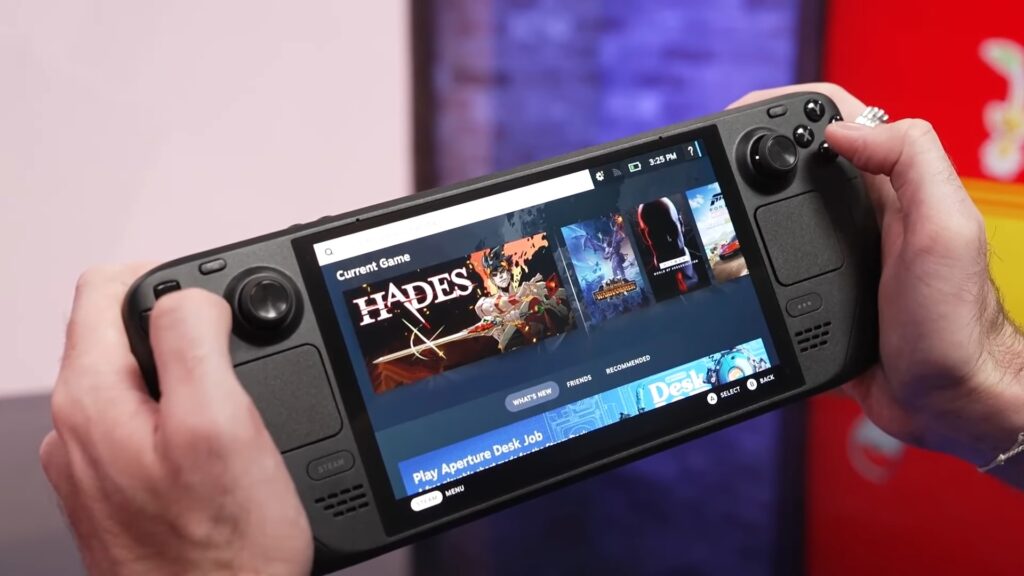
If you are hunting for a GameStream alternative, here is the good news: the free tool the community built is better than the one NVIDIA took away. For about a decade, NVIDIA GameStream let you stream any PC game to your TV, phone, or tablet over your home network, for free, built right into GeForce Experience. Then NVIDIA removed it, got hit with a proposed class action, and started steering people toward its paid GeForce NOW service. In response, the open-source community reverse-engineered the protocol and built a replacement that works on NVIDIA, AMD, and Intel hardware. It is called Sunshine, it pairs with a client called Moonlight, and it costs nothing. This guide explains what happened and walks you through setting it up.
Key Takeaways
- GameStream is gone: NVIDIA removed it from Shield TV through a mandatory update on March 29, 2023, after a December 2022 end-of-service notice.
- The free replacement is Sunshine: an open-source, GPL-3.0 game stream host with around 38,000 GitHub stars that you run on your own PC.
- It works on any GPU: NVIDIA’s tool only ran on NVIDIA cards, but Sunshine supports NVIDIA, AMD, and Intel hardware encoding.
- Moonlight is the client: the open-source app that started as a reverse-engineered GameStream client, running on phones, TVs, tablets, handhelds, and more.
- No subscription, no cap: unlike GeForce NOW, which now limits subscribers to 100 hours a month, Sunshine and Moonlight are free with no playtime cap.
What Happened to NVIDIA GameStream
NVIDIA introduced GameStream around 2013 and built it into GeForce Experience. It let you stream games from your gaming PC to a Shield device, a phone, a tablet, or a TV over your local network, with no subscription and no time limit. For roughly ten years, it just worked.
In December 2022, NVIDIA issued an end-of-service notice. Then, on March 29, 2023, a mandatory Shield TV update removed GameStream entirely, renaming the Shield’s “NVIDIA Games” app to “GeForce NOW Cloud Gaming.” Customers who had bought Shield devices specifically for GameStream lost the feature on hardware they already owned.
About three weeks later, on April 18, 2023, a proposed class action was filed against NVIDIA (Davenport et al. v. Nvidia Corporation). The complaint covered the Shield TV, Shield TV Pro, and Shield K1 Tablet, and alleged that NVIDIA had promoted GameStream as a key selling point, then removed it through a forced update, leaving owners with what the suit called inferior alternatives. NVIDIA pointed users toward Valve’s Steam Link app and its own GeForce NOW service.
Why GeForce NOW Is Not the Same Deal
GeForce NOW is a different product than GameStream. GameStream streamed your own games from your own PC for free. GeForce NOW is a paid cloud service that runs games on NVIDIA’s servers, and it has its own ongoing costs and limits.
The service has two paid tiers: Performance at $9.99 a month and Ultimate at $19.99 a month. On January 1, 2026, NVIDIA added a 100-hour monthly playtime cap to all subscriptions. Past that, you buy more time in 15-hour blocks, at $2.99 on Performance or $5.99 on Ultimate, with up to 15 unused hours rolling over. NVIDIA says the cap affects roughly 6% of users. For anyone who used GameStream to play their own library for hours at a time, a metered cloud subscription is a hard sell.
Meet Sunshine and Moonlight
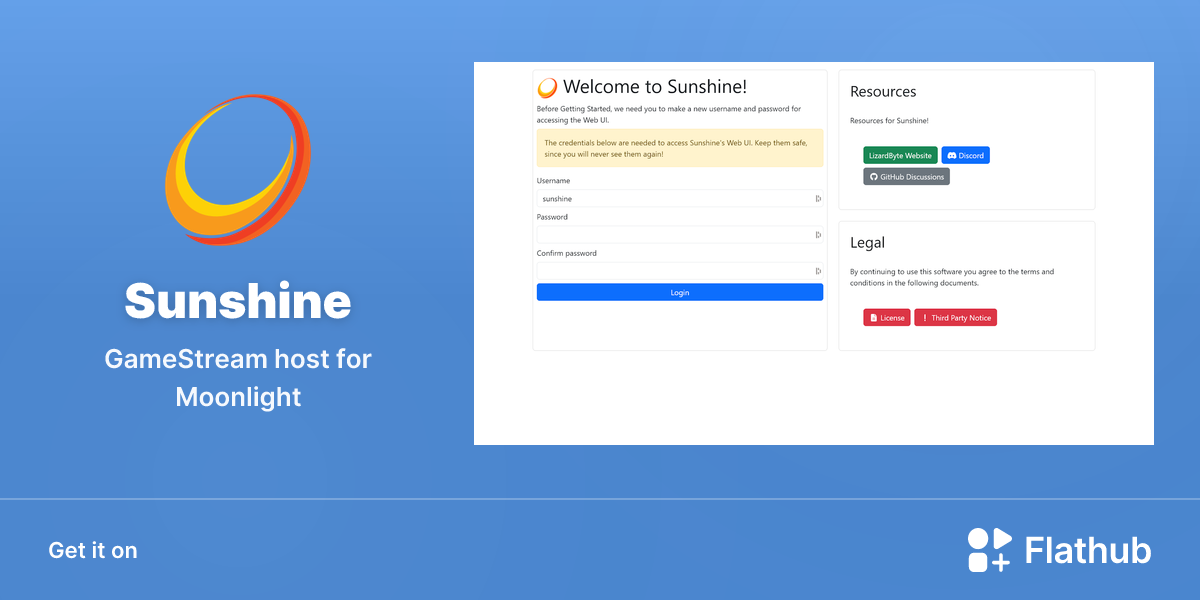
The free replacement comes in two parts: a host that runs on your gaming PC, and a client that runs on whatever screen you want to play on.
Sunshine is the host. It is an open-source, GPL-3.0 project from LizardByte with around 38,000 stars on GitHub, and it does the job GameStream’s server used to do: capture your game, encode it with your GPU, and send it over the network. You install it on your gaming PC and configure it from a simple web interface. There are no ads, no accounts, and no subscription.
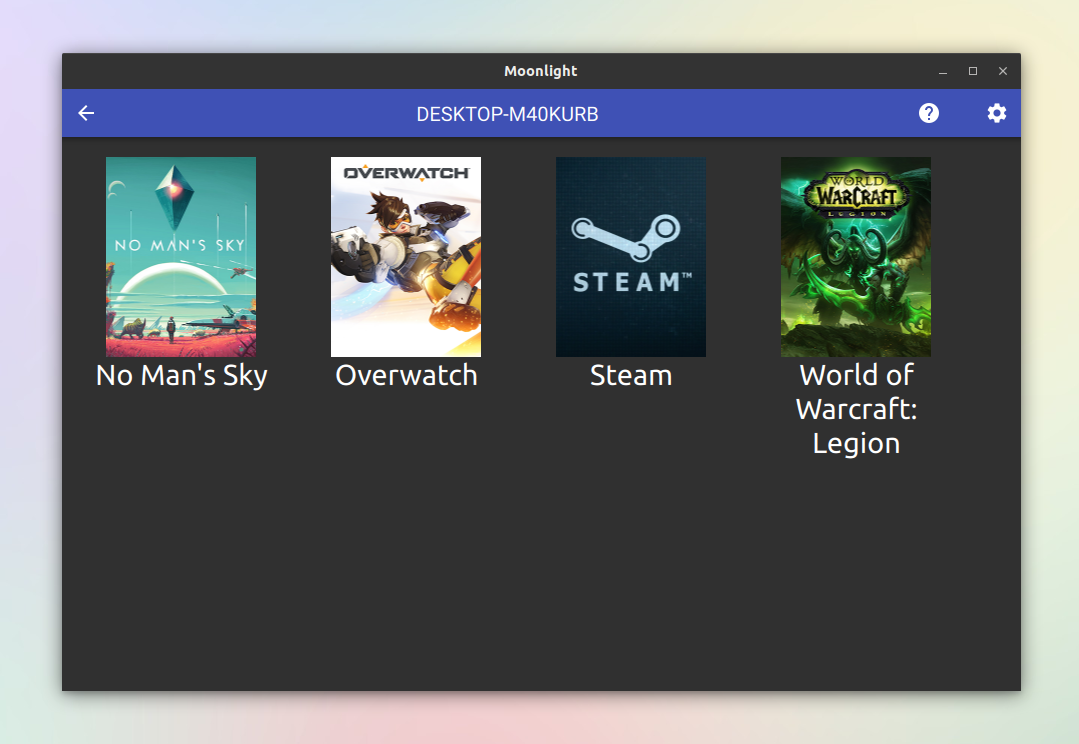
Moonlight is the client. It began as an open-source implementation of NVIDIA’s GameStream protocol, originally under the name Limelight, built by people who reverse-engineered how the Shield talked to a GeForce PC. Because it is community-run, it kept working and now pairs with Sunshine. Moonlight runs on a huge range of devices, including Android, iOS, Apple TV, Windows, Mac, Chromebook, Raspberry Pi, the Steam Deck, the Nintendo Switch, and LG webOS TVs. Like Sunshine, it is free with no ads or subscriptions.
Why Sunshine Beats GameStream
The community tool is not just a like-for-like clone. It fixes the biggest limitation of NVIDIA’s version.
What Sunshine Does Better
- Works on NVIDIA, AMD, and Intel GPUs, not just NVIDIA hardware.
- Streams your own games locally with low latency, no cloud server in the middle.
- Free and open source under GPL-3.0, with no account or subscription.
- Pairs with Moonlight on almost any screen you already own.
What to Keep in Mind
- You set it up yourself, so it takes a few minutes rather than being preinstalled.
- Stream quality depends on your home network, so wired or strong Wi-Fi helps.
- Your gaming PC has to be on to act as the host.
- It is local streaming, so it is not a substitute for cloud gaming away from home without extra setup.
The headline difference is hardware. NVIDIA’s free tool only worked on NVIDIA GPUs. Sunshine supports NVIDIA’s NVENC, AMD’s AMF, and Intel’s QuickSync encoders, plus software encoding as a fallback, so the community’s free tool works on everyone’s hardware.
How to Set Up Sunshine and Moonlight
The whole process takes about ten minutes. You install the host on your gaming PC, install the client on your streaming device, and pair them with a PIN.
- Install Sunshine on your gaming PC. Download it from the official LizardByte release for your operating system. On Windows, run the installer, and when prompted, install ViGEmBus from the troubleshooting tab so your controller works, then restart.
- Open the Sunshine web UI. Go to
https://localhost:47990in a browser on the host PC. Your browser will warn about the self-signed certificate; that is expected, so continue past it. - Create your login. On first launch, Sunshine asks you to set a username and password for the web interface. Save these somewhere safe.
- Add your games. In the web UI, add the apps and games you want to stream, or just use the default desktop entry to stream your whole screen.
- Install Moonlight on your device. Grab Moonlight from your device’s app store or the official site, whether that is your phone, tablet, TV, Steam Deck, or another PC. Make sure it is on the same network as the host.
- Pair the two. Open Moonlight and let it scan the network. Your gaming PC should appear. Select it, and Moonlight shows a PIN. Back on the PC, open the Sunshine web UI, go to the PIN section, enter the code, and confirm.
- Start streaming. Pick a game from the list in Moonlight and play. From here on, you can stream to that device any time the host PC is on.
⚡ Quick tip: For the smoothest experience, connect both the host PC and the streaming device by Ethernet where you can. Local game streaming is far more sensitive to network jitter than to raw download speed.
What You Need for Smooth Streaming
Sunshine and Moonlight are free, but a stable local network is what makes the picture look good and the controls feel instant. A solid router, a wired link to the streaming device, and a comfortable controller cover the essentials. These are current picks from the SlashSkill deals database, as of June 2026. If you are also upgrading your connection, our writeup on switching to fiber internet is worth a look.

TP-Link AX1800 WiFi 6 Router
A budget Wi-Fi 6 router that keeps latency low and the stream stable across the house.

TP-Link AV600 Powerline
Runs a wired connection over your existing power lines to a TV that Ethernet cannot reach.

8BitDo Ultimate 3-Mode
A versatile Hall-effect controller that pairs with phones, TVs, and handhelds for couch streaming.
Between gaming sessions, Berry Finds tracks real-time Amazon deals on thousands of everyday products across home, kitchen, beauty, and more, so you never overpay on the stuff you buy regularly.
Frequently Asked Questions
What happened to NVIDIA GameStream?
NVIDIA discontinued GameStream and removed it from Shield TV through a mandatory update on March 29, 2023, after issuing an end-of-service notice in December 2022. The Shield’s app was rebranded toward GeForce NOW, and a proposed class action was filed against NVIDIA weeks later over removing a feature customers had paid for.
What is the best free GameStream alternative?
Sunshine paired with Moonlight is the best free GameStream alternative. Sunshine is an open-source host you run on your gaming PC, and Moonlight is the client app for your phone, TV, tablet, or handheld. Together they stream your own games over your network with no subscription, and they work on NVIDIA, AMD, and Intel GPUs.
Is Sunshine free?
Yes. Sunshine is free and open source under the GPL-3.0 license, maintained by LizardByte with around 38,000 stars on GitHub. There are no ads, no accounts, and no subscription. The Moonlight client it pairs with is also free and open source.
Does Sunshine work on AMD and Intel GPUs?
Yes. Unlike NVIDIA’s GameStream, which only ran on NVIDIA cards, Sunshine supports hardware encoding on NVIDIA (NVENC), AMD (AMF), and Intel (QuickSync), with software encoding as a fallback. That makes it usable on almost any modern gaming PC.
Is GeForce NOW a replacement for GameStream?
Not really. GameStream streamed your own games from your own PC for free, while GeForce NOW is a paid cloud service that runs games on NVIDIA’s servers. GeForce NOW costs $9.99 to $19.99 a month and, as of January 1, 2026, caps subscribers at 100 hours of play per month before charging for more time.
How do I set up Sunshine and Moonlight?
Install Sunshine on your gaming PC, open its web interface at https://localhost:47990, and create a login. Then install Moonlight on your streaming device, let it find the PC on your network, and pair the two using the PIN Moonlight shows. After that, pick a game in Moonlight and start streaming.
Summary
NVIDIA gave away free local game streaming for about a decade, then removed it and pushed users toward a paid, now-capped cloud service. The community did not wait around. Moonlight kept the protocol alive by reverse-engineering it, and Sunshine rebuilt the host side as an open-source, GPL-3.0 project that runs on NVIDIA, AMD, and Intel hardware. The result is a free GameStream alternative that works on more devices and more GPUs than the original ever did.
Setup takes about ten minutes, and the only thing standing between you and a smooth stream is your home network. Wire up what you can, install Sunshine and Moonlight, and you can play your PC library on your TV, phone, or a handheld. Speaking of handhelds, our roundup of the best retro handhelds covers more screens that make great Moonlight clients.