You spend 15 minutes every day renaming files, moving downloads to the right folders, or copying data between systems. That’s 94 hours per year on tasks a computer could handle in seconds.
Python automation fixes this. With a few lines of code, you can automate repetitive tasks and reclaim your time for work that actually matters.
This guide covers the five most useful automation types with code you can copy and modify immediately. No fluff, no theory dumps, just practical automation you can use today.
Why Automate with Python?
Python is the go-to language for automation because:
- Readable syntax. Python code looks almost like English. You can understand what a script does even as a beginner.
- Massive library ecosystem. Someone has probably already written code for what you need. Install it with pip and use it.
- Cross-platform. The same script runs on Windows, Mac, and Linux.
- Quick to write. A useful automation script can be 10-20 lines. You don’t need a massive project.
The time savings compound. Automate a 15-minute daily task and you save 94 hours per year. Automate five such tasks and you’ve gained back two full work weeks.
What You Need to Get Started
Before writing automation scripts, you need:
- Python 3.x installed. Download from python.org if you don’t have it. Check with
python --versionin your terminal. - A text editor or IDE. VS Code, PyCharm, or even Notepad works. Anything that can save .py files.
- Basic Python knowledge. Variables, loops, functions, and imports. If you can read a for loop, you’re ready.
- pip for installing libraries. Comes with Python. Use
pip install library_nameto add packages.
File Operations: os, shutil, and pathlib
File management is the foundation of automation. These three libraries handle it all:
- os: Work with file paths, list directories, check if files exist
- shutil: Copy, move, and delete files and folders
- pathlib: Modern, object-oriented file path handling (recommended for new code)
Example: Organize Downloads by File Type
This script sorts files in your Downloads folder into subfolders by extension:
from pathlib import Path
import shutil

downloads = Path.home() / "Downloads"

# Define where each file type should go
destinations = {
    ".pdf": "Documents",
    ".jpg": "Images",
    ".png": "Images",
    ".mp3": "Music",
    ".mp4": "Videos",
    ".zip": "Archives"
}

for file in downloads.iterdir():
    if file.is_file() and file.suffix in destinations:
        dest_folder = downloads / destinations[file.suffix]
        dest_folder.mkdir(exist_ok=True)
        shutil.move(str(file), str(dest_folder / file.name))
        print(f"Moved {file.name} to {destinations[file.suffix]}")
Run this once a day (or schedule it) and your Downloads folder stays organized automatically.
Example: Batch Rename Files
Rename all .txt files in a folder to add a prefix:
from pathlib import Path

folder = Path("./reports")

for file in folder.glob("*.txt"):
    new_name = f"2026_{file.name}"
    file.rename(folder / new_name)
    print(f"Renamed to {new_name}")
Scheduling Tasks with the schedule Library
The schedule library lets you run Python functions at intervals, no system cron required.
Install it first:
pip install scheduleThen use it with readable syntax:
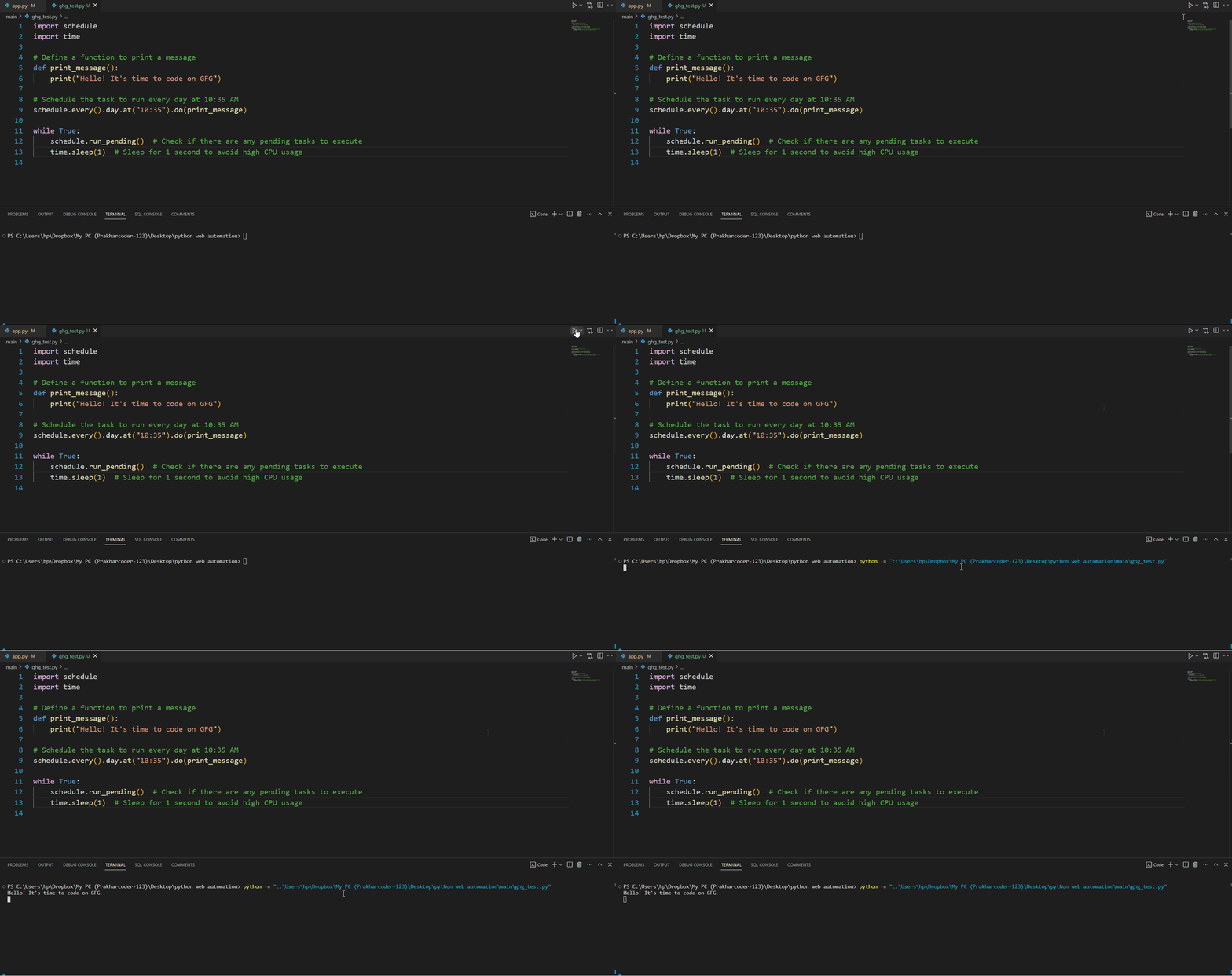
import schedule
import time

def backup_files():
    print("Running backup...")
    # Your backup logic here

def check_disk_space():
    print("Checking disk space...")
    # Your disk check logic here

# Schedule tasks
schedule.every().hour.do(backup_files)
schedule.every().day.at("09:00").do(check_disk_space)
schedule.every(10).minutes.do(lambda: print("Still running..."))

# Keep the script running
while True:
    schedule.run_pending()
    time.sleep(60)
This script runs forever, executing each function at its scheduled time. Run it in the background or as a service.
Making Web Requests with requests
The requests library talks to web APIs and websites. It’s essential for any automation that needs external data.
Install it:
pip install requestsExample: Check if a Website is Up
import requests

def check_website(url):
    try:
        response = requests.get(url, timeout=10)
        if response.status_code == 200:
            print(f"✓ {url} is up")
        else:
            print(f"✗ {url} returned {response.status_code}")
    except requests.RequestException as e:
        print(f"✗ {url} is down: {e}")

# Check multiple sites
sites = ["https://google.com", "https://github.com", "https://example.com"]
for site in sites:
    check_website(site)
Example: Fetch Data from an API
import requests

# Get current weather (using a free API)
response = requests.get("https://wttr.in/London?format=j1")
data = response.json()

current = data["current_condition"][0]
print(f"Temperature: {current['temp_C']}°C")
print(f"Conditions: {current['weatherDesc'][0]['value']}")
Basic Web Scraping
When there’s no API, you can extract data directly from web pages using requests and BeautifulSoup.
Install BeautifulSoup:
pip install beautifulsoup4Example: Scrape Headlines
import requests
from bs4 import BeautifulSoup

url = "https://news.ycombinator.com"
response = requests.get(url)
soup = BeautifulSoup(response.text, "html.parser")

# Find all headline links
headlines = soup.select(".titleline > a")

for i, headline in enumerate(headlines[:10], 1):
    print(f"{i}. {headline.text}")
Ethics note: Always check a website’s robots.txt and terms of service before scraping. Don’t hammer servers with requests. Add delays between requests if scraping multiple pages.
Running External Commands with subprocess
The subprocess module lets you run shell commands from Python and capture their output.
Example: Get System Information
import subprocess

# Run a command and capture output
result = subprocess.run(["df", "-h"], capture_output=True, text=True)
print(result.stdout)

# Check if a command succeeded
if result.returncode == 0:
    print("Command succeeded")
else:
    print(f"Command failed: {result.stderr}")
Example: Chain Commands Together
import subprocess

# Compress a folder
subprocess.run(["tar", "-czf", "backup.tar.gz", "./data"])

# Upload it somewhere
subprocess.run(["scp", "backup.tar.gz", "user@server:/backups/"])

print("Backup complete")
Best Practices
Follow these rules to write automation scripts that don’t break:
- Never hardcode secrets. Use environment variables for API keys and passwords. Access them with
os.environ.get("API_KEY"). - Add error handling. Wrap risky operations in try/except blocks. Networks fail. Files get deleted. Handle it gracefully.
- Log what happens. Print or log what your script does. When something breaks at 3am, you’ll want to know what happened.
- Test on small data first. Before running a script on 10,000 files, test it on 10.
- Use pathlib over os.path. It’s more readable and handles cross-platform paths automatically.
5 Starter Project Ideas
Ready to build something? Start with these:
- Download Folder Cleaner: Move files older than 30 days to an archive folder. Delete files older than 90 days.
- Website Uptime Checker: Check a list of URLs every 5 minutes. Send yourself an email if any go down.
- Daily Weather Emailer: Fetch weather data each morning and email yourself the forecast.
- File Backup Script: Copy important folders to a backup drive every night. Delete backups older than a week.
- Price Tracker: Scrape a product page daily and alert you when the price drops below a threshold.
Pick one, build it, and you’ll learn more than any tutorial can teach. The best way to learn automation is to automate something you actually need.