Your terminal is the one app that’s open all day, every day. It’s where you SSH into servers, run builds, manage containers, and dig through logs. After years of switching between options, I’ve landed on a setup I’m actually happy with. Here are the best terminal emulators for developers in 2026, with an honest take on each one and a bonus section on making Ghostty look ridiculous with custom shaders.
TL;DR
- Ghostty is our daily driver. GPU-accelerated, native feel, custom shaders. Built by Mitchell Hashimoto.
- WezTerm is the power user pick. Lua-scriptable config with a built-in multiplexer.
- Alacritty is still the fastest raw renderer if you want zero bloat.
- Kitty has the best image protocol and extension system on Linux.
- Warp is polarizing but its AI features are genuinely useful for some workflows.
Quick Comparison
| Terminal | Platform | GPU | Config | Best For |
|---|---|---|---|---|
| Ghostty | macOS, Linux | Yes | Key-value | Daily driver with native feel |
| WezTerm | All | Yes | Lua | Power users who script everything |
| Kitty | macOS, Linux | Yes | Key-value | Linux devs who want extensions |
| Alacritty | All | Yes | TOML | Speed purists, tmux users |
| iTerm2 | macOS | No | GUI | macOS users who want everything built in |
| Windows Terminal | Windows | Yes | JSON | WSL and PowerShell workflows |
| Warp | macOS, Linux | Yes | GUI + YAML | AI-assisted command workflows |
Ghostty (Our Pick)
Ghostty is what I reach for every morning. Built by Mitchell Hashimoto (the person behind HashiCorp, Vagrant, and Terraform), it’s written in Zig with a platform-native UI. On macOS that means Swift and AppKit, not Electron, not a cross-platform toolkit. It feels like an Apple app because it technically is one.
Performance is excellent. GPU-accelerated rendering through Metal on macOS and OpenGL on Linux keeps everything smooth even when you’re tailing massive log files. Splits and tabs work out of the box. The config is a simple key-value file at ~/.config/ghostty/config with no TOML/YAML/Lua ceremony.
The standout feature nobody else has: custom GLSL shaders. You can apply post-processing effects to your terminal, from subtle CRT scanlines to full animated backgrounds. More on that below. The theme picker is also great. Switch themes instantly without restarting.
The honest downsides: scrollback search isn’t implemented yet (the GitHub issue is locked because so many people keep asking for it). And if you SSH into servers, you’ll hit a terminfo error on first connection. I cover the fix in the SSH section below.
WezTerm
WezTerm’s killer feature is Lua configuration. Your config file isn’t just settings, it’s a full program. You can write functions that change your terminal’s behavior based on the current directory, time of day, or whatever logic you want. It also has a built-in multiplexer, so you can skip tmux entirely if that’s your preference.
It’s cross-platform (macOS, Linux, Windows), GPU-accelerated, and supports ligatures and image rendering. If you’re the type of developer who wants to script every detail of your environment, WezTerm is hard to beat. The trade-off is that the Lua config has a learning curve, and the documentation can be dense.
Kitty
Kitty pioneered the GPU-accelerated terminal space and has a loyal Linux following. Its image protocol (the “kitty graphics protocol”) lets you display images directly in the terminal, which is great for data visualization and image-heavy workflows. The “kittens” extension system lets you add custom functionality through Python scripts.
Kitty is fast, configurable, and well-maintained. The main thing to know going in: the creator has a reputation for being direct (sometimes abrasively so) in issue discussions. If you can separate the tool from the community experience, it’s an excellent terminal. Especially on Linux where it feels most at home.
Alacritty
Alacritty was the original GPU-accelerated terminal and it’s still the fastest raw renderer you can get. It does one thing: render text quickly. No tabs, no splits, no built-in multiplexer. The philosophy is that tmux or your window manager should handle those things.
Configuration is TOML (they switched from YAML a while back). If you already use tmux and just want the fastest possible terminal underneath it, Alacritty is still a strong choice. It’s cross-platform, stable, and the smallest memory footprint of anything on this list.
iTerm2
iTerm2 has been the default macOS terminal replacement for over a decade, and for good reason. Profiles, triggers, shell integration, broadcast input to multiple panes, password manager, search, autocomplete. It has everything. The GUI-based configuration means you never touch a config file.
The downside in 2026: it’s starting to feel heavy compared to GPU-accelerated alternatives. If you open enough splits and start tailing logs, you’ll notice the difference. iTerm2 is still a solid choice if you value having every feature built in and don’t want to think about your terminal. But the GPU terminals have passed it on raw performance.
Windows Terminal
Microsoft’s modern terminal is surprisingly good. It supports tabs, splits, GPU acceleration, and profiles for CMD, PowerShell, and WSL distributions. The JSON config is clean and well-documented. If you’re doing full-stack development on Windows with WSL, this is the obvious choice.
It also scored 4th in independent Unicode rendering tests, which matters if you work with internationalized content or use Nerd Fonts. The main limitation is that it’s Windows-only, so it won’t help if you switch between operating systems.
Warp
Warp is the most polarizing terminal on this list. Built in Rust with GPU acceleration, it reimagines the terminal with block-based input (each command is a discrete visual block), AI-powered command suggestions, and a modern IDE-like interface. The AI features are surprisingly helpful for remembering complex commands.
The controversy: Warp requires an account to use. For a terminal emulator, that rubs a lot of developers the wrong way. If you’re fine with that, the experience is polished. If the idea of logging in to use your terminal makes you uncomfortable, the other options on this list don’t ask for that.
Honorable Mentions
Foot deserves a callout for Wayland users. It’s minimal, fast, and Wayland-native. If you’re running Sway or another Wayland compositor, Foot is the terminal that was built specifically for your environment. Multiple Hacker News threads call it “the best” for that use case.
Konsole (KDE’s terminal) is the decades-old workhorse that keeps quietly performing. And the built-in macOS Terminal.app is honestly fine if you just need something that works with zero setup.
Setting Up Ghostty for SSH
This was a real pain point when I first switched to Ghostty. You SSH into a server, and immediately get hit with: Error opening terminal: xterm-ghostty. The problem is that Ghostty sets your TERM variable to xterm-ghostty, and the remote server has no idea what that is because it doesn’t have Ghostty’s terminfo entry.
Here are three fixes, from easiest to most manual:
Fix 1: Shell integration (recommended). If you’re on Ghostty v1.2.0 or later, add this to your config:
shell-integration-features = ssh-terminfo,ssh-envThis does two things. ssh-terminfo automatically copies the terminfo entry to the remote server on first connect. ssh-env falls back to xterm-256color for compatibility. After the first connection, the server knows what xterm-ghostty is, and you get full feature support going forward.
Fix 2: Manual terminfo copy. If shell integration doesn’t work for your setup, you can manually copy the terminfo entry:
infocmp -x xterm-ghostty | ssh YOUR-SERVER -- tic -x -Run this once per server and you’re set.
Fix 3: SSH config override. If you need it to just work right now (OpenSSH 8.7+), add this to your ~/.ssh/config:
Host your-server
    SetEnv TERM=xterm-256color
This tells the server you’re xterm-256color, which every server on earth understands. You’ll lose some advanced features like styled underlines, but everything else works fine.
⚡ Sudo tip: If you use sudo on remote servers, it can also reset your TERM variable and trigger the same error. Ghostty’s shell integration handles this too if you enable the sudo feature.
Customize Ghostty with Shaders
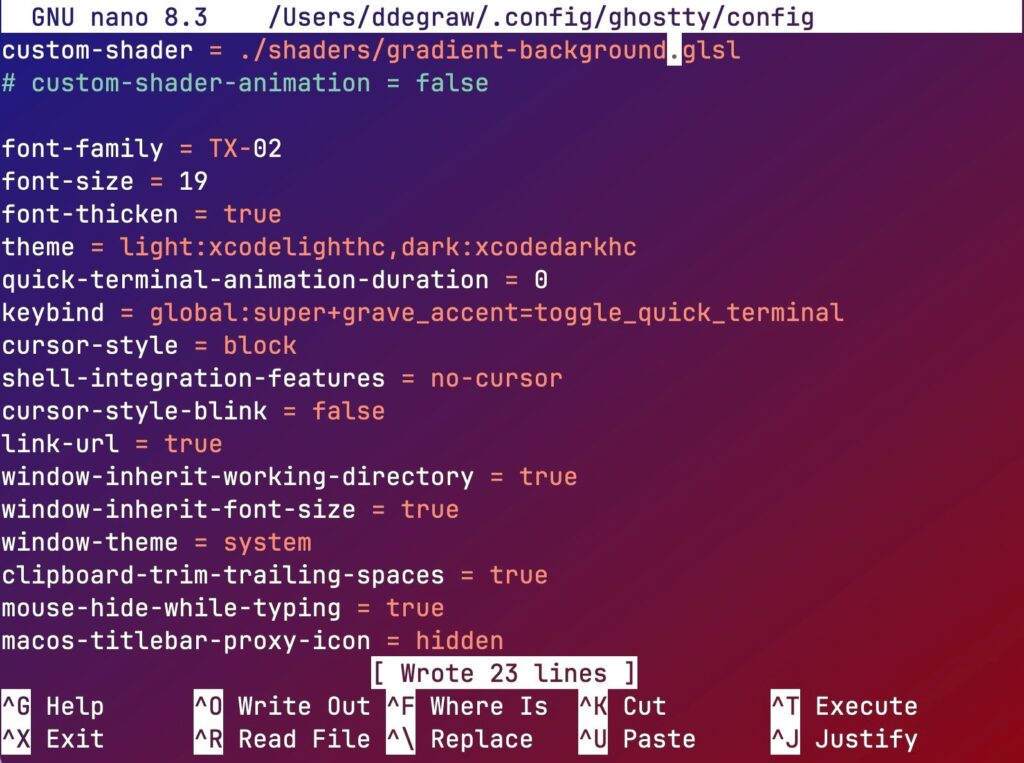
This is the fun part. Ghostty supports custom GLSL shaders that apply post-processing effects to your terminal. Think CRT scanlines, animated gradients, starfields, bloom effects. There are over 40 community shaders available and they’re dead simple to install.
Installing shaders
Clone the community shader repo into your Ghostty config directory:
git clone https://github.com/hackr-sh/ghostty-shaders.git ~/.config/ghostty/shadersThen add a shader to your config file at ~/.config/ghostty/config:
custom-shader = ~/.config/ghostty/shaders/animated-gradient-shader.glsl
custom-shader-animation = always
The animated-gradient-shader adds a smooth, cycling color gradient that blends with your terminal text. It uses sine wave modulation to transition between blue, red, and green tones. Subtle enough to keep running without getting distracting.
For something more visual, try gears-and-belts:
custom-shader = ~/.config/ghostty/shaders/gears-and-belts.glslThis one renders animated steampunk gears and conveyor belts behind your terminal text. It’s a 300-line procedural shader that calculates distance fields for mechanical elements in real time. Completely impractical for daily use, absolutely worth showing to coworkers.
Stacking shaders
You can combine multiple shaders by adding more custom-shader lines. They process in order. Here’s what I actually run daily:
custom-shader = ~/.config/ghostty/shaders/animated-gradient-shader.glsl
custom-shader = ~/.config/ghostty/shaders/gears-and-belts.glsl
The gradient gives the background a smooth color shift while the gears layer adds animated mechanical elements on top. Together they make your terminal look like the inside of a steampunk machine. It’s my favorite combo and the one I keep coming back to.
One thing to know: if a shader has a syntax error, Ghostty silently ignores it with no error message. If your shader doesn’t appear to load, double-check the file path and make sure the GLSL is valid. Also, on older hardware, stacking multiple animated shaders can eat into performance. Start with one and add more if your GPU handles it comfortably.
For a deep dive on shader options and creative combinations, catskull.net’s Ghostty shader guide is the best resource I’ve found.
Complete Your Setup
A good terminal deserves good hardware underneath it. Here’s what we actually use every day for development.

Apple MacBook Pro M4
The machine running Ghostty
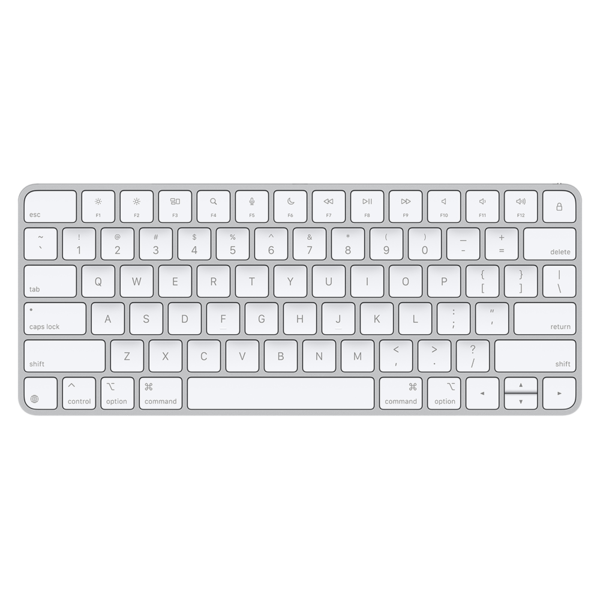
Apple Magic Keyboard
Touch ID, low profile, wireless
MacBook Pro M4 handles everything we throw at it. Docker containers, multiple terminals with shaders running, builds, and a browser with too many tabs. The unified memory architecture means Ghostty’s GPU rendering doesn’t compete with your other work. Magic Keyboard with Touch ID keeps the desk clean with a wireless low-profile layout. The Touch ID button is surprisingly useful for sudo authentication and password managers.
Frequently Asked Questions
Is Ghostty available on Windows?
Not yet. Ghostty currently supports macOS and Linux. Windows support has been discussed but there’s no timeline. If you’re on Windows, WezTerm or Windows Terminal are the best GPU-accelerated options.
Can you use Ghostty shaders on Linux?
Yes. Ghostty uses OpenGL on Linux instead of Metal, but the shader system works the same way. The community shader repo is compatible with both platforms.
What’s the fastest terminal emulator?
In raw rendering benchmarks, Alacritty is typically the fastest. Ghostty and Kitty are close behind. For most real-world usage, the difference between any GPU-accelerated terminal is negligible.
Do I need a GPU-accelerated terminal?
If you’re scrolling through large log files, running multiple splits, or using animated shaders, yes. For basic command-line work, even Terminal.app or Konsole will feel fine.
How do I fix “missing terminal xterm-ghostty” over SSH?
Add shell-integration-features = ssh-terminfo,ssh-env to your Ghostty config. This automatically installs the terminfo entry on remote servers. See the full SSH setup section above for alternative fixes.
Picking Your Terminal
Ghostty is what we use and what we’d recommend to most developers in 2026. The native feel, GPU performance, and shader system make it fun to use. WezTerm is the pick if you want programmable configuration. Alacritty if you want the absolute fastest renderer with no extras. And if you’re on Windows, Windows Terminal with WSL is the move.
Whatever you pick, spend five minutes configuring it. A good terminal setup pays for itself every single day.