You built a WordPress site, wrote something worth paying for, and now you need to lock it behind a Stripe payment. Maybe it’s a single PDF download, a premium tutorial, or an entire members-only library. The good news: there are multiple ways to do this, from one-click plugins to a fully custom Stripe Checkout integration you control end to end.
This guide covers both sides. First, a roundup of the most popular WordPress plugins that connect to Stripe for paywalls, split into two categories: simple payment and download plugins for small digital shops, and full membership platforms for gated content libraries. Then a complete code tutorial where you build a WordPress Stripe paywall from scratch using the Checkout Session API, shortcodes, and webhooks.
TL;DR
- For a single download or page gate, use WP Simple Pay or Easy Digital Downloads. Both connect to Stripe and take minutes to set up.
- For a full membership site with tiered access, MemberPress and Restrict Content Pro are the strongest options.
- For complete control and zero plugin dependencies, the Stripe Checkout Session API + a custom WordPress plugin takes about 200 lines of PHP.
- All approaches require an SSL certificate and a Stripe account (free to create, 2.9% + 30 cents per transaction).
When Do You Need a WordPress Stripe Paywall?
Not every paywall looks the same. Before picking a tool, figure out which scenario matches yours:
Single download or page access. You have one PDF, one template pack, or one premium page. A visitor pays once, gets the file or unlocks the page, and that’s it. No accounts, no recurring billing. This is the simplest case and you don’t need a membership plugin for it. WP Simple Pay or Easy Digital Downloads will handle this in under 15 minutes.
Small digital shop. You sell 5-20 digital products (eBooks, presets, code snippets, design files). Customers pay per item, get download links, and maybe come back for more. Easy Digital Downloads was built for exactly this. It handles shopping carts, discount codes, and download tracking out of the box.
Full membership site. You gate entire sections of your site behind a monthly or yearly subscription. Members log in, access their tier of content, and their payments recur automatically. This is where MemberPress, Restrict Content Pro, and Paid Memberships Pro come in. They handle user registration, subscription management, content drip schedules, and access rules across your whole site.
The right tool depends on where you fall. Overshoot with a full membership plugin for a single download and you’re fighting unnecessary complexity. Undershoot with a simple payment form when you need tiered access and you’ll be rebuilding in six months.
Plugin Options at a Glance
Here’s how the major WordPress Stripe paywall plugins stack up. Prices are as of March 2026.
| Plugin | Best For | Stripe Support | Starting Price |
|---|---|---|---|
| WP Simple Pay | Single payments, donation forms | Native (built on Stripe) | Free / $49.50/yr |
| Easy Digital Downloads | Digital product shops | Via Stripe extension | Free / $99.50/yr |
| Restrict With Stripe | Simple page gating | Native (Stripe only) | Free |
| MemberPress | Full membership sites | Built-in | $179.50/yr |
| Restrict Content Pro | Content restriction + subscriptions | Built-in | $99/yr |
| Paid Memberships Pro | Flexible memberships (free tier) | Built-in | Free / $247/yr |
| WooCommerce Memberships | WooCommerce stores adding memberships | Via WooCommerce Payments | $199/yr |
Plugins for Simple Payments and Downloads
These plugins are for people who don’t need a full membership system. You want to charge for a thing and deliver it. That’s the whole workflow.
WP Simple Pay
WP Simple Pay is the fastest path from zero to accepting Stripe payments on WordPress. It creates standalone payment forms you embed with a shortcode or block. The free version handles one-time payments. The paid version ($49.50/yr) adds recurring subscriptions, custom fields, tax collection, and coupon codes.
It doesn’t restrict or gate content on its own. Think of it as a Stripe payment form builder. If you just need a “Pay $10 to download this file” button that redirects to a thank-you page with the download link, WP Simple Pay does that well. For actual content locking, you’d pair it with a redirect-based approach or use one of the other plugins on this list.
Best for: One-off payment forms, donation pages, single product sales where you don’t need account-based access control.
Easy Digital Downloads (EDD)
Easy Digital Downloads is purpose-built for selling digital products. It gives you a full storefront: product pages, shopping cart, discount codes, customer accounts, and download tracking. The free version supports Stripe through its official Stripe extension.
EDD is the right call if you’re selling multiple digital files and want customers to browse, add to cart, and check out. It tracks how many times each customer has downloaded a file and lets you set download limits. The paid tiers ($99.50/yr and up) add recurring payments, software licensing, and email marketing integrations.
Best for: Small to mid-size digital shops selling eBooks, templates, design assets, code, or any downloadable file. If you’re selling 5+ products, this is the move over WP Simple Pay.
Restrict With Stripe
Restrict With Stripe is a free, lightweight plugin that does exactly what its name says: restrict pages and posts behind a Stripe payment. No API keys needed for basic setup. You connect your Stripe account through their OAuth flow, mark which posts or pages require payment, and visitors see a payment button instead of the content.
It supports one-time payments and subscriptions. The main limitation is that it only works with Stripe (no PayPal fallback) and the UI is minimal. But if you want free, simple, Stripe-native page gating without writing code, this is a solid option.
Best for: Gating individual pages or posts behind a one-time Stripe payment. Zero cost, minimal setup.
Plugins for Full Membership Sites
These plugins manage the full lifecycle: user registration, subscription billing, content access rules, drip schedules, and member dashboards. You need one of these if you’re building a site where people pay monthly or yearly to access a library of content.
MemberPress
MemberPress is the most popular WordPress membership plugin, and for good reason. It has a visual rule builder for content access (lock pages, posts, categories, tags, or custom post types), built-in Stripe and PayPal support, a course builder (MemberPress Courses), and integrations with most email platforms.
Setup is straightforward. You create membership levels (e.g., Basic at $9/mo, Pro at $29/mo), define which content each level can access, and MemberPress handles the registration forms, payment processing, and account pages. It also supports content dripping, so you can release modules on a schedule after signup.
Starting at $179.50/yr, it’s the most expensive option on this list. But it’s also the most polished. If budget isn’t a primary constraint and you want the smoothest setup experience, MemberPress is hard to argue against.
Best for: Full membership sites, online course platforms, and content creators who want a turnkey solution with minimal code.
Restrict Content Pro
Restrict Content Pro (by the same team behind Easy Digital Downloads) focuses on content restriction with a clean, developer-friendly approach. It supports unlimited membership levels, content dripping, group memberships, and multiple payment gateways including Stripe.
Where RCP stands out is its simplicity and extensibility. The admin UI is lean, and it exposes hooks and filters throughout the codebase that make customization easy if you know PHP. It also includes a free limited version, but the full Stripe integration and content dripping features require the paid tier ($99/yr).
Best for: Developers building membership sites who want clean code, good documentation, and easy customization. Also a solid pick if you already use EDD for digital sales and want everything under one ecosystem.
Paid Memberships Pro
Paid Memberships Pro (PMPro) is the most flexible free option. The core plugin is free and open source, with Stripe built in. You get unlimited membership levels, content restriction by page/post/category, custom registration fields, and basic reporting without paying anything.
The paid plans ($247/yr and up) add premium add-ons: WooCommerce integration, advanced reporting, goal tracking, and social login. PMPro’s open-source model means you can inspect and modify everything. The tradeoff is that the free tier requires more manual configuration than MemberPress or RCP.
Best for: Budget-conscious membership sites, nonprofits, and developers who want a free base with the option to scale up.
WooCommerce Memberships
If you already run a WooCommerce store, WooCommerce Memberships ($199/yr) adds content restriction on top of your existing shop. It ties membership access to WooCommerce products, so buying a specific product grants the customer access to gated content.
Stripe support comes through WooCommerce Payments or the WooCommerce Stripe Gateway plugin. The advantage is deep integration with your existing product catalog, coupons, and customer management. The disadvantage is that you need WooCommerce running, which adds overhead if you don’t already use it. Don’t install WooCommerce just for memberships.
Best for: Existing WooCommerce stores that want to add membership-gated content alongside physical or digital products.
Build It Yourself: Stripe Checkout API + WordPress
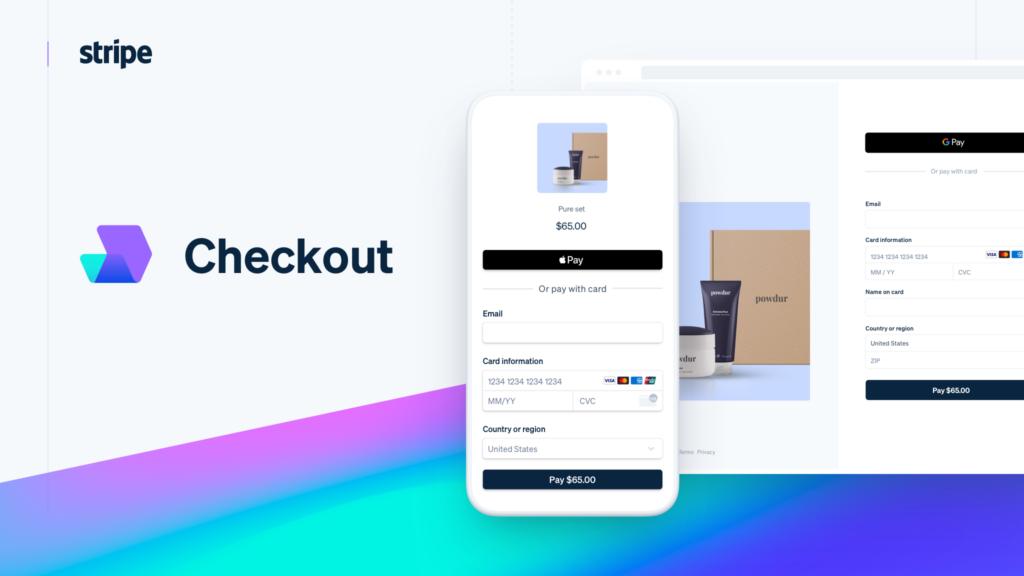
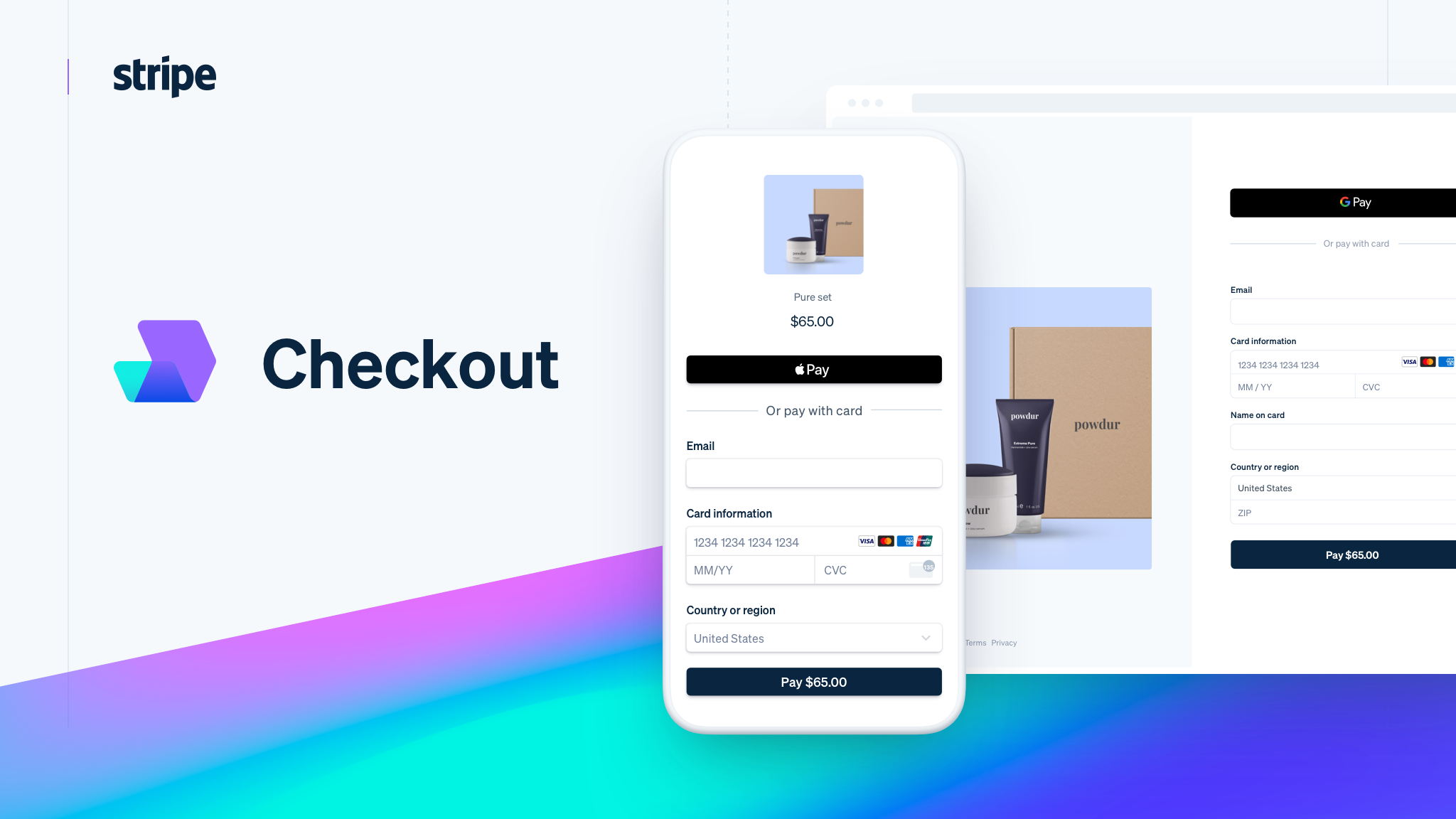
If none of the plugins fit, or you want full control without third-party dependencies, you can build a WordPress Stripe paywall yourself. This tutorial uses Stripe’s Checkout Session API, which handles the entire payment form (including PCI compliance and 3D Secure) on Stripe’s hosted page. You don’t touch credit card fields at all.
The end result: a [stripe_paywall] shortcode that shows a “Buy Access” button to non-paying visitors and the protected content to anyone who has paid. The whole thing runs in about 200 lines of PHP as a custom WordPress plugin.
Prerequisites
Before you start, you need:
- A Stripe account (free to create)
- Your Stripe API keys from the Developers dashboard (publishable and secret keys)
- PHP 7.4+ on your server
- An SSL certificate (Stripe requires HTTPS)
- Composer for installing the Stripe PHP SDK
If you’re running your WordPress site on a managed host like Cloudways or Kinsta, SSL and PHP 7.4+ are included. For VPS setups, our guide on deploying a website on a VPS covers the server configuration.
⚡ Use test mode first. Stripe provides test API keys that simulate payments without charging real cards. Build and test your entire flow in test mode before switching to live keys.
Step 1: Install the Stripe PHP SDK
SSH into your server and navigate to your wp-content/plugins directory. Create a folder for the custom plugin and install Stripe via Composer:
cd /var/www/html/wp-content/plugins
mkdir stripe-paywall && cd stripe-paywall
composer require stripe/stripe-php
If you can’t use Composer on your host, download the Stripe PHP library from GitHub and include it manually with require_once.
Step 2: Create the Plugin File
Create stripe-paywall.php in your plugin folder. This is the main plugin file:
<?php
/**
 * Plugin Name: Stripe Paywall
 * Description: Gate content behind a Stripe one-time payment.
 * Version: 1.0.0
 */

if ( ! defined( 'ABSPATH' ) ) exit;

require_once __DIR__ . '/vendor/autoload.php';

\Stripe\Stripe::setApiKey( STRIPE_SECRET_KEY );
Add your Stripe keys to wp-config.php (never hardcode them in the plugin file):
define( 'STRIPE_SECRET_KEY', 'sk_test_your_key_here' );
define( 'STRIPE_PUBLISHABLE_KEY', 'pk_test_your_key_here' );
Step 3: Build the Checkout Session Endpoint
Add an AJAX handler that creates a Stripe Checkout Session when a visitor clicks the buy button. This runs server-side and returns a redirect URL to Stripe’s hosted payment page:
add_action( 'wp_ajax_create_checkout', 'sp_create_checkout' );
add_action( 'wp_ajax_nopriv_create_checkout', 'sp_create_checkout' );

function sp_create_checkout() {
    check_ajax_referer( 'sp_nonce', 'nonce' );

    $post_id = intval( $_POST['post_id'] ?? 0 );
    if ( ! $post_id ) wp_send_json_error( 'Invalid post.' );

    $session = \Stripe\Checkout\Session::create([
        'payment_method_types' => ['card'],
        'line_items' => [[
            'price_data' => [
                'currency'     => 'usd',
                'product_data' => [
                    'name' => get_the_title( $post_id ),
                ],
                'unit_amount' => 999, // $9.99 in cents
            ],
            'quantity' => 1,
        ]],
        'mode'        => 'payment',
        'success_url' => add_query_arg( 'sp_paid', '1', get_permalink( $post_id ) ),
        'cancel_url'  => get_permalink( $post_id ),
        'metadata'    => [
            'post_id' => $post_id,
            'user_id' => get_current_user_id(),
        ],
    ]);

    wp_send_json_success([ 'url' => $session->url ]);
}
The metadata field tells the webhook handler which post and user the payment belongs to. The unit_amount is in cents (999 = $9.99). You can make this dynamic by reading from a custom field on the post.
Step 4: Create the Shortcode
The shortcode wraps your protected content. If the user has paid, it shows the content. If not, it shows a buy button:
add_shortcode( 'stripe_paywall', 'sp_paywall_shortcode' );

function sp_paywall_shortcode( $atts, $content = '' ) {
    $post_id = get_the_ID();
    $user_id = get_current_user_id();

    // Check if user has paid
    if ( $user_id && sp_user_has_access( $user_id, $post_id ) ) {
        return do_shortcode( $content );
    }

    $nonce = wp_create_nonce( 'sp_nonce' );
    $ajax  = admin_url( 'admin-ajax.php' );

    ob_start();
    ?>
    <div class="stripe-paywall-gate">
        <p>This content requires a one-time payment of <strong>$9.99</strong>.</p>
        <button id="sp-buy-btn"
                data-post="<?php echo esc_attr( $post_id ); ?>"
                data-nonce="<?php echo esc_attr( $nonce ); ?>"
                data-ajax="<?php echo esc_url( $ajax ); ?>">
            Buy Access
        </button>
    </div>
    <script>
    document.getElementById('sp-buy-btn').addEventListener('click', function() {
        var btn = this;
        fetch(btn.dataset.ajax, {
            method: 'POST',
            headers: {'Content-Type': 'application/x-www-form-urlencoded'},
            body: 'action=create_checkout&post_id=' + btn.dataset.post
                  + '&nonce=' + btn.dataset.nonce
        })
        .then(function(r) { return r.json(); })
        .then(function(data) {
            if (data.success) window.location.href = data.data.url;
        });
    });
    </script>
    <?php
    return ob_get_clean();
}

function sp_user_has_access( $user_id, $post_id ) {
    $purchases = get_user_meta( $user_id, 'stripe_purchases', true );
    return is_array( $purchases ) && in_array( $post_id, $purchases );
}
Usage in the WordPress editor:
[stripe_paywall]
Your premium content goes here. This could be text, download links,
embedded videos, or any content WordPress can render.
[/stripe_paywall]
Step 5: Handle the Webhook
The success URL redirect isn’t reliable on its own. A visitor could bookmark it or the redirect could fail. Stripe webhooks are the correct way to confirm a payment completed. When Stripe fires a checkout.session.completed event, your server records the purchase in user meta:
add_action( 'rest_api_init', function() {
    register_rest_route( 'stripe-paywall/v1', '/webhook', [
        'methods'             => 'POST',
        'callback'            => 'sp_handle_webhook',
        'permission_callback' => '__return_true',
    ]);
});

function sp_handle_webhook( $request ) {
    $payload = $request->get_body();
    $sig     = $request->get_header( 'stripe-signature' );

    try {
        $event = \Stripe\Webhook::constructEvent(
            $payload, $sig, STRIPE_WEBHOOK_SECRET
        );
    } catch ( \Exception $e ) {
        return new WP_REST_Response( 'Invalid signature', 400 );
    }

    if ( $event->type === 'checkout.session.completed' ) {
        $session = $event->data->object;
        $post_id = intval( $session->metadata->post_id ?? 0 );
        $user_id = intval( $session->metadata->user_id ?? 0 );

        if ( $user_id && $post_id ) {
            $purchases = get_user_meta( $user_id, 'stripe_purchases', true );
            if ( ! is_array( $purchases ) ) $purchases = [];
            if ( ! in_array( $post_id, $purchases ) ) {
                $purchases[] = $post_id;
                update_user_meta( $user_id, 'stripe_purchases', $purchases );
            }
        }
    }

    return new WP_REST_Response( 'OK', 200 );
}
Register the webhook URL in your Stripe Dashboard under Developers > Webhooks:
https://yoursite.com/wp-json/stripe-paywall/v1/webhookSelect the checkout.session.completed event. Copy the webhook signing secret and add it to wp-config.php:
define( 'STRIPE_WEBHOOK_SECRET', 'whsec_your_secret_here' );Step 6: Test the Flow
With the plugin activated and Stripe in test mode:
- Create a post with the
[stripe_paywall]shortcode wrapping some content. - Visit the post as a logged-in user. You should see the “Buy Access” button.
- Click it. You get redirected to Stripe’s Checkout page.
- Use Stripe’s test card:
4242 4242 4242 4242, any future expiry, any CVC. - After payment, you’re redirected back. Refresh and the protected content should be visible.
- Check the Stripe Dashboard to confirm the webhook event was received and processed.
Extending the Custom Build
The code above is a working foundation. Common extensions include:
- Dynamic pricing. Read the price from a custom field on the post instead of hardcoding
unit_amount. Use ACF or a simplepost_metafield. - Guest purchases. For non-logged-in users, store the purchase by email (from the Stripe session’s
customer_details) and verify with a cookie or token. - Subscription mode. Change
'mode' => 'subscription'and use a Stripe Price ID instead of inlineprice_data. Handlecustomer.subscription.deletedwebhooks to revoke access. - File downloads. Instead of gating inline content, serve a file via
wp_redirect()to a signed, expiring download URL after payment confirmation.
For sites handling real transaction volume, server performance matters. A slow checkout kills conversions. Our shared hosting vs VPS comparison breaks down when it makes sense to upgrade.
Plugin vs Custom Code: Which Should You Pick?
Use a Plugin If:
- You need to be live in hours, not days
- You don’t write PHP or prefer not to maintain custom code
- You need membership features (drip content, multiple tiers, user dashboards)
- You want support and regular updates from a dedicated team
- PCI compliance and security aren’t things you want to think about
Build Custom If:
- You want zero third-party plugin dependencies
- Your use case is simple (one payment, one piece of content)
- You’re comfortable with PHP and the WordPress hooks system
- You need a payment flow that doesn’t fit any existing plugin
- You want to keep your site lean with no plugin bloat
For most people, a plugin is the right answer. MemberPress or Restrict Content Pro will have you running in an afternoon. The custom route only makes sense if you have a specific technical requirement the plugins can’t handle, or if you genuinely enjoy building things and want to own every line of code.
One middle ground worth considering: start with a plugin to validate the business model, then migrate to custom code once you know exactly what features you need. Rebuilding is cheaper than guessing.
Frequently Asked Questions
Do I need an SSL certificate to use Stripe on WordPress?
Yes. Stripe requires HTTPS for all transactions. Most managed WordPress hosts like Kinsta and Cloudways include free SSL certificates. On a VPS, set up a free certificate through Let’s Encrypt.
Can I use Stripe paywalls without requiring users to create an account?
With plugins like WP Simple Pay and EDD, yes. They process payments without requiring WordPress user accounts. For the custom code approach, guest purchases require storing access by email or session token rather than WordPress user meta.
What percentage does Stripe take from each transaction?
Stripe charges 2.9% + 30 cents per successful card payment in the US. There are no monthly fees, setup fees, or hidden costs. You only pay when you process a payment. International cards and currency conversion have slightly higher fees.
Can I sell both one-time downloads and recurring memberships on the same site?
Yes. Easy Digital Downloads handles one-time file sales, and you can pair it with Paid Memberships Pro for subscription-gated content. MemberPress supports both one-time and recurring payments in a single plugin. The custom code approach handles both by changing the Checkout Session mode parameter.
Is the custom Stripe Checkout approach PCI compliant?
Yes. Stripe Checkout is a hosted payment page, so credit card data never touches your server. This qualifies you for the simplest level of PCI compliance (SAQ A). You handle server security (HTTPS, updates), and Stripe handles all card data processing.
Summary
Adding a Stripe paywall to WordPress comes down to how much control you need and how many products you’re selling. For a single download or page gate, WP Simple Pay or Restrict With Stripe will get you there in minutes. For a small digital shop, Easy Digital Downloads gives you a proper storefront with Stripe baked in. For full membership sites, MemberPress and Restrict Content Pro handle the complexity of subscriptions, tiers, and content access rules.
And if you want to own every line of code, the Stripe Checkout Session API integrates cleanly with WordPress through AJAX endpoints, shortcodes, and webhooks. It takes more effort up front, but you end up with a lightweight, dependency-free solution you fully control.
Whichever route you pick, make sure your hosting can handle the traffic. A slow checkout page kills conversions. If you’re evaluating hosts, our Cloudways vs Kinsta comparison and WordPress performance guide cover what matters for sites processing payments.