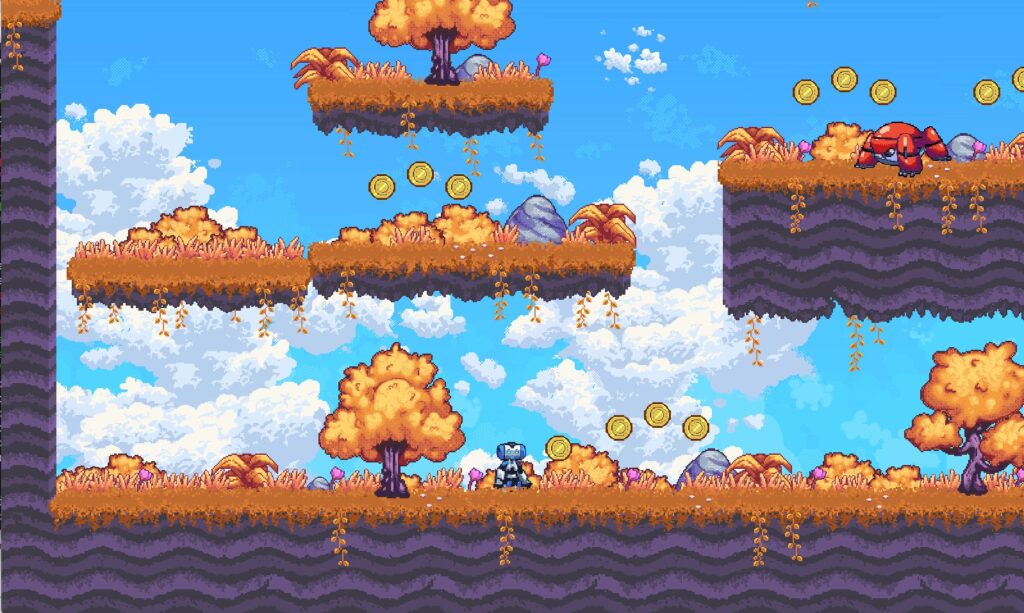
A Godot 4 2D platformer controller is the block of code that turns arrow keys into a character who runs, jumps, and lands like it belongs in a real game. Godot’s built-in template gets you moving in about ten lines, but the gap between “the character moves” and “the movement feels good” is where most new projects stall. This tutorial builds the whole thing in stages: a basic CharacterBody2D that walks and jumps, then acceleration and friction, then the game-feel tricks that separate a stiff prototype from a jump that feels fair. Every snippet is current Godot 4.x GDScript, and the full script is assembled at the end.
You do not need to memorize any of it. Build each layer, run the scene, feel the difference, then move to the next one.
Key Takeaways
- Start with CharacterBody2D: set
velocity, callmove_and_slide()with no arguments, and checkis_on_floor()after the move, not before. - Use move_toward for feel: lerping velocity with acceleration and friction values beats snapping
velocity.xto full speed instantly. - Coyote time and jump buffering: two short timers (about 0.1 seconds each) mean the jump almost never has to be frame-perfect.
- Variable jump height and faster falling: cut the upward velocity on early release, and apply stronger gravity while falling, so the arc feels weighty instead of floaty.
- Godot 3 code will not work: the old
move_and_slide(velocity, ...)signature was removed in Godot 4. Velocity is now a property, and the call takes no arguments.
- What You Need First
- Setting Up the CharacterBody2D Scene
- Basic Movement: Walking and Gravity
- Adding a Jump
- Acceleration and Friction
- Coyote Time and Jump Buffering
- Variable Jump Height and Faster Falling
- One-Way Platforms
- The Complete Godot 4 2D Platformer Controller
- Common Mistakes
- Frequently Asked Questions
- Gear for Long Coding Sessions
- Summary
What You Need First
You need Godot 4.x installed and a basic project open. This guide uses GDScript, Godot’s built-in language, because it is the fastest way to prototype movement. If you are weighing your options, our comparison of GDScript vs C# in Godot covers when each one makes sense, and if you are still choosing an engine at all, Godot vs Unity lays out the tradeoffs.
One setup step matters before any code runs. Open Project Settings, then Input Map and add three actions: move_left, move_right, and jump. Bind them to your preferred keys (A/D and Space is common). The script below reads those action names, so they have to exist first. Completely new to game development? Start with our game development roadmap and come back here for the movement layer.
Setting Up the CharacterBody2D Scene
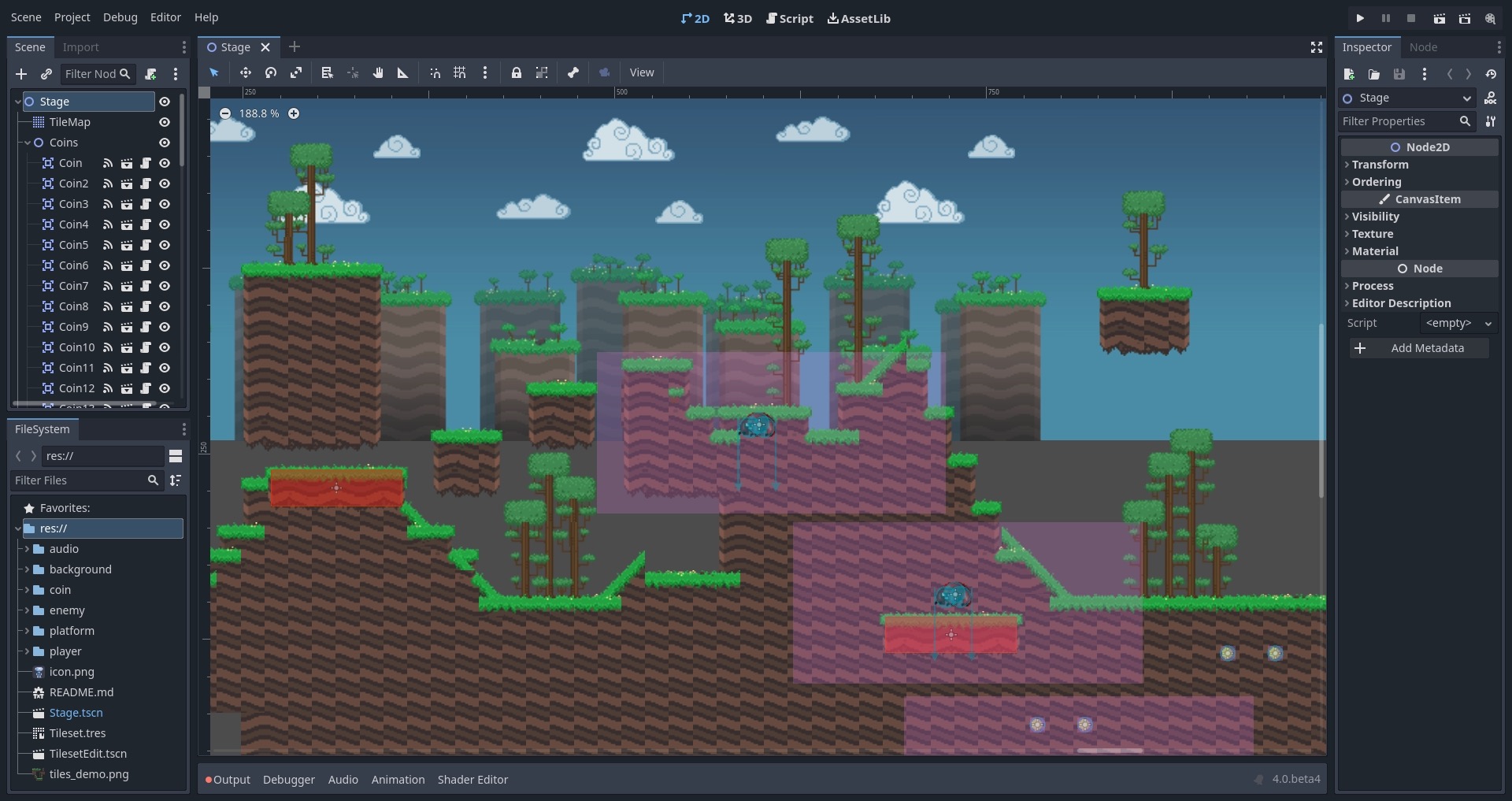
Create a new scene with a CharacterBody2D as the root node. It is the node type built specifically for characters you move with code, and it comes with move_and_slide() and floor detection ready to use. Add two children to it:
- Sprite2D (or AnimatedSprite2D) for the character’s visuals. Drop in any texture for now.
- CollisionShape2D with a rectangle or capsule shape sized to the sprite. Without it, the body passes through everything.
Save the scene, then attach a new GDScript to the CharacterBody2D root. That script file is where every snippet below lives. Your ground and platforms can be a TileMapLayer or plain StaticBody2D nodes; anything with collision counts as floor.
Basic Movement: Walking and Gravity
Here is the minimum viable platformer. It applies gravity, moves left and right, and slides along collisions. This is close to the template Godot generates when you attach a script to a CharacterBody2D.
extends CharacterBody2D

const SPEED = 300.0

func _physics_process(delta: float) -> void:
	# Apply gravity while airborne
	if not is_on_floor():
		velocity += get_gravity() * delta

	# Read horizontal input (-1, 0, or 1)
	var direction := Input.get_axis("move_left", "move_right")
	velocity.x = direction * SPEED

	move_and_slide()
Three things carry the weight here. get_gravity() returns the gravity vector from your project settings, so you never hardcode it. Input.get_axis() returns -1, 0, or 1 in one line instead of two if-statements. And move_and_slide() takes no arguments in Godot 4; it reads and writes the velocity property automatically. If you followed a Godot 3 tutorial that wrote velocity = move_and_slide(velocity), that signature no longer exists and will throw an error.
Adding a Jump
A jump is a single upward push against gravity. Because Godot’s Y axis points down, an upward jump is a negative value. Add a jump constant and one input check inside _physics_process, before move_and_slide():
const JUMP_VELOCITY = -400.0

# Inside _physics_process, after gravity:
if Input.is_action_just_pressed("jump") and is_on_floor():
	velocity.y = JUMP_VELOCITY
is_action_just_pressed fires on the single frame the key goes down, so the player jumps once per press instead of flying while the key is held. Pairing it with is_on_floor() stops mid-air jumps. One rule to remember: is_on_floor() only returns a correct value after move_and_slide() has run at least once, so read it at the top of the next frame, which is exactly what this loop does.
Acceleration and Friction
Snapping velocity.x straight to full speed makes the character feel like it is on ice in reverse: instant starts and instant stops. Real platformers ramp speed up and down. The move_toward() function nudges a value toward a target by a fixed step each frame, which is exactly what acceleration and friction are.
const SPEED = 300.0
const ACCELERATION = 1500.0
const FRICTION = 1800.0

var direction := Input.get_axis("move_left", "move_right")
if direction != 0.0:
	velocity.x = move_toward(velocity.x, direction * SPEED, ACCELERATION * delta)
else:
	velocity.x = move_toward(velocity.x, 0.0, FRICTION * delta)
When there is input, velocity moves toward full speed at the acceleration rate. When there is none, it moves toward zero at the friction rate. Higher numbers feel snappier, lower numbers feel floatier. Tune these two values first; they change the character’s personality more than any other setting.
Coyote Time and Jump Buffering
These two are the difference between a jump that feels fair and one that feels broken. Both fix timing problems that players blame on the game, not themselves.
Coyote time gives the player a brief window to still jump right after walking off a ledge, named for the cartoon coyote who hangs in the air before falling. Jump buffering remembers a jump pressed a fraction of a second before landing, so an early press still fires the moment the character touches ground. Both use a small countdown timer.
const COYOTE_TIME = 0.1
const JUMP_BUFFER_TIME = 0.1

var coyote_timer := 0.0
var jump_buffer_timer := 0.0

# Inside _physics_process, near the top:
if is_on_floor():
	coyote_timer = COYOTE_TIME
else:
	coyote_timer -= delta

if Input.is_action_just_pressed("jump"):
	jump_buffer_timer = JUMP_BUFFER_TIME
else:
	jump_buffer_timer -= delta

# Replace the old jump check with this:
if jump_buffer_timer > 0.0 and coyote_timer > 0.0:
	velocity.y = JUMP_VELOCITY
	jump_buffer_timer = 0.0
	coyote_timer = 0.0
The coyote timer refills to full whenever the character is grounded and counts down once airborne, so it stays positive for 0.1 seconds after leaving a ledge. The buffer timer works the same way for the jump press. The jump fires only when both are still positive, then resets both so it cannot double-trigger. A tenth of a second is invisible to the eye but forgiving enough that mistimed jumps almost disappear.
Variable Jump Height and Faster Falling
A jump that always reaches the same height feels robotic. Variable jump height lets a quick tap produce a short hop and a held button produce a full jump. The trick is small: if the player releases the button while still rising, cut the leftover upward speed.
# Variable jump height: shorten the hop on early release
if Input.is_action_just_released("jump") and velocity.y < 0.0:
	velocity.y *= 0.5
The other half of a satisfying arc is falling faster than you rise. Real jumps do not, but games feel better when the descent is snappier than the ascent, which reduces that floaty hang time. Apply a stronger gravity multiplier while the character is moving down:
const FALL_MULTIPLIER = 1.5

# Replace the plain gravity line with this:
if not is_on_floor():
	var multiplier := FALL_MULTIPLIER if velocity.y > 0.0 else 1.0
	velocity += get_gravity() * multiplier * delta
When velocity.y is positive the character is falling, so gravity is multiplied by 1.5 for a heavier drop. On the way up the multiplier is 1.0 for a normal rise. These “unrealistic” tweaks are the core of game feel: physics that would fail a science test but pass the more important test of feeling good in your hands.
One-Way Platforms
One-way platforms let the player jump up through a ledge and land on top of it, a staple of the genre. You do not need code for the basic version. Select the platform’s CollisionShape2D (or the CollisionPolygon2D), and in the Inspector enable One Way Collision. The body now passes through from below and collides from above.
Dropping back down through one is the part that needs a little logic. The common approach is a “drop-through” input that briefly stops the player from colliding with the platform layer, letting them fall through before collision re-enables. Set your one-way platforms on their own collision layer so you can toggle just that layer on the player without affecting solid ground.
The Complete Godot 4 2D Platformer Controller
Here is every layer assembled into one script. Attach it to your CharacterBody2D, make sure the three input actions exist, and you have a controller that runs, jumps with forgiveness, and lands with weight.
extends CharacterBody2D

const SPEED = 300.0
const ACCELERATION = 1500.0
const FRICTION = 1800.0
const JUMP_VELOCITY = -400.0

const COYOTE_TIME = 0.1
const JUMP_BUFFER_TIME = 0.1
const FALL_MULTIPLIER = 1.5
const JUMP_CUT = 0.5

var coyote_timer := 0.0
var jump_buffer_timer := 0.0

func _physics_process(delta: float) -> void:
	# Coyote time and jump buffer timers
	if is_on_floor():
		coyote_timer = COYOTE_TIME
	else:
		coyote_timer -= delta

	if Input.is_action_just_pressed("jump"):
		jump_buffer_timer = JUMP_BUFFER_TIME
	else:
		jump_buffer_timer -= delta

	# Gravity, stronger while falling
	if not is_on_floor():
		var multiplier := FALL_MULTIPLIER if velocity.y > 0.0 else 1.0
		velocity += get_gravity() * multiplier * delta

	# Jump if buffered and within the coyote window
	if jump_buffer_timer > 0.0 and coyote_timer > 0.0:
		velocity.y = JUMP_VELOCITY
		jump_buffer_timer = 0.0
		coyote_timer = 0.0

	# Variable jump height on early release
	if Input.is_action_just_released("jump") and velocity.y < 0.0:
		velocity.y *= JUMP_CUT

	# Horizontal movement with acceleration and friction
	var direction := Input.get_axis("move_left", "move_right")
	if direction != 0.0:
		velocity.x = move_toward(velocity.x, direction * SPEED, ACCELERATION * delta)
	else:
		velocity.x = move_toward(velocity.x, 0.0, FRICTION * delta)

	move_and_slide()
Every constant at the top is a tuning knob. Raise SPEED for a faster character, lower JUMP_VELOCITY (more negative) for a higher jump, and adjust FALL_MULTIPLIER to taste. Change one value at a time and playtest, because feel is subjective and numbers that work for a floaty explorer feel wrong for a twitchy speedrunner.
Common Mistakes
Do This
- Put all movement in
_physics_process, not_process, so physics runs at a fixed timestep. - Call
move_and_slide()once, at the end, after setting velocity. - Multiply every rate by
deltaso movement is frame-rate independent. - Add the three input actions in Project Settings before running.
- Tune acceleration and friction first; they define the character’s feel.
Avoid This
- Using the Godot 3
move_and_slide(velocity, ...)signature, which no longer exists. - Checking
is_on_floor()beforemove_and_slide()has ever run. - Using
is_action_pressedfor the jump, which makes the character fly while held. - Forgetting a CollisionShape2D, so the body falls through the world.
- Snapping
velocity.xto full speed instantly, which feels stiff.
Frequently Asked Questions
Why does move_and_slide() not take velocity as an argument in Godot 4?
Godot 4 changed CharacterBody2D so that velocity is a built-in property. You set velocity directly, then call move_and_slide() with no arguments, and it updates velocity automatically on collisions. The Godot 3 style of velocity = move_and_slide(velocity) was removed and will cause an error.
What is coyote time and why do I need it?
Coyote time is a short window, usually about 0.1 seconds, where the player can still jump right after walking off a ledge. It exists because players often press jump a frame or two late, and without it those jumps feel like the game ignored the input. It makes platforming feel fair without making it easier.
How do I make the jump height depend on how long I hold the button?
Give the character a fixed jump velocity on press, then cut the upward velocity when the button is released early: if Input.is_action_just_released("jump") and velocity.y < 0.0: velocity.y *= 0.5. A quick tap gets a short hop because the rise is cut short, while holding lets the full jump play out.
Should platformer movement go in _process or _physics_process?
Use _physics_process. It runs at a fixed timestep, which keeps collision and movement consistent regardless of frame rate. Put visual-only updates like animation in _process if needed, but anything touching velocity, gravity, or move_and_slide belongs in _physics_process.
How do I add one-way platforms in Godot 4?
Select the platform’s CollisionShape2D and enable One Way Collision in the Inspector. The player then passes through from below and lands on top. To drop back down, put one-way platforms on their own collision layer and briefly disable that layer on the player when a drop input is pressed.
Gear for Long Coding Sessions
Tuning a controller means hours of edit, run, feel, repeat. A keyboard that is comfortable to type on, a monitor with room for the editor and the running game side by side, and a mouse that does not wear out your hand all pay off across a long session. Here is a solid dev setup from the deals database, current as of July 2026.

Keychron C2 Pro
A full-size hot-swappable mechanical board with a quiet, typing-friendly feel for long scripting sessions.

LG 27GR83Q-B 27″ QHD
QHD sharpness and a 240Hz IPS panel give you room for the editor and a live game window at once.

Razer Basilisk V3
An ergonomic shape and a tactile scroll wheel that hold up through hours of editor navigation and testing.
Away from the keyboard, Berry Finds tracks real-time Amazon deals on thousands of everyday products across home, kitchen, beauty, and more so you never overpay on the stuff you buy regularly.
Summary
A good Godot 4 2D platformer controller is built in layers. Start with a CharacterBody2D that walks and jumps, add acceleration and friction with move_toward, then layer on coyote time, jump buffering, variable jump height, and faster falling. Each piece is a few lines, and each one moves the feel from stiff prototype toward a jump players trust. Copy the complete script, wire up your three input actions, and start tuning the constants until it feels like your game.
From here, the natural next steps are animation states, wall jumps, and dashes, all of which build on this same velocity-and-move_and_slide foundation. For the bigger picture on what makes movement satisfying, our guide to game feel and juice goes deep on the polish that turns a working controller into a memorable one. Godot 4 signals then wire that controller into your UI and enemies without hard-coupling the nodes. Godot 4 TileMapLayer is what you build the level itself with, the ground this controller runs on. Godot 4 2D animation guide then brings the character to life with AnimatedSprite2D, driven by this same velocity.
When your controller feels right and you want a friend in the level, the Godot 4 multiplayer tutorial takes this exact player scene online with spawning, sync, and RPCs.