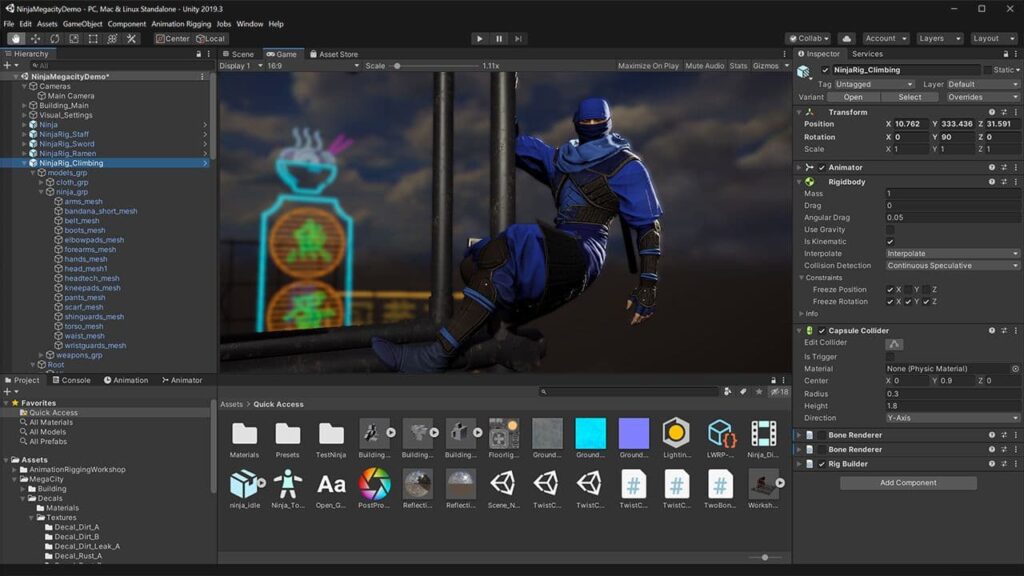
If you’ve been building games in Unity for any amount of time, you’ve probably hit a wall where your scripts are full of hardcoded values, your prefabs are bloated with duplicate data, and changing one number means touching five different files. Scriptable Objects in Unity fix this. They let you store data as standalone assets that any script can reference, without duplicating a single byte. Once you start using them, you’ll wonder how you ever built anything without them.
This guide covers what ScriptableObjects actually are, how they differ from MonoBehaviours, and walks through three real implementations you can drop into your project today: a weapon stats system, an inventory database, and a decoupled event system. If you’re just starting your game development journey, bookmark this one.
TL;DR
- ScriptableObjects are data containers that live as project assets, not on GameObjects
- They eliminate data duplication by letting multiple objects reference the same shared data
- Use them for: weapon/item stats, configuration files, inventory databases, and event systems
- Don’t use them for: saving player progress, storing runtime mutable state, or referencing scene objects
- Start simple with a data container (weapon stats), then graduate to event systems once you’re comfortable
What Are Scriptable Objects (And What Aren’t They)?
A ScriptableObject is a Unity class that stores data independently from any scene or GameObject. Think of them as config files that Unity understands natively. Instead of attaching data to a prefab or hardcoding numbers in a script, you create a ScriptableObject asset in your project folder. That asset holds your data, and any number of scripts can read from it.
The key difference between a ScriptableObject and a MonoBehaviour: MonoBehaviours live on GameObjects in scenes. ScriptableObjects live in your project, like textures or audio clips. They don’t have Update() loops. They don’t exist in the scene hierarchy. They’re pure data (or pure logic, if you get creative).
Here’s what this buys you:
- No duplication. Fifty enemies referencing the same ScriptableObject share one copy of that data in memory. Fifty MonoBehaviours each hold their own copy.
- Designer-friendly. Non-programmers can tweak values in the Inspector without touching code.
- Decoupling. Systems don’t need to know about each other. A health bar can read from a FloatVariable ScriptableObject without knowing the Player script exists.
⚡ Important: ScriptableObject data persists between play sessions in the Editor, but changes made at runtime do NOT save to disk in builds. If you need persistent save data, use a serialization system instead.
Creating Your First Scriptable Object in Unity
Every ScriptableObject starts with a C# class that inherits from ScriptableObject instead of MonoBehaviour. Here’s the minimal version:
using UnityEngine;

[CreateAssetMenu(fileName = "NewWeaponData", menuName = "Game Data/Weapon Data")]
public class WeaponData : ScriptableObject
{
    public string weaponName;
    public int damage;
    public float attackSpeed;
    public Sprite icon;
}
The [CreateAssetMenu] attribute is what makes this practical. Without it, you’d need to create instances through code. With it, you can right-click in your Project window, go to Create > Game Data > Weapon Data, and Unity generates a new asset file. Name it “Iron Sword,” fill in the fields in the Inspector, and you’re done.
To use this data in a MonoBehaviour, you just add a reference field:
public class WeaponBehaviour : MonoBehaviour
{
    public WeaponData weaponData;

    void Start()
    {
        Debug.Log($"Equipped: {weaponData.weaponName}, Damage: {weaponData.damage}");
    }
}
Drag your ScriptableObject asset onto the weaponData field in the Inspector. That’s the entire workflow. The MonoBehaviour reads from the ScriptableObject, and if you ever change the damage value on that asset, every object using it sees the new value instantly.
Practical Example: Weapon Stats System
Let’s build something real. A weapon system where designers can create new weapons without writing any code, and where every enemy holding the same weapon type shares the same data.
First, expand the ScriptableObject with everything a weapon needs:
using UnityEngine;

public enum WeaponType { Melee, Ranged, Magic }
public enum Rarity { Common, Uncommon, Rare, Epic, Legendary }

[CreateAssetMenu(fileName = "NewWeapon", menuName = "Game Data/Weapon")]
public class WeaponData : ScriptableObject
{
    [Header("Basic Info")]
    public string weaponName;
    public string description;
    public Sprite icon;
    public WeaponType weaponType;
    public Rarity rarity;

    [Header("Stats")]
    public int baseDamage;
    public float attackSpeed;
    public float range;
    public float critChance;

    [Header("Scaling")]
    public float damagePerLevel;

    public int GetDamageAtLevel(int level)
    {
        return Mathf.RoundToInt(baseDamage + (damagePerLevel * level));
    }
}
Notice the GetDamageAtLevel() method. ScriptableObjects aren’t limited to passive data. They can contain logic too, as long as that logic is stateless (it only works with the data it already holds or the parameters you pass in).
Now the MonoBehaviour that uses it:
public class WeaponController : MonoBehaviour
{
    public WeaponData weaponData;
    private int currentLevel = 1;

    public int GetCurrentDamage()
    {
        return weaponData.GetDamageAtLevel(currentLevel);
    }

    public void LevelUp()
    {
        currentLevel++;
        Debug.Log($"{weaponData.weaponName} is now level {currentLevel}. " +
                  $"Damage: {GetCurrentDamage()}");
    }
}
The runtime state (current level) lives on the MonoBehaviour. The base data (damage, speed, scaling formula) lives on the ScriptableObject. This separation means a designer can tweak the Iron Sword’s base damage from 10 to 15, hit play, and every Iron Sword in the scene reflects that change. No recompile. No touching individual prefabs.
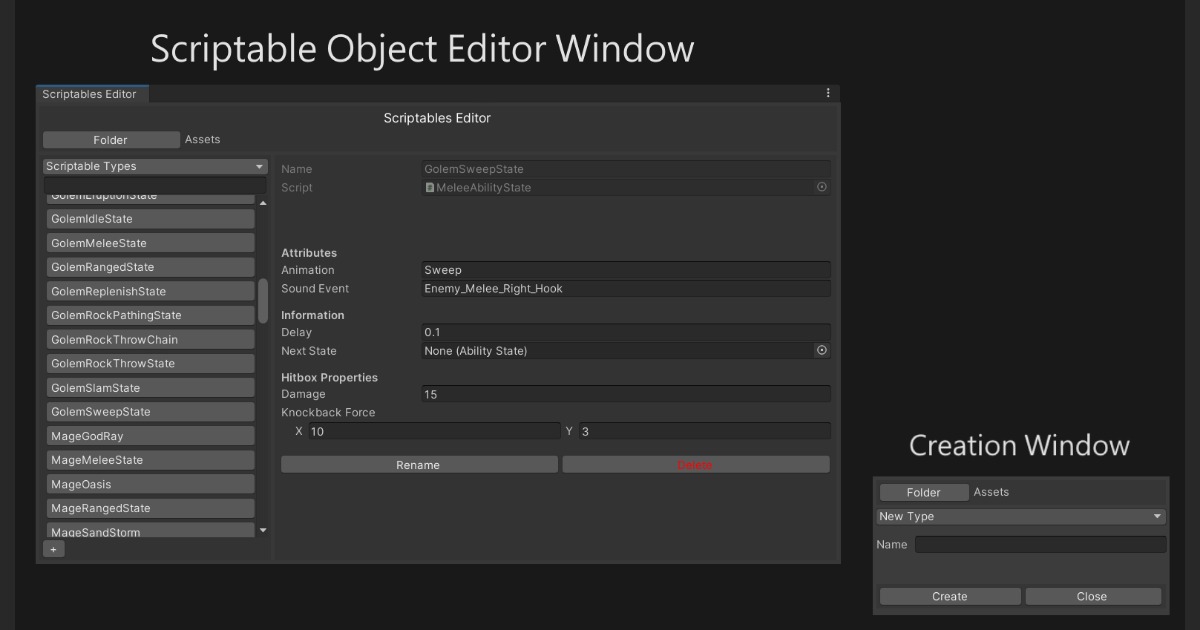
Practical Example: Inventory Item Database
ScriptableObjects really shine when you need a database of items. Instead of a massive JSON file or a spreadsheet import, each item is its own asset that you can browse, search, and edit in the Unity Editor.
Start with the item definition:
[CreateAssetMenu(fileName = "NewItem", menuName = "Game Data/Item")]
public class ItemData : ScriptableObject
{
    public string itemName;
    public string description;
    public Sprite icon;
    public int maxStackSize = 1;
    public bool isConsumable;
    public int buyPrice;
    public int sellPrice;
}
Then create a database ScriptableObject that holds references to all items:
[CreateAssetMenu(fileName = "ItemDatabase", menuName = "Game Data/Item Database")]
public class ItemDatabase : ScriptableObject
{
    public List<ItemData> allItems;

    public ItemData GetItemByName(string name)
    {
        return allItems.Find(item => item.itemName == name);
    }

    public List<ItemData> GetConsumables()
    {
        return allItems.FindAll(item => item.isConsumable);
    }
}
Create individual ItemData assets for each item (Health Potion, Iron Shield, Fire Scroll), then drag them all into the ItemDatabase asset’s list. Any system in your game can reference this single database to look up items, populate shop UIs, or check prices.
The beauty here: adding a new item to the game means creating a new ScriptableObject asset and dragging it into the database list. Zero code changes. A designer or content creator can add hundreds of items without ever opening Visual Studio.
Practical Example: Game Event System
This is where ScriptableObjects go from useful to game-changing. The event system pattern (popularized by Ryan Hipple’s 2017 GDC talk) lets completely unrelated systems communicate without any direct references to each other.
The problem it solves: your player dies, and the game over screen needs to show, the music needs to change, enemies need to stop attacking, and an analytics event needs to fire. Without an event system, every one of those systems needs a reference to the Player. With ScriptableObject events, they just listen for a “PlayerDied” event. They don’t know or care who raised it.
The GameEvent ScriptableObject:
using System.Collections.Generic;
using UnityEngine;

[CreateAssetMenu(fileName = "NewGameEvent", menuName = "Game Data/Game Event")]
public class GameEvent : ScriptableObject
{
    private List<GameEventListener> listeners = new List<GameEventListener>();

    public void Raise()
    {
        // Iterate backwards in case a listener removes itself
        for (int i = listeners.Count - 1; i >= 0; i--)
        {
            listeners[i].OnEventRaised();
        }
    }

    public void RegisterListener(GameEventListener listener)
    {
        listeners.Add(listener);
    }

    public void UnregisterListener(GameEventListener listener)
    {
        listeners.Remove(listener);
    }
}
The GameEventListener MonoBehaviour (attach this to any GameObject that should respond):
using UnityEngine;
using UnityEngine.Events;

public class GameEventListener : MonoBehaviour
{
    public GameEvent gameEvent;
    public UnityEvent response;

    void OnEnable() => gameEvent.RegisterListener(this);
    void OnDisable() => gameEvent.UnregisterListener(this);

    public void OnEventRaised() => response.Invoke();
}
Here’s how you wire it up:
- Create a GameEvent asset called “OnPlayerDied”
- In your Player script, call
onPlayerDiedEvent.Raise()when the player dies - Add a GameEventListener to your Game Over UI canvas. Set the event to “OnPlayerDied” and the response to
SetActive(true) - Add another GameEventListener to your Music Manager. Set the response to play the game over track
Each system is completely independent. You can delete the Game Over UI, and nothing breaks. You can add a new listener (maybe screen shake on death) without touching any existing code. This is the kind of architecture that scales from a jam game to a shipped product. If you’re comparing Unity to other engines, this event pattern is one of Unity’s strongest architectural tools.
When NOT to Use Scriptable Objects
ScriptableObjects aren’t the answer to everything. Here’s where they’ll trip you up:
Don’t use them for save data. Changes to ScriptableObjects at runtime persist in the Editor (which is confusing enough on its own), but they don’t persist in builds. If your player picks up a sword and you store “equipped = true” on the ScriptableObject, that data vanishes when they close the game. Use PlayerPrefs, JSON serialization, or a proper save system instead.
Don’t store mutable runtime state on them. If two enemies reference the same EnemyData ScriptableObject and one modifies a value, the other enemy sees that change too. This is the shared-reference behavior that makes them powerful for read-only data, but dangerous for state that should be per-instance. Keep runtime state on the MonoBehaviour, base data on the ScriptableObject.
Don’t reference scene objects. ScriptableObjects can’t hold references to objects that live in a specific scene. They exist at the project level, not the scene level. If you need a ScriptableObject to interact with scene objects, use the event pattern (the GameEventListener approach above) or have scene objects register themselves at runtime.
| Use Case | ScriptableObject? | Better Alternative |
|---|---|---|
| Weapon/item base stats | Yes | – |
| Game configuration values | Yes | – |
| Cross-system events | Yes | – |
| Player save data | No | JSON serialization, PlayerPrefs |
| Per-instance runtime state | No | MonoBehaviour fields |
| References to scene objects | No | Singletons, event listeners |
Level Up Your Setup
If you’re spending serious hours in the Unity Editor, a good mechanical keyboard makes the grind more comfortable. The Keychron Q1 Max is a solid pick for developers: hot-swappable switches, QMK/VIA programmable, and a gasket mount that actually feels premium.
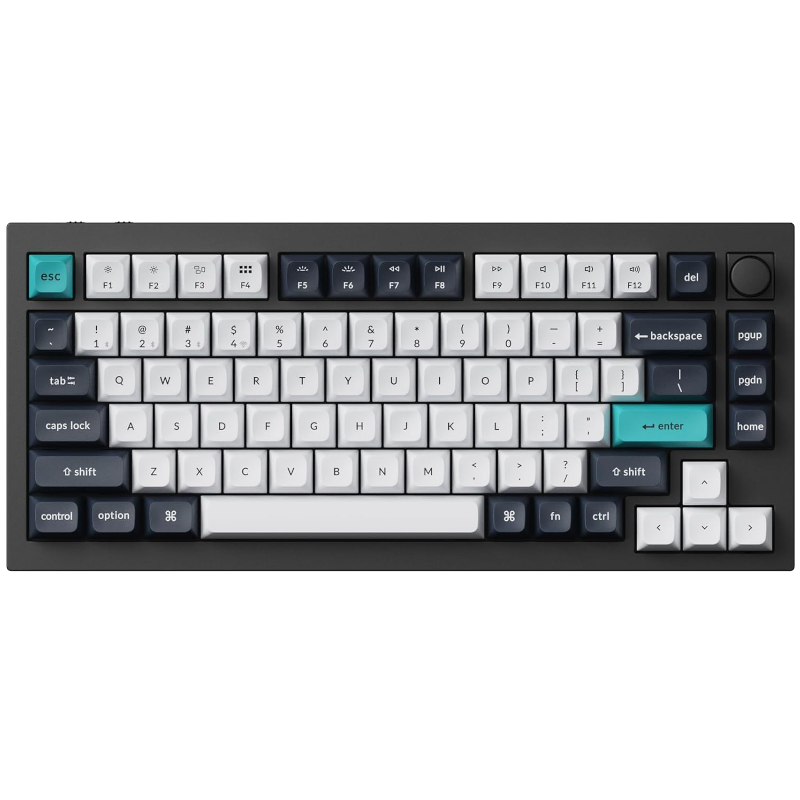
Full aluminum body with 2.4 GHz, Bluetooth, and USB-C. The brown switches hit a good balance between typing feel and noise level for long coding sessions. QMK/VIA means you can remap every key to match your Unity shortcuts.
Frequently Asked Questions
Can ScriptableObjects contain methods and logic?
Yes. ScriptableObjects can have methods, properties, and even implement interfaces. The key constraint is that the logic should be stateless or only operate on data the ScriptableObject already holds. Don’t put Update loops or frame-dependent logic in them.
Do ScriptableObjects persist between scenes?
Yes, because they’re project-level assets, not scene objects. A ScriptableObject loaded in Scene A is still available in Scene B without any special handling. This makes them great for cross-scene data like player stats, game settings, or event channels.
What’s the performance difference between ScriptableObjects and MonoBehaviours?
ScriptableObjects are lighter. They don’t run Update, FixedUpdate, or any of the Unity lifecycle callbacks. They don’t have Transform components. For pure data storage, they use less memory and have zero per-frame overhead. The performance difference is negligible for small projects but adds up when you have hundreds of instances referencing shared data.
Can I create ScriptableObjects at runtime?
Yes, using ScriptableObject.CreateInstance<T>(). This creates a runtime instance that exists only in memory. It won’t be saved as a project asset unless you explicitly use AssetDatabase.CreateAsset() in an Editor script. Runtime creation is useful for procedurally generated items or temporary data containers.
Should I use ScriptableObjects or a JSON file for my game data?
For data that designers edit frequently (weapon stats, enemy configs, level settings), ScriptableObjects are better because the Inspector provides type safety, dropdowns, and drag-and-drop references. For data that comes from external sources or needs to be modded by players, JSON or XML files are more flexible. Many shipped games use both.
Unity 7 changes code reload behavior and static-state handling. Read our Unity 7 release date and preparation guide before moving a project that depends on ScriptableObject initialization or static state.
Summary
ScriptableObjects are one of Unity’s most practical tools for organizing game data. Start with something simple: pull your weapon or item stats out of MonoBehaviours and into ScriptableObject assets. Once that clicks, build an item database. When you’re ready for the real payoff, implement the event system pattern and watch your codebase become dramatically easier to maintain. The learning curve is small and the returns are massive. If you’re exploring modern development workflows, ScriptableObjects fit right in as a clean, data-driven approach to game architecture.