
The Steam Deck is one of the best purchases you can make as a PC gamer. It’s also one of the easiest to scratch, drain, or outgrow on storage in your first week. A handful of accessories, most under $40, turn it from a great handheld into a complete portable gaming setup. After researching dozens of options and cross-referencing community recommendations, here are the best Steam Deck accessories worth your money in 2026, ordered by what you should buy first.
Disclosure: /SKILL is reader-supported. When you buy through links on our site, we may earn an affiliate commission at no extra cost to you. Learn more
In This Guide
Quick verdict
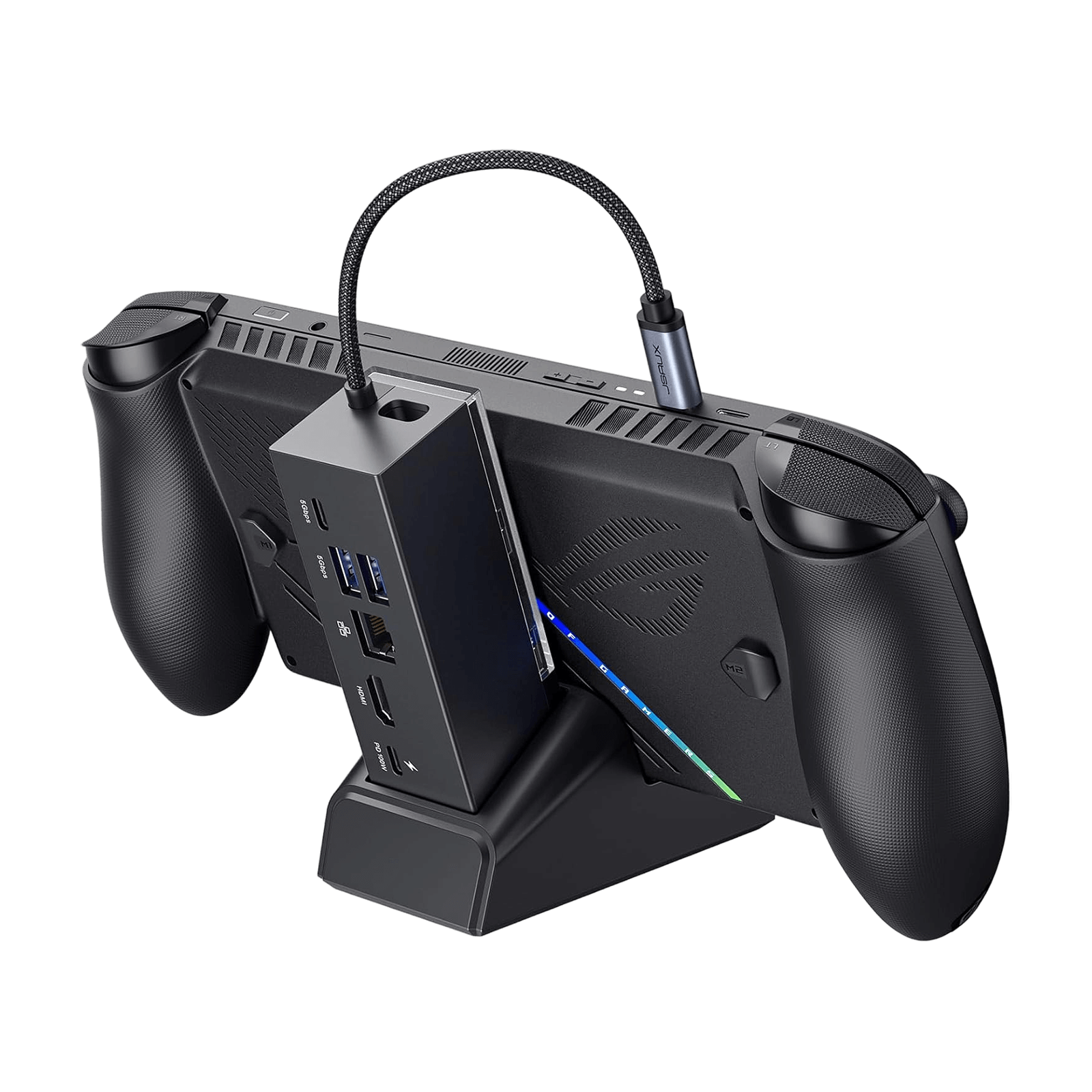
JSAUX 6-in-1 Dock
4K@120Hz HDMI, Ethernet, 3x USB 3.0, 100W charging. Turns your Deck into a desktop.

JSAUX Screen Protector 2-Pack
9H tempered glass with application toolkit. Cheapest way to protect your $400+ investment.
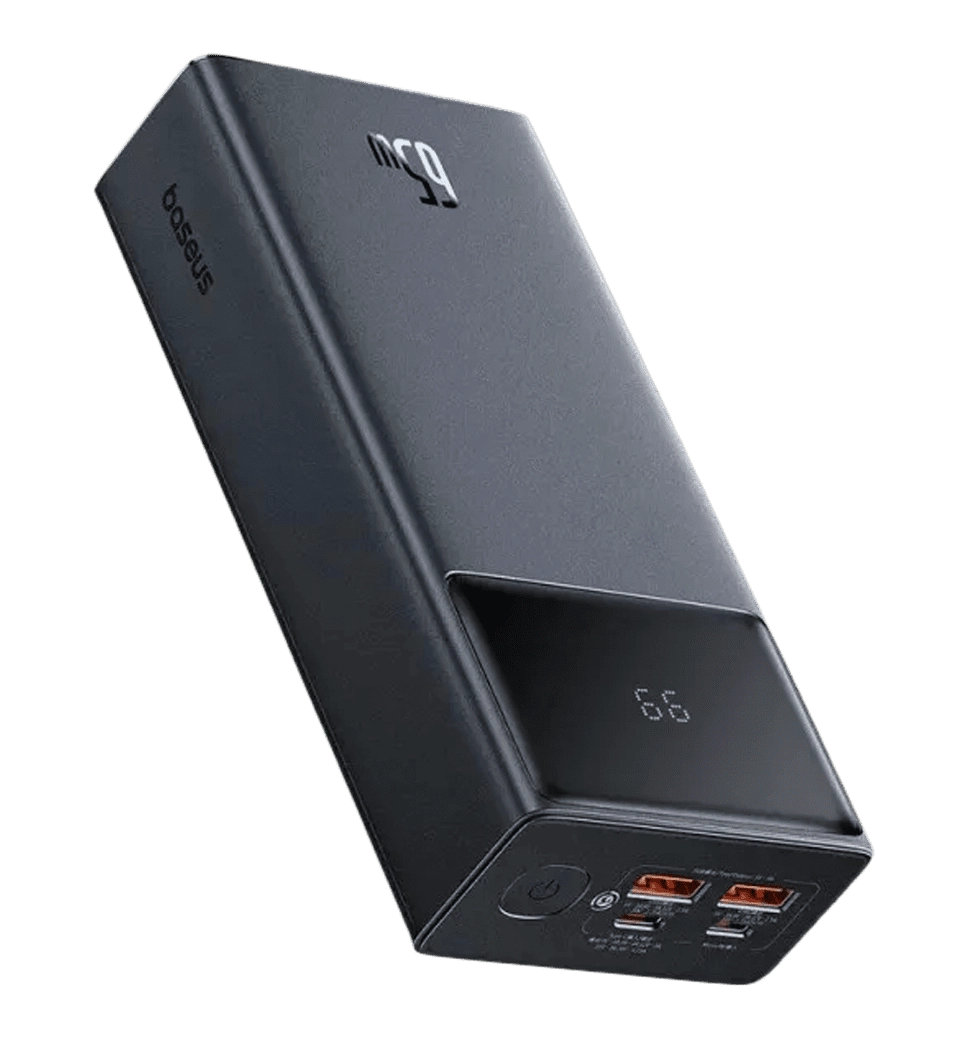
Baseus 65W Power Bank
20,000mAh with 65W PD charging. One full recharge while you keep playing.
What to buy first
You don’t need everything at once. Here’s the priority order based on impact per dollar:
| Priority | Accessory | Price | Why |
|---|---|---|---|
| 1 | Screen Protector | $10 | Protects your biggest investment for the price of lunch |
| 2 | microSD Card | $62 | Most AAA games are 50-100GB. You will run out of space. |
| 3 | Carrying Case | $23 | The stock case works, but a travel case fits your charger and accessories too |
| 4 | Dock | $33 | Transforms your Deck into a desktop/TV console |
| 4b | Travel Dock | $30 | Charger + HDMI dock in one wall plug. Great for hotels. |
| 5 | Power Bank | $40 | Roughly doubles your battery life on the go |
| 6 | Gaming Earbuds | $180 | Nice to have, not essential. Built-in speakers are decent. |
Essential kit total: $128. Screen protector, SD card, and carrying case cover 90% of what most owners need. Add the dock and power bank for $73 more and you have the complete setup.
Screen protection
9H hardness tempered glass. Comes with an alignment frame, microfiber cloth, and applicator so you don’t end up with bubbles. The 2-pack means you get a spare if your first attempt goes sideways.
This is the first thing you should buy. A $10 screen protector on a $400-550 device is the easiest decision on this list. The Steam Deck’s screen sits exposed with no bezel protection, and one unlucky pocket scratch or bag bump can ruin your day.
JSAUX’s 2-pack is the community standard. The alignment frame makes installation nearly foolproof, and the 9H hardness rating means it absorbs scratches and minor impacts instead of your screen. If you have the OLED model, make sure you grab the OLED-specific version since the screen dimensions are slightly different.
Best Steam Deck accessories for storage
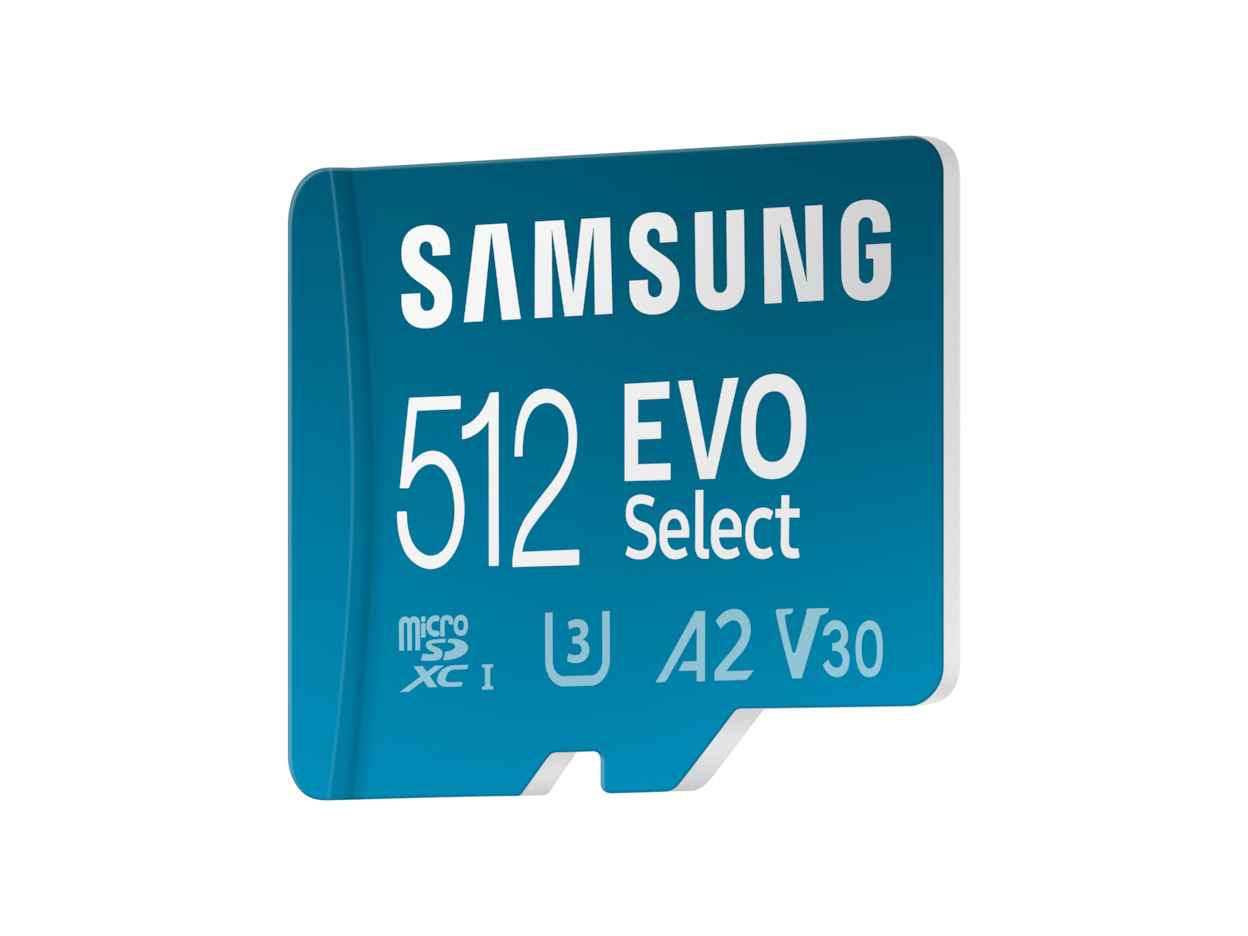
The Samsung EVO Select is the same card as Samsung’s EVO Plus with Amazon-exclusive branding. 130MB/s read speeds, A2-rated for app performance, and Samsung’s reliability behind it. This is the most recommended SD card in the Steam Deck community for good reason.
Storage fills up fast. A single AAA game like Cyberpunk 2077 takes 70GB. Red Dead Redemption 2 takes 120GB. Even the 512GB internal model runs dry after a handful of big titles. A microSD card is the easiest way to expand without opening your Deck.
The 512GB Samsung EVO Select hits the sweet spot for most people. It’s enough to hold 5-10 major games alongside a bunch of smaller indie titles. If you have a massive library and hate managing storage, the 1TB Samsung EVO Select ($130) gives you breathing room, but the price-per-gig is worse.
One thing to know: games load slightly slower from a microSD card than from the internal SSD. For most games the difference is a few extra seconds on loading screens. You probably won’t notice in practice.
Carrying case
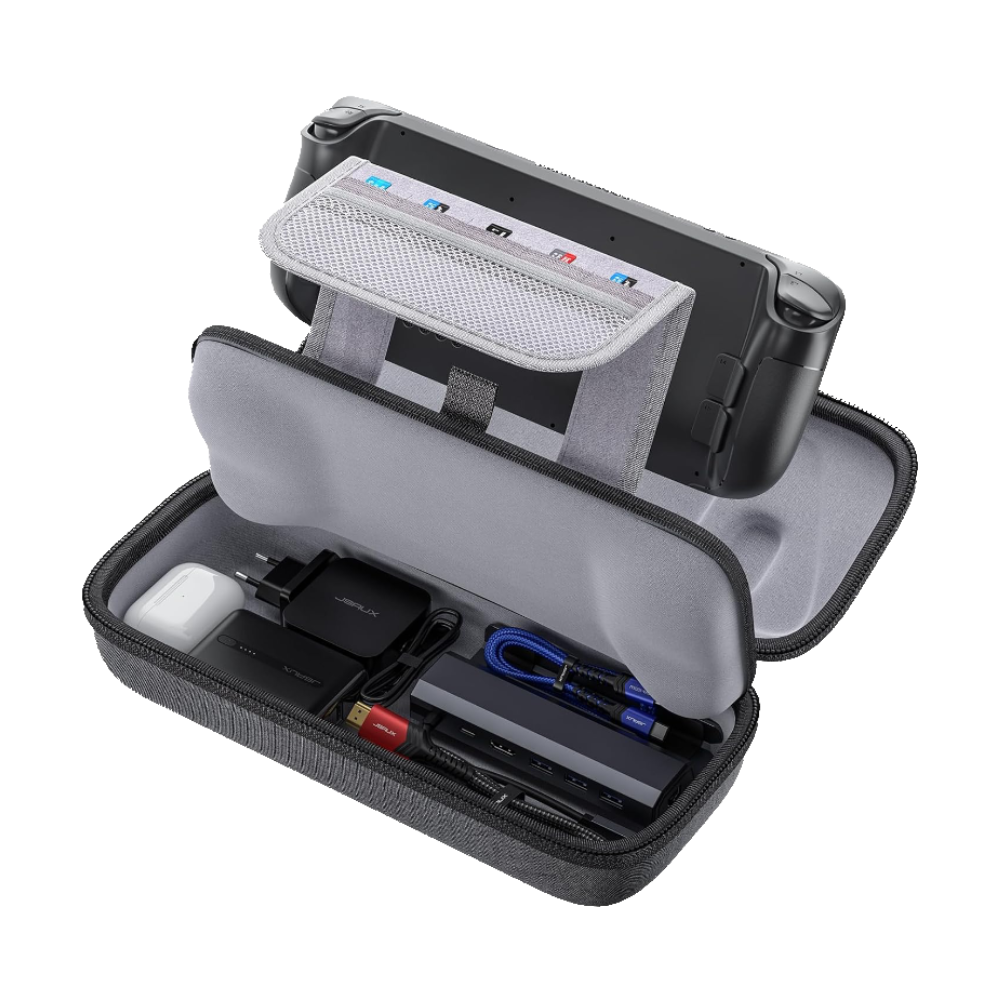
Hard shell exterior with soft lining to protect the sticks and screen. Built-in compartment for the charger, a power bank, earbuds, and SD cards. Compatible with both LCD and OLED models.
The Steam Deck ships with a case, but it barely fits the Deck itself. Once you add a charger, power bank, or earbuds, you’re juggling loose accessories in your bag. The JSAUX carrying case solves this with dedicated storage for everything. The hard shell is rigid enough to toss in a backpack without worrying about pressure damage.
At $23 it’s not a major investment, and it makes traveling with the Deck significantly less stressful. If you plan to take your Deck anywhere outside your couch, this pays for itself the first time you don’t have to dig through a bag for your charger.
Docking station
HDMI 2.1 output at 4K@120Hz, Gigabit Ethernet for stable online play, three USB 3.0 ports for controllers and peripherals, and 100W passthrough charging so your Deck charges while docked. Also works with ROG Ally, Legion Go, and MSI Claw.
A dock turns your Steam Deck into a full console. Plug it into your TV or gaming monitor, connect a controller or keyboard, and you’ve got a desktop gaming setup for $33. That’s less than half the price of Valve’s official dock, and the JSAUX HB0603 actually has better specs (HDMI 2.1 vs the official dock’s HDMI 2.0).
The Gigabit Ethernet port is a nice bonus for online games where Wi-Fi latency matters. The three USB 3.0 ports handle controllers, a mouse, and a keyboard simultaneously. If you want to stream gameplay, the dock’s USB ports work with most capture cards too.
100W passthrough charging means your Deck charges while docked, so you never have to choose between playing and charging. This is the single accessory that most dramatically changes how you use the Deck.
Best portable dock for travel
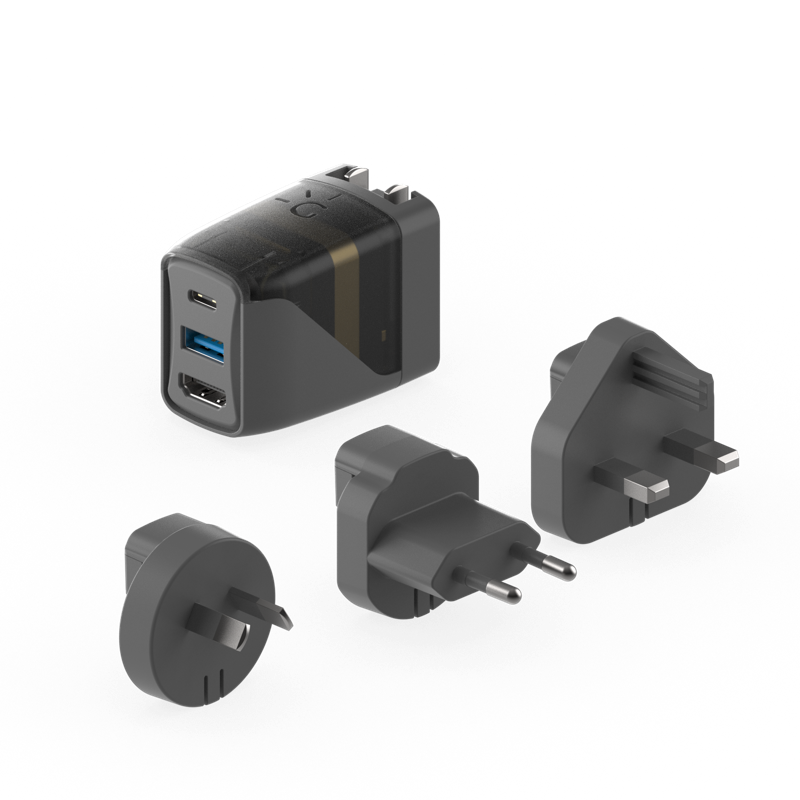
A charger and a 4K60Hz HDMI dock combined into one wall plug. Foldable prongs, 45W USB-C PD charging, and three regional adapters for international travel. Includes a 6ft USB-C 3.1 cable.
If you travel regularly and want to dock your Deck at hotels without carrying a separate dock and charger, the Genki Covert Dock 2 is worth a look. It combines a 45W USB-C charger and a 4K60Hz HDMI output into a single wall plug that’s roughly the size of a phone charger. Plug it into the wall, connect HDMI to the hotel TV, and you’re playing on a big screen.
The trade-off vs the JSAUX is clear: no Ethernet, no USB-A ports, and no passthrough charging since it is the charger. For a desk setup at home, the JSAUX is better. For throwing in a bag and docking anywhere in the world, the Genki wins. At $30, you could honestly grab both and cover every scenario for under $65.
Power bank
65W Power Delivery means this charges the Steam Deck at full speed, even while you’re gaming. 20,000mAh provides roughly one full recharge. Four ports let you top off your phone and earbuds at the same time.
The Steam Deck’s battery lasts 2-6 hours depending on the game. Graphically demanding titles like Elden Ring or Baldur’s Gate 3 drain it closer to the 2-hour mark. A power bank effectively doubles your play time on flights, road trips, or long sessions away from an outlet.
The critical spec here is wattage. You need at least 45W Power Delivery (PD) to charge the Deck while playing. Anything lower and the battery still drains, just slower. The Baseus delivers 65W, which means it charges at full speed even under heavy load. Cheaper 20W or 30W power banks won’t cut it for gaming sessions.
At 20,000mAh, this provides roughly one full recharge. For a long flight, that means 4-12 hours of total play time depending on the game. The four USB ports are a bonus for charging your phone, earbuds, and anything else you’re carrying.
Audio

Quick-switch between 2.4GHz wireless (low latency for gaming) and Bluetooth 5.3 (for phone calls and music). Active noise cancellation, 40-hour battery life with the charging case, IP55 water resistance, and 100+ game audio presets through the SteelSeries app.
The Steam Deck OLED’s built-in speakers are surprisingly decent for a handheld. You don’t technically need earbuds. But if you’re gaming in public, on a plane, or sharing a room, audio makes a real difference to the experience.
The Arctis GameBuds are the best wireless earbuds for handheld gaming right now. The 2.4GHz wireless mode (via the USB-C dongle) gives you near-zero latency, which matters for anything with precise timing. The Bluetooth mode works for casual games or when you want to switch to your phone. The active noise cancellation is solid enough to block out airplane cabin noise.
At $180, these are a luxury buy. If you already own decent Bluetooth earbuds, they’ll work fine with the Deck’s Bluetooth 5.3 (aptX Low Latency on the OLED model keeps audio lag around 40ms). Only upgrade to gaming-specific buds if audio latency genuinely bothers you.
What you can skip
Not everything marketed for the Steam Deck is worth buying. Here’s what you can safely skip unless you have a specific need:
- Keyboards and mice unless you plan to use the dock regularly. The Deck’s built-in controls handle 99% of games. Only buy these if you’re running desktop mode or playing strategy games that genuinely need mouse input.
- Internal SSD upgrades unless you’re comfortable opening electronics. A microSD card gives you extra storage without voiding your warranty or risking damage. The SSD upgrade makes more sense for the 64GB LCD model where internal storage is genuinely cramped.
- Skins and decals. They look cool but add zero functionality. Spend that $15-20 on a screen protector and SD card instead.
- Cooling accessories. The Deck’s built-in cooling handles every game in its library. External fans and coolers are solutions looking for a problem.
Frequently asked questions
Do Steam Deck OLED accessories work with the LCD model?
Most do, but not all. Docks, power banks, and carrying cases are generally compatible with both. Screen protectors are NOT interchangeable because the OLED model has a slightly larger 7.4″ screen versus the LCD’s 7″ screen. Always check the listing for your specific model.
What microSD card speed do I need for Steam Deck?
Look for cards rated U3 and A2 at minimum. The Steam Deck’s microSD slot supports UHS-I speeds (up to ~104MB/s in practice). Buying a UHS-II card won’t hurt, but you won’t see faster speeds than UHS-I since the slot is the bottleneck.
Can I charge the Steam Deck while it’s docked?
Yes, if the dock supports passthrough charging. The JSAUX HB0603 passes through 100W via USB-C, so your Deck charges at full speed while you play on a TV or monitor. Not all docks include this feature, so check the specs before buying.
Is the official Valve dock worth it over third-party options?
The official Valve dock works well but costs around $80 and only has HDMI 2.0 (4K@60Hz). Third-party docks like the JSAUX HB0603 offer HDMI 2.1 (4K@120Hz) for under $35. Unless you specifically want Valve branding, third-party docks offer better value.
Should I upgrade the internal SSD?
For most people, no. A microSD card is cheaper, easier, and doesn’t require opening the device. SSD upgrades make sense if you have the 64GB eMMC model (which is noticeably slower than NVMe) or if you want faster load times for competitive games. Otherwise, a 512GB microSD gets the job done.
Summary
You can kit out a Steam Deck with everything it needs for about $170. A $10 screen protector, $62 SD card, $23 carrying case, $33 dock, and $40 power bank cover protection, storage, desktop mode, and extended battery life. That’s the full loadout for less than half the price of the Deck itself.
If you’re on a tight budget, start with the screen protector and SD card ($72 total). Those two accessories solve the most common pain points: scratches and storage limits. Add the rest as your budget allows.
JSAUX dominates this space for good reason. Their products consistently hit the right balance of quality and price, and they update compatibility for each new Deck revision. Samsung’s EVO Select remains the SD card to beat, the Baseus power bank delivers laptop-class charging at a reasonable price, and the Genki Covert Dock 2 is the best travel dock if you want to play on hotel TVs without carrying extra cables. These are the accessories the Steam Deck community keeps recommending, and after looking at every option on the market, we agree. For more gear recommendations, check out our ergonomic desk setup guide if you’re building a complete gaming station around your docked Deck, or our Nintendo Switch 2 accessories guide if you own both handhelds. And if you’re shopping for a robot vacuum, our Roomba alternatives guide covers the best picks after iRobot’s bankruptcy.