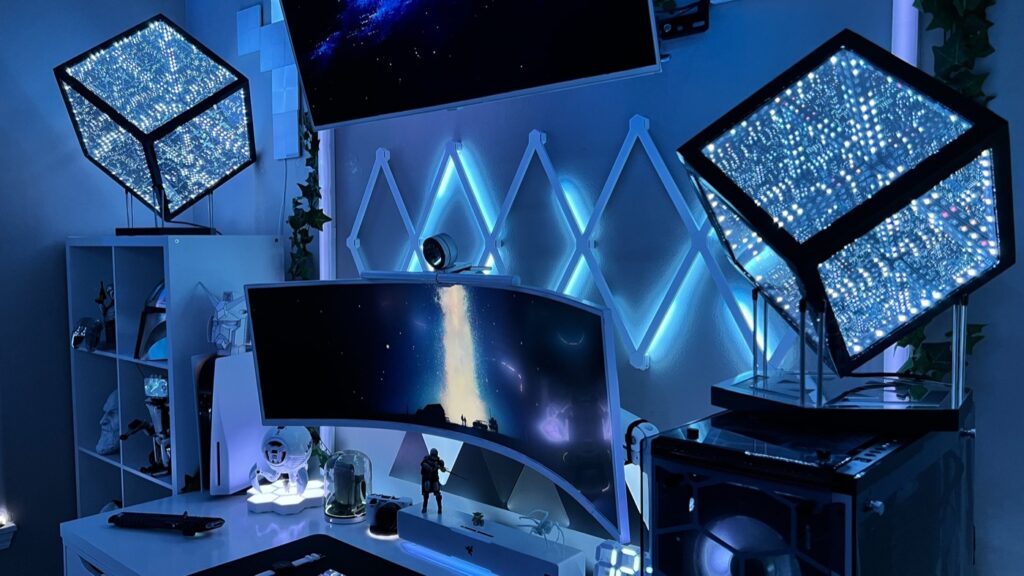
Quick Answer
The Govee RGBIC LED Strip ($15) is the best starting point for most gaming rooms. For monitor lighting that reduces eye strain, the BenQ ScreenBar ($109) is the gold standard. And if you want wall panels that look like a spaceship cockpit, Nanoleaf Hexagons ($150) are the ones to get.
Disclosure: /SKILL is reader-supported. When you buy through links on our site, we may earn an affiliate commission at no extra cost to you. Learn more
Most gaming rooms have terrible lighting. Either the room is pitch black with a glowing monitor burning holes in your retinas, or the overhead fluorescent is on and washing out everything on screen. Both are bad for your eyes, and both make your setup look worse than it should.
Good gaming room lights fix all of that. The right setup reduces eye strain during long sessions, makes your screen colors pop, and turns a boring room into something that looks like you care about it. I have tested strips, panels, bars, bulbs, and key lights across every price point to put together this list of the best gaming room lights you can buy right now. Every product below has a direct buy link and a real price.
In This Guide
How to Light a Gaming Room the Right Way
Before you buy anything, you need to understand what makes gaming lighting good versus just colorful. There are three things that matter: color temperature, bias lighting, and eye strain prevention. Get these right and everything else is decoration.
Color Temperature
Color temperature is measured in Kelvin (K). Lower numbers mean warmer, amber-toned light. Higher numbers mean cooler, bluer light. The “best” temperature depends on what you are playing and when.
For competitive games like Valorant or Rocket League, cooler light (4000-5700K) keeps you alert and focused. For story-driven RPGs and atmospheric games, warmer light (2700-3500K) creates a cozy, immersive feel. If you play at night, stay in the 3000-4000K range to avoid disrupting your sleep cycle with too much blue light. The takeaway: get lights with adjustable color temperature so you can dial it in for different situations.
Bias Lighting
Bias lighting is the single most impactful upgrade you can make to your setup, and most gamers have never heard of it. It is a soft, neutral light placed behind your monitor that reduces the contrast between your bright screen and the dark room around it.
Without bias lighting, your pupils are constantly adjusting between the bright screen and the dark surroundings. That constant adjustment is what causes eye strain, headaches, and fatigue during long sessions. With proper bias lighting at 6500K and about 10% of your monitor’s brightness, your eyes relax because the contrast ratio drops dramatically. Colors on screen look better too, because your brain is not fighting the extreme light difference.
Important: True bias lighting should be 6500K neutral white, not RGB. Colored light behind your monitor distorts your color perception. Use RGB strips for ambient room lighting, but keep your monitor backlight neutral.
Eye Strain Prevention
Beyond bias lighting, a few habits make a real difference. Follow the 20-20-20 rule: every 20 minutes, look at something 20 feet away for 20 seconds. Match your room brightness roughly to your screen brightness so neither one overpowers the other. And avoid placing any light source where it reflects off your screen. If you are building your setup around a gaming monitor, getting the lighting right is just as important as getting the monitor right.
Best LED Light Strips for Gaming Rooms
LED strips are the foundation of most gaming room setups. They go behind desks, under shelves, around door frames, along ceiling lines. Two options stand out depending on your budget.
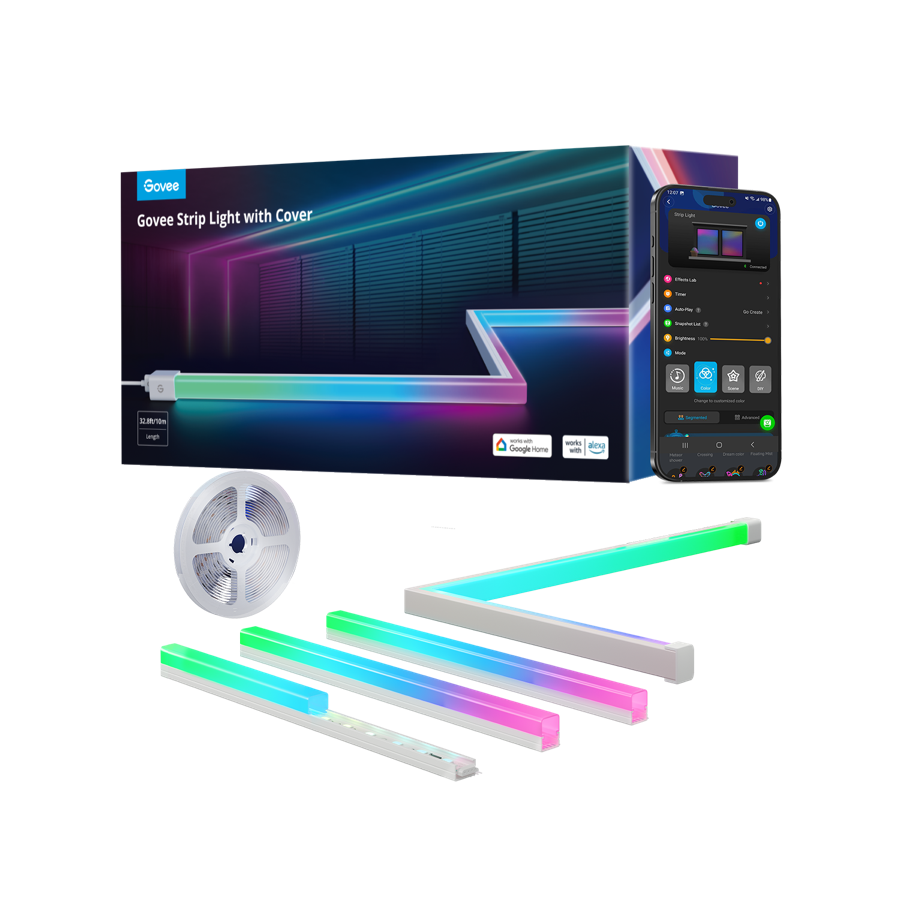
Govee RGBIC LED Strip (16.4ft)
Multiple colors on one strip. Music sync, app control, adhesive install.
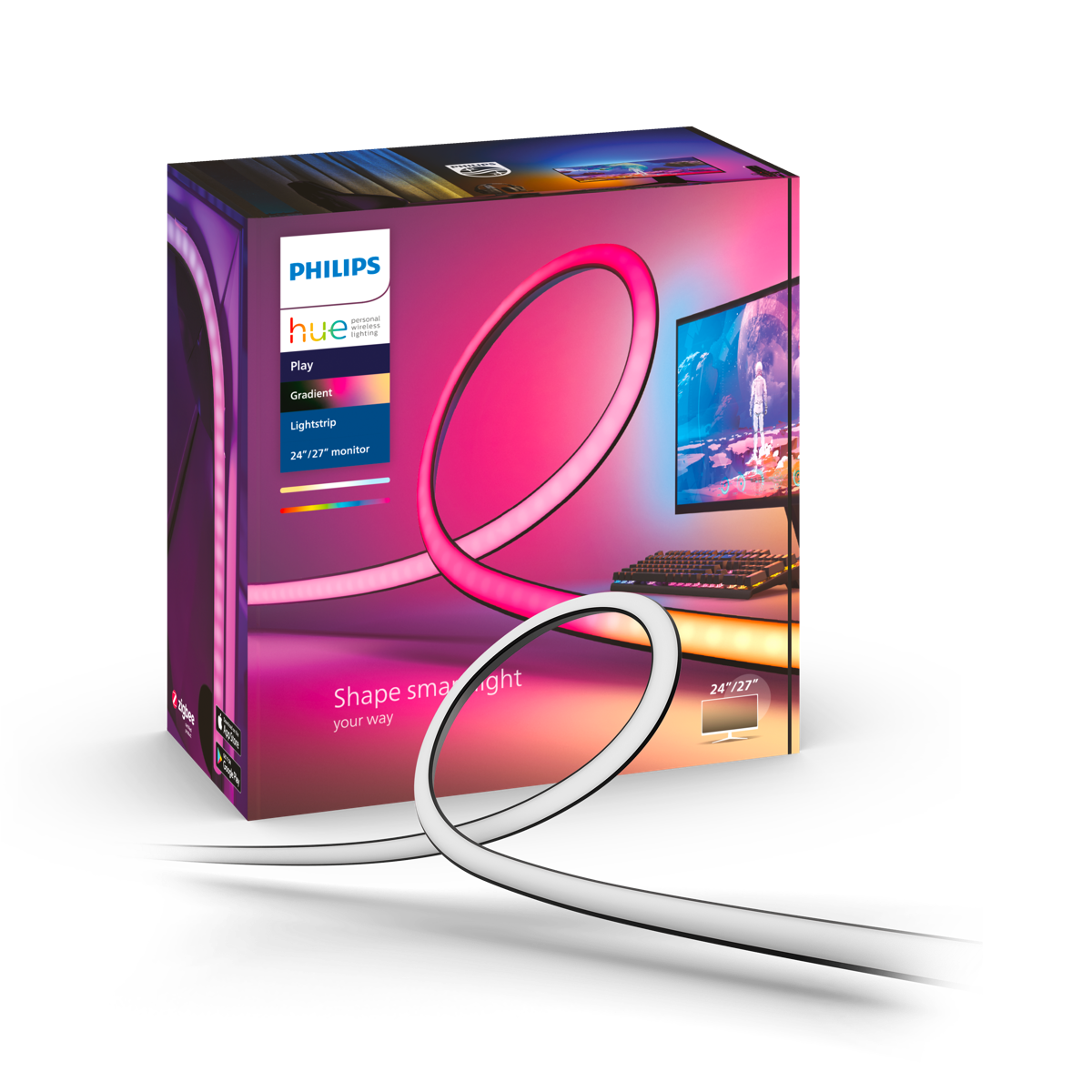
Philips Hue Gradient PC Lightstrip
Real-time screen mirroring via Hue Sync. Requires Hue Bridge ($60).
The Govee RGBIC LED Strip is the one I recommend to anyone just getting started. At $15-20, it is absurdly cheap for what you get. RGBIC means different segments of the strip can show different colors at the same time, which looks significantly better than old-school RGB strips that can only display one color across the entire length. Peel the adhesive backing, stick it behind your desk or along a shelf, connect the app, and you are done in five minutes. The music sync mode is genuinely fun for party games.
The limitation is that the base Bluetooth model has no WiFi and no smart home integration. If you want Alexa control or Razer Chroma sync, step up to the WiFi Pro version for about $30-40.
The Philips Hue Gradient PC Lightstrip is the premium option. It displays a flowing gradient of colors matched to your screen content in real time through the Hue Sync desktop app. The effect during games is impressive, with your entire desk glowing in sync with the action on screen. The catch: you need a Philips Hue Bridge ($60) on top of the $130 strip, so you are looking at $190 total to get started. It is worth it if you are already in the Hue ecosystem or plan to build out a full smart lighting setup. If you just want some color behind your desk, the Govee is 90% of the fun at 10% of the price.
Best Smart Light Panels for Gaming Rooms
Wall panels are the statement pieces. They are the first thing anyone notices when they walk into a gaming room, and they look incredible in photos and on stream. Two brands dominate this space.
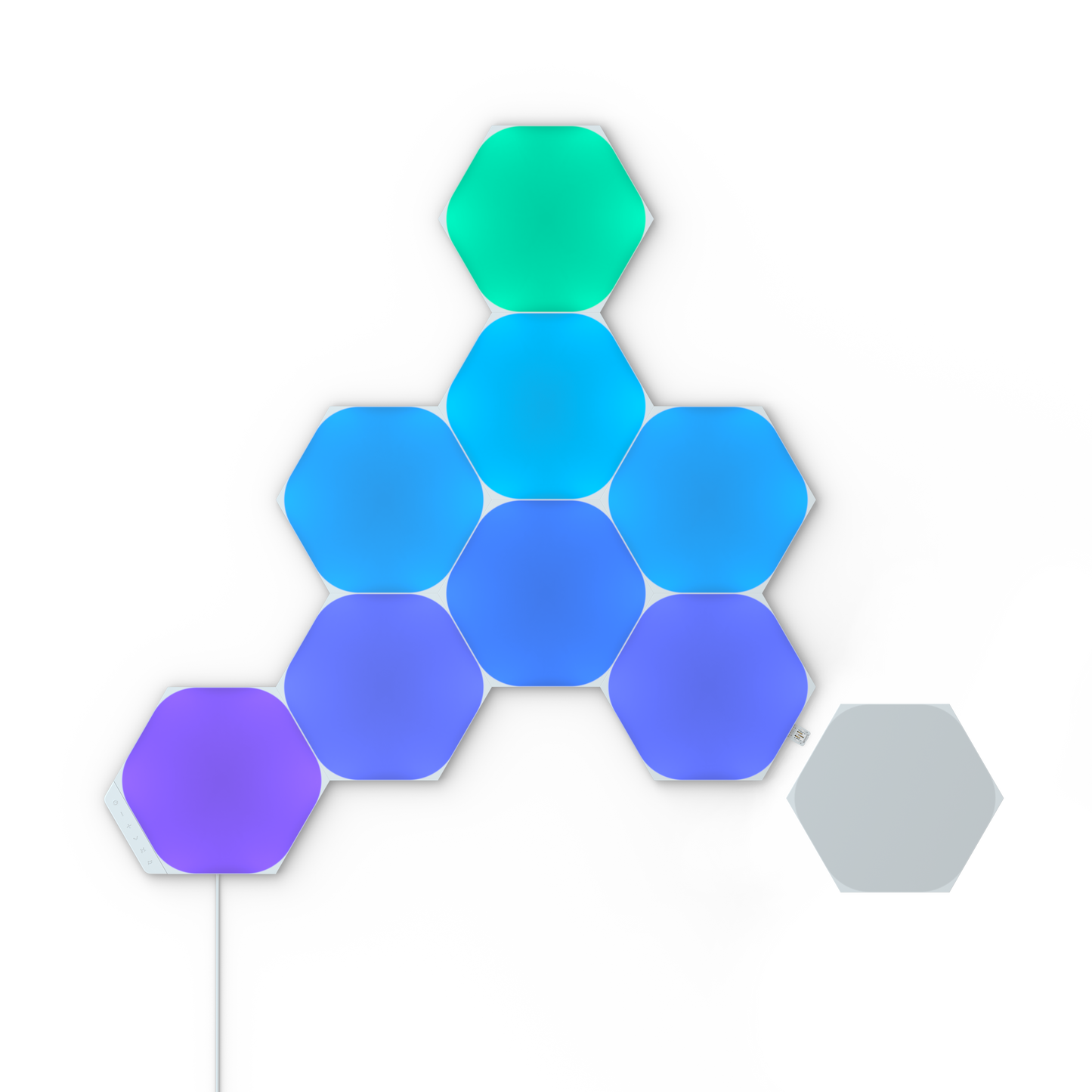
Nanoleaf Shapes Hexagons (7 Pack)
Modular, touch-reactive, screen mirror. The gold standard in wall panels.
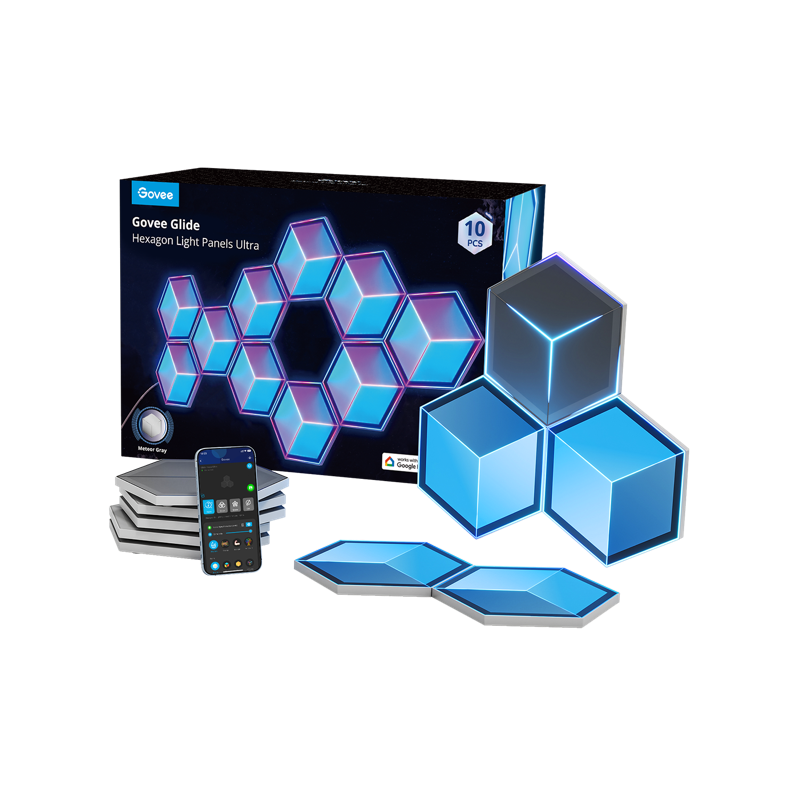
Govee Glide Hexagon Ultra (10 Pack)
3D depth effect with 129 LEDs per panel. Razer Chroma compatible.
Nanoleaf Shapes Hexagons are the panels you have seen on every gaming setup post on Reddit. The 7-panel starter kit runs $150 and snaps together magnetically in whatever layout you want. Each panel is touch-reactive, meaning you can tap them to change colors or trigger effects. The Screen Mirror feature syncs the panels to your screen content, and they work with HomeKit, Alexa, Google, and Thread. The modular design means you can buy expansion packs later to build out a bigger display.
The downsides are real though. At roughly $21 per panel, building a large display gets expensive fast. The mounting tape is strong, so removing them can damage drywall. And the power cord running down the wall to the nearest outlet is hard to hide cleanly.
Govee Glide Hexagon Ultra panels are the flashier alternative. What sets them apart is the 3D layered design. Each panel has 129 lamp beads that create a visible depth effect, almost like looking into the panel rather than at it. The 10-pack retails at $350 but frequently goes on sale for $250-280. They integrate with Razer Chroma for in-game lighting sync, which Nanoleaf also supports but Govee executes well.
Nanoleaf wins on aesthetics and ecosystem. Govee wins on raw LED density and value per panel when on sale. If I was buying today, I would go Nanoleaf for a clean, minimalist setup and Govee for a more aggressive, RGB-heavy look.
Best Monitor Light Bars and Bias Lighting
This is the category most gamers skip and should not. A monitor light bar illuminates your desk without creating screen glare, and the right one doubles as proper bias lighting. If you spend 4+ hours a day at your desk, this is the single best investment on this list.
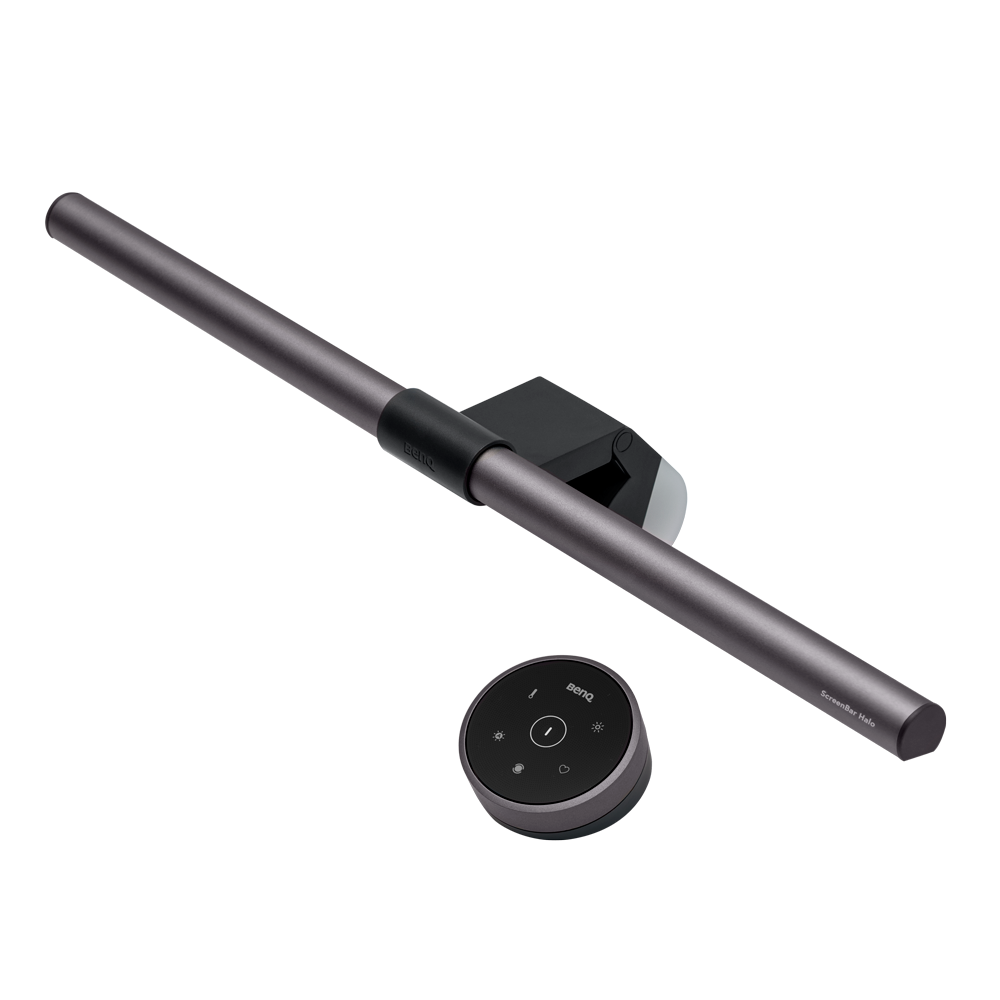
BenQ ScreenBar
Asymmetric optics, zero glare, auto-dimming. The one to beat.
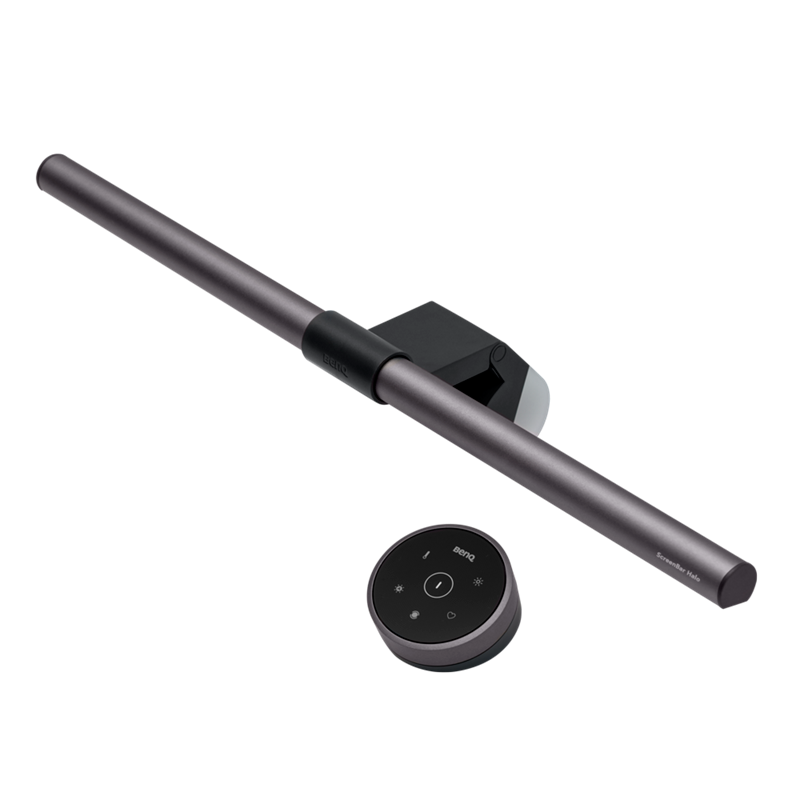
BenQ ScreenBar Halo
Wireless controller, built-in backlight, fits curved monitors.
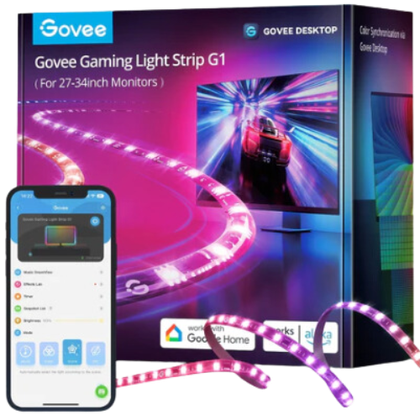
Govee Gaming Light Strip G1
Software-based screen sync for 27-34″ monitors. Razer Chroma support.
The BenQ ScreenBar has a 4.7-star rating across thousands of reviews for a reason. Its patented asymmetric optical design directs light downward onto your desk while keeping your screen completely glare-free. That sounds simple, but cheap desk lamps cannot do it. The built-in ambient light sensor automatically adjusts brightness based on your room, and the color temperature ranges from 2700K warm to 6500K daylight. It clips directly onto your monitor, takes zero desk space, and powers via USB. If you work or game at a desk for extended hours, this is the upgrade that makes the biggest difference to how your eyes feel at the end of the day.
The BenQ ScreenBar Halo adds a wireless dial controller (no more reaching up to tap the bar) and a rear-facing backlight that acts as built-in bias lighting. It also fits curved monitors, which the original ScreenBar can struggle with. At $179 it is a steep premium, but the wireless controller alone makes daily use significantly more pleasant. If you have a curved monitor or want bias lighting without sticking a separate strip to the back of your display, this is the one.
The Govee Gaming Light Strip G1 takes a completely different approach. Instead of lighting your desk, it sticks to the back of your monitor and syncs its colors to your screen content via software. Think of it as budget Philips Hue Sync for your monitor. It works with Razer Chroma too, so your monitor backlight reacts to in-game events. At $40-70 (frequently discounted), it is the cheapest way to get screen-sync bias lighting. The trade-off is that it requires the Govee desktop app running in the background, and it only works on PC, not consoles.
If you are building a serious ergonomic desk setup, the BenQ ScreenBar should be near the top of your list.
Best Smart Bulbs for Gaming Rooms
Smart bulbs go in your existing lamps and overhead fixtures. They are the easiest way to add color to a room without mounting anything. The two best options split on one question: do you want an ecosystem or do you want simplicity?
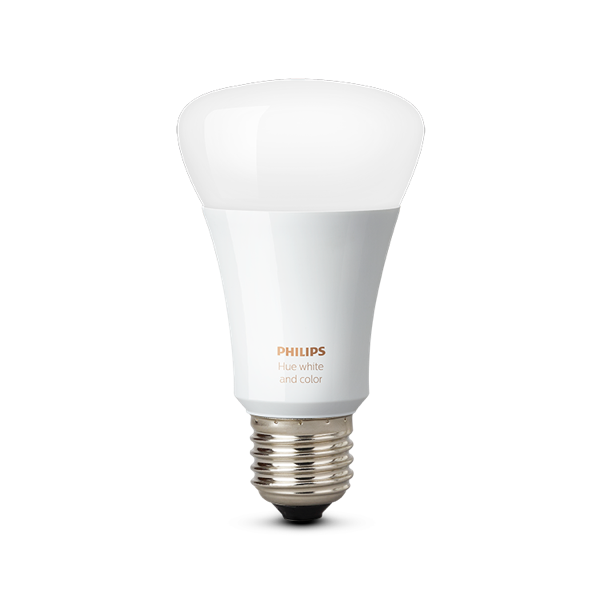
Philips Hue A19 Color Ambiance
16M colors, Razer Chroma sync, requires Hue Bridge. The premium play.
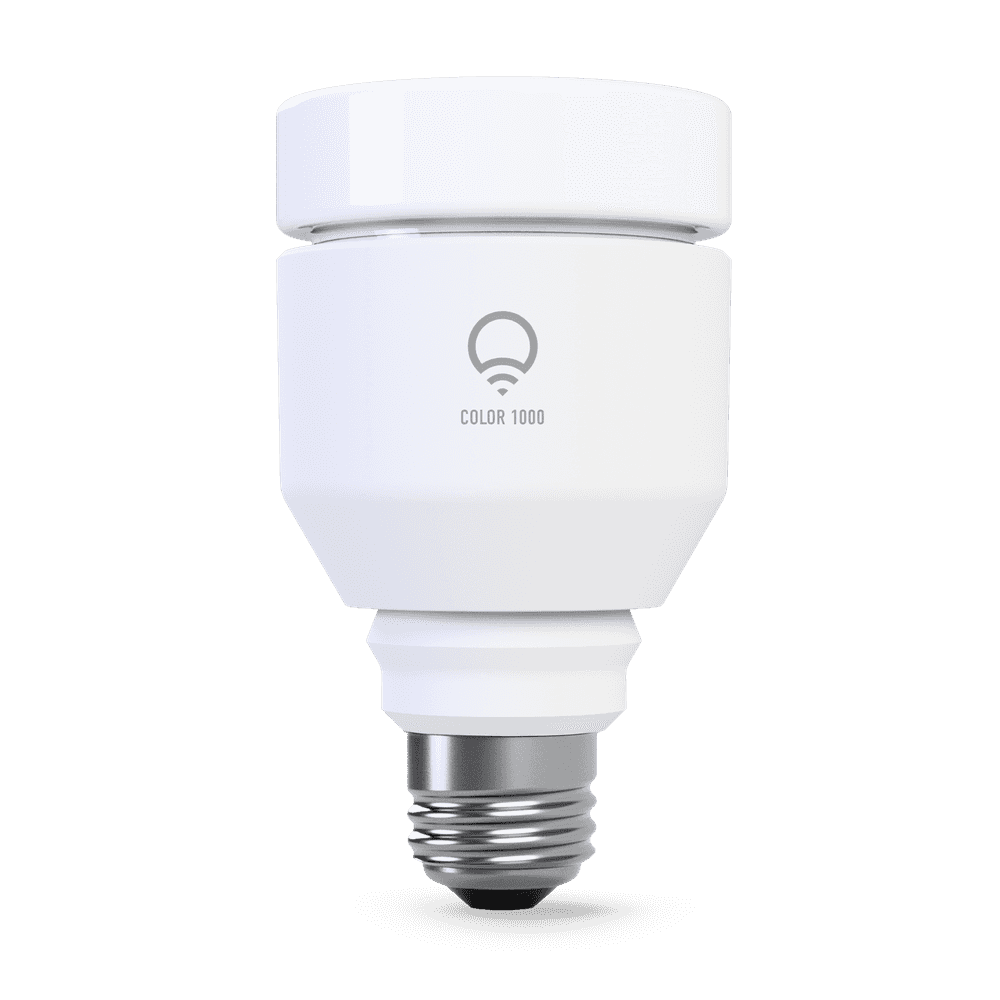
LIFX Color A19 (1100 lm)
No hub needed. Brighter than Hue. Just screw it in and connect to WiFi.
The Philips Hue A19 is the bulb you buy when you are going all-in on smart lighting. It integrates with Razer Chroma for in-game lighting effects, syncs with the Hue Sync app for screen-mirrored ambiance, and works with every major smart home platform. The color range covers 16 million colors plus tunable white from 2000K to 6500K. The catch is that you need the Hue Bridge ($60) for everything to work, and at $55 per bulb, filling a room with four or five of these adds up fast.
The LIFX Color A19 is the smarter buy for most people. No hub required. Screw it into any lamp, connect to your WiFi, and you are done. It is brighter than the Hue bulb (1100 lumens versus 800), costs $20 less per bulb, and supports Alexa, Google, and HomeKit. The trade-off is no Razer Chroma integration and no equivalent to Hue Sync. If you just want colored smart bulbs without buying into an ecosystem, LIFX is the obvious pick.
Pro tip: Put smart bulbs in floor lamps or corner lamps aimed at the wall or ceiling. Bounced, indirect colored light fills a room much better than a bare bulb in the middle of the ceiling.
Best Desk and Key Lights for Gaming
Key lights are primarily for streaming and video calls, but they also work as high-quality desk lighting for gaming. If you stream, create content, or take a lot of video calls, one of these should be on your desk.
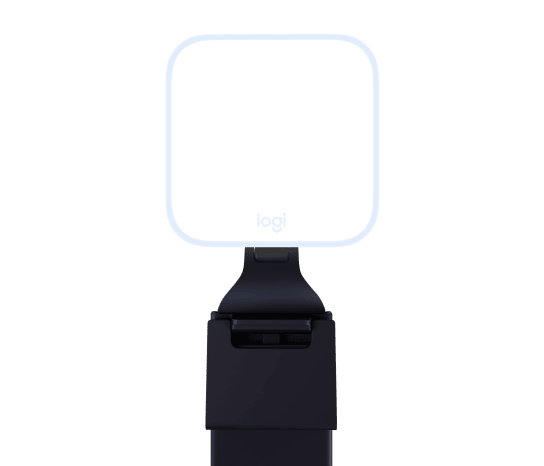
Logitech Litra Glow
TrueSoft tech for natural skin tones. Monitor mount included.
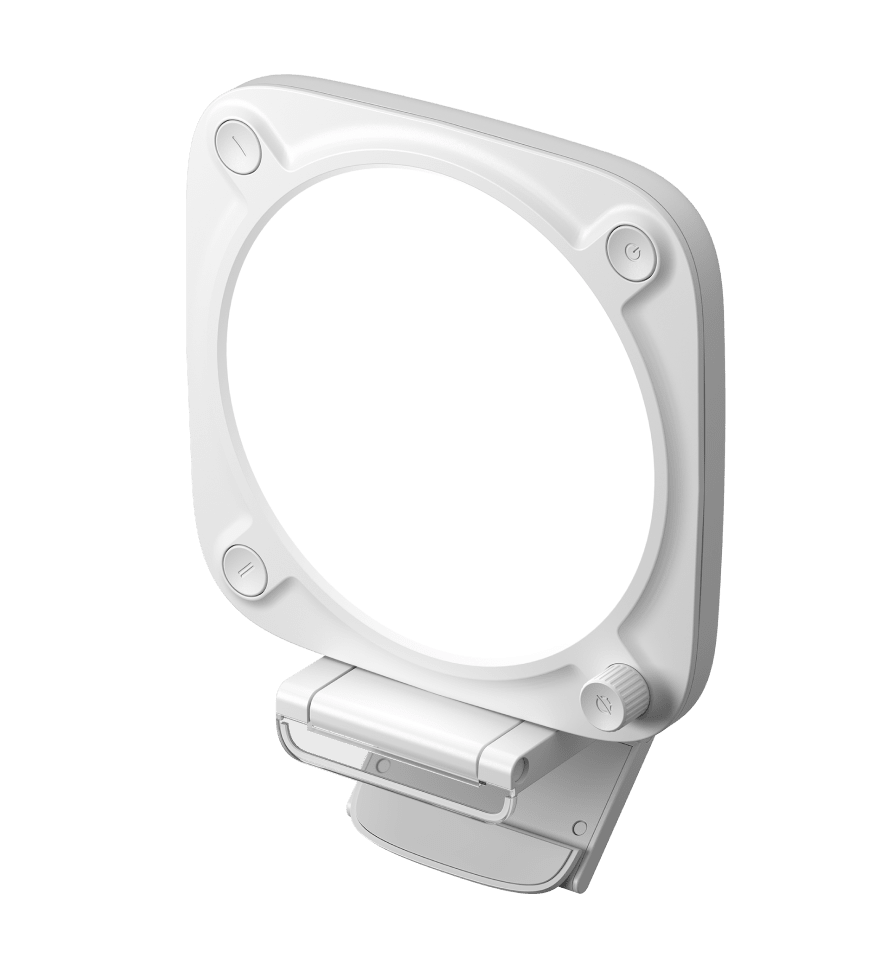
Elgato Key Light Neo
Clean design, onboard + WiFi controls, Stream Deck integration.
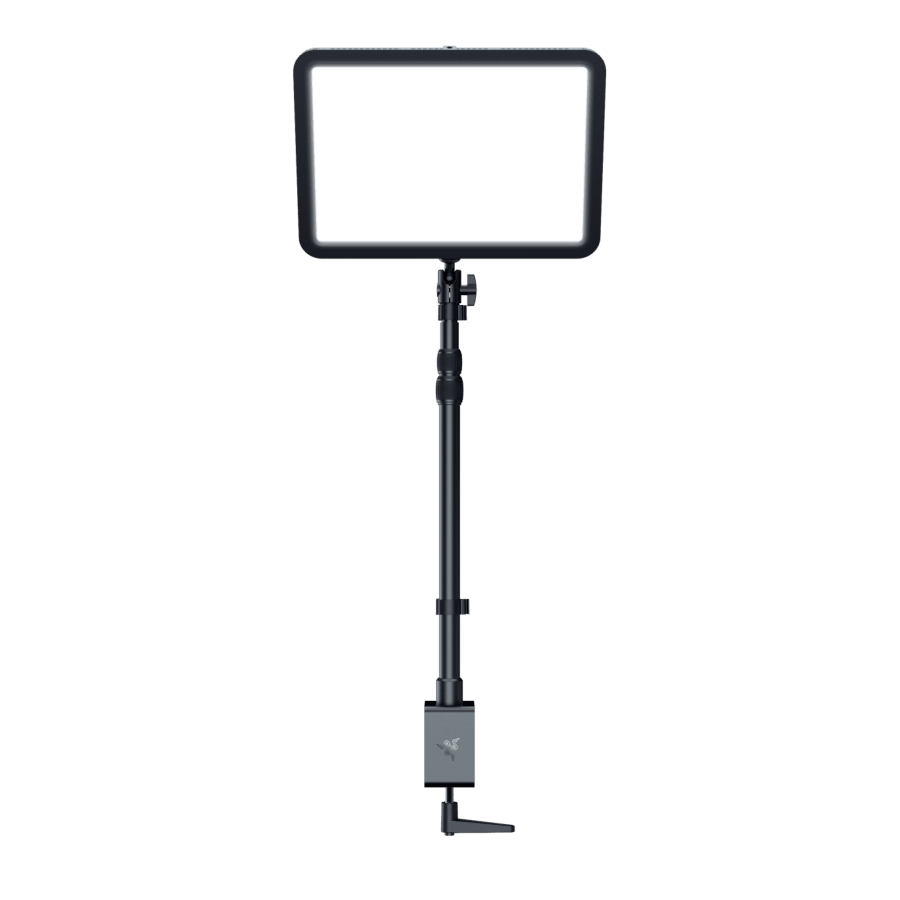
Razer Key Light Chroma
2800 lumens + full RGB. The only key light with Razer Chroma sync.
The Logitech Litra Glow is the entry point. Its TrueSoft technology produces balanced, full-spectrum light that makes skin tones look natural on camera. The monitor mount is clever and space-saving, and it integrates with Logitech G Hub if you use other Logitech gear. At $55-70 it is hard to beat for the price. The main limitation is brightness: 300 lumens max means it is a face light, not a room light.
The Elgato Key Light Neo sits in the middle at $90. It has both a physical dial for quick adjustments and WiFi app control for dialing in precise settings. If you use an Elgato Stream Deck, you can program one-touch lighting presets, which is a nice workflow upgrade. The design is clean and looks good on a desk without screaming “content creator.” Brightness tops out at 1000 lumens, which is plenty for face lighting and decent for desk illumination.
The Razer Key Light Chroma is the overkill option and I mean that as a compliment. At 2800 lumens, it can light an entire room, not just your face. It is also the only key light with full RGB color support, meaning it can double as ambient room lighting AND sync with Razer Chroma for in-game effects. The metal build feels premium, the desk clamp is rock solid, and the light output is hard to overstate. At $150-200 on sale ($247 MSRP), it is not cheap, but it replaces both a key light and an RGB accent light.
Best Decorative Gaming Lights
These are the finishing touches. Neon signs, rope lights, and screen-sync strips that add personality to your space.
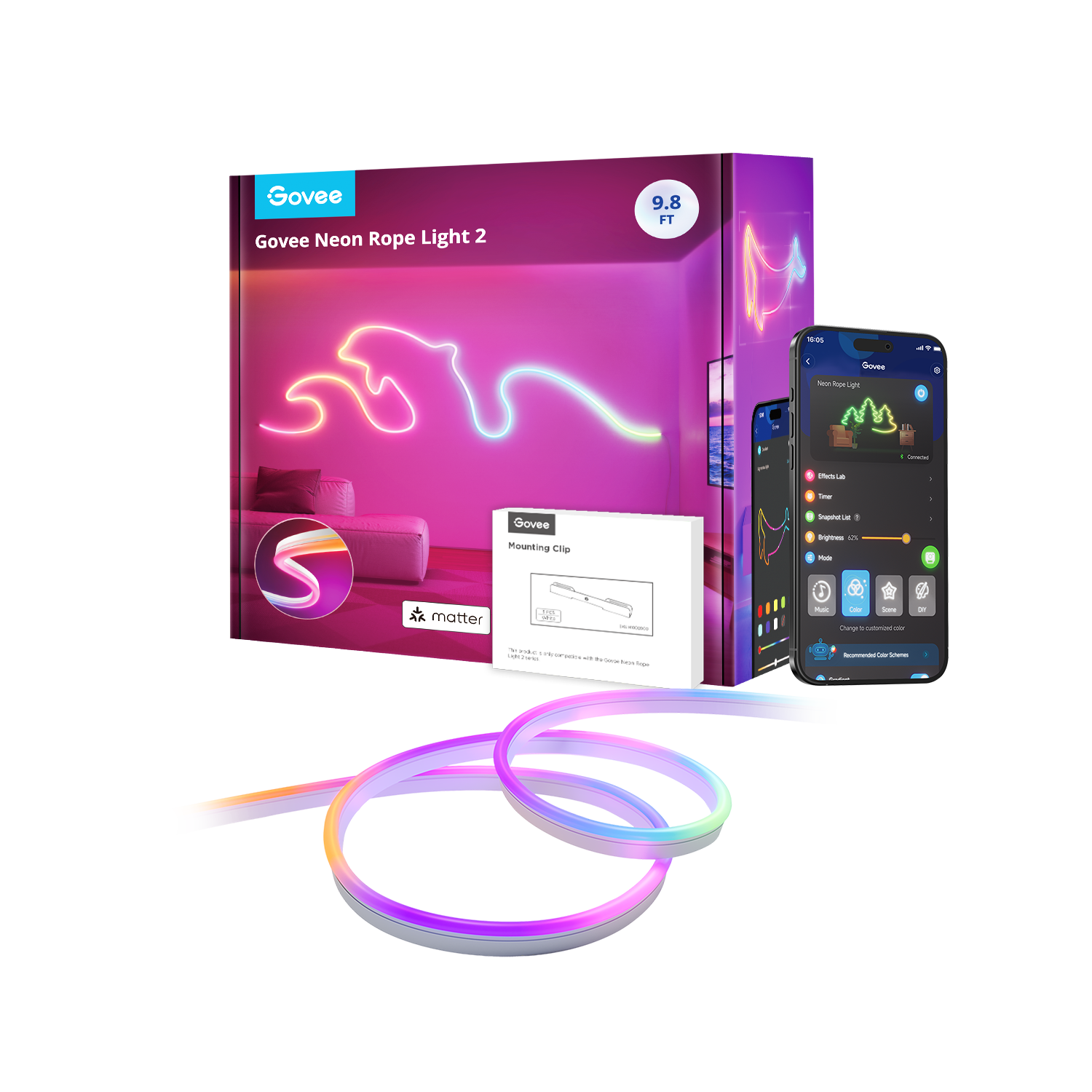
Govee Neon Rope Light 2 (16.4ft)
Bend into any shape. Camera-based shape mapping. Matter support.
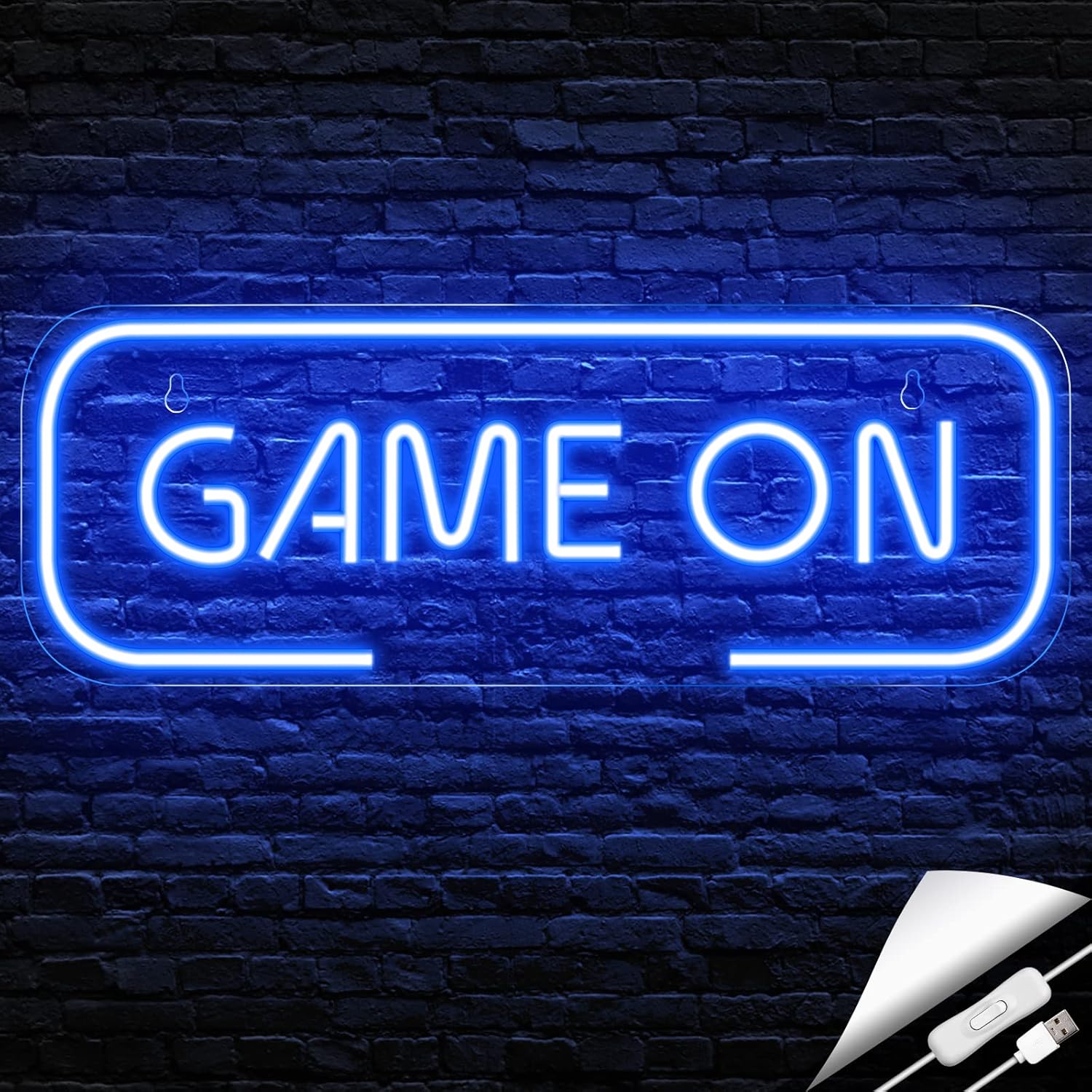
Kavaas “Game On” Neon Sign
Plug-and-play LED neon sign. USB powered, zero setup.
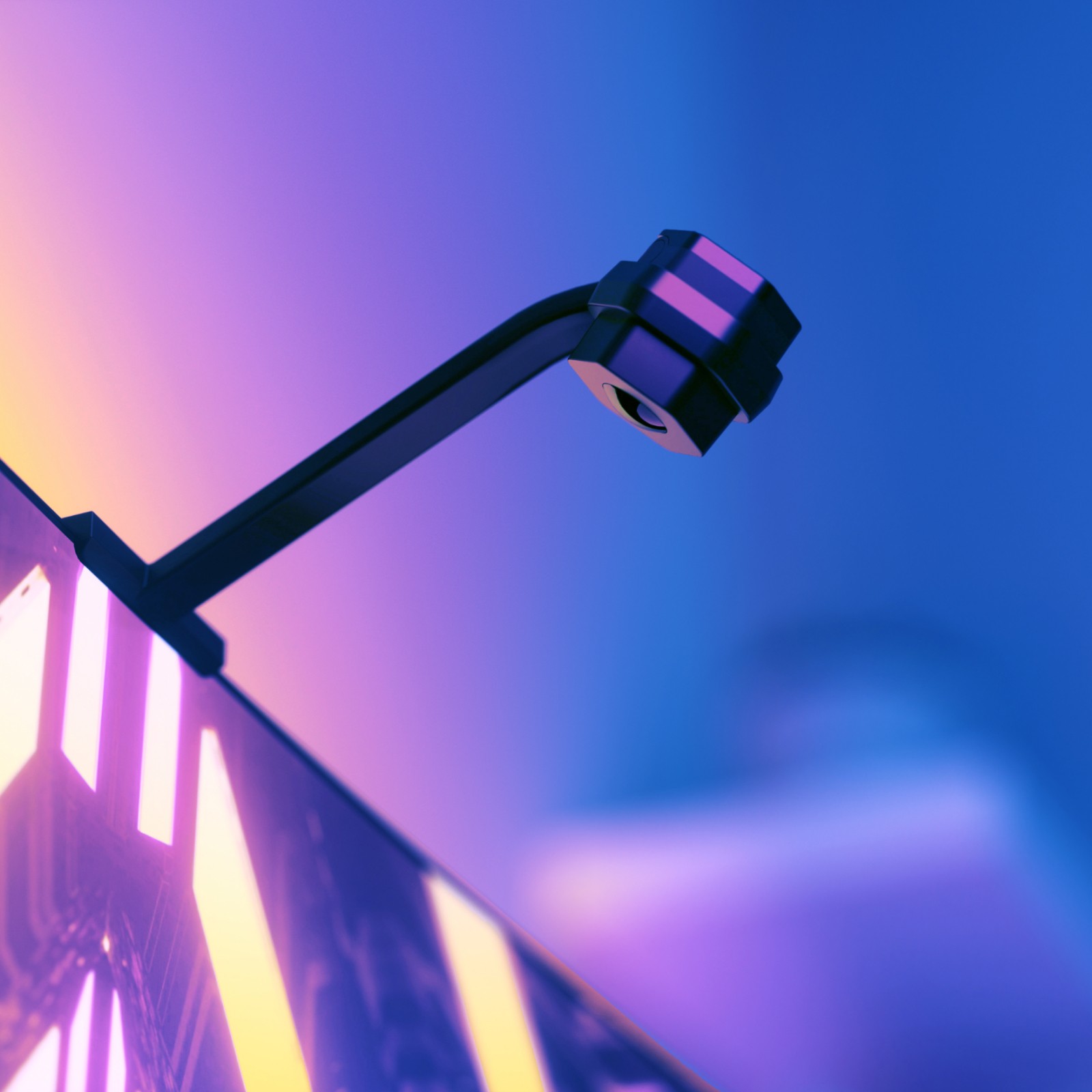
Nanoleaf 4D Screen Mirror Kit
Camera-based sync works with ANY device. No software needed.
The Govee Neon Rope Light 2 is one of the more creative products in this guide. It is a flexible RGBIC rope that you bend into whatever shape you want and mount on your wall. Spell out your gamertag. Make a lightning bolt. Trace the outline of your favorite game logo. The shape mapping feature uses your phone camera to recognize the shape and apply effects that follow its contours. It is 14% more flexible than the original version and supports Matter for future-proof smart home integration. At $50-70 on sale, it is a lot cheaper than an actual custom neon sign.
The Kavaas “Game On” Neon Sign is for people who want a cool-looking wall accent for $25 without any setup complexity. USB powered, hang it on the wall, plug it in, done. It is not smart, not adjustable, and not going to blow anyone’s mind. But it looks good in photos and adds character to a blank wall. Sometimes simple is enough.
The Nanoleaf 4D Screen Mirror Kit deserves special attention because it solves a problem the other products in this guide do not. Most screen-sync solutions are PC-only because they rely on desktop software. The Nanoleaf 4D uses a camera pointed at your screen to capture colors, which means it works with consoles, streaming boxes, cable TV, literally any video source. No software installation, no computer required. If you play on a PS5 or Xbox and want your room to react to the game, this is the only option that works out of the box.
How to Sync Lights with Your Games
Having your room react to in-game events in real time is one of those things that sounds gimmicky until you try it. A health bar flash when you take damage, the room going red during an explosion, ambient colors matching the sky in an open world game. There are three main ecosystems for this, and they are not interchangeable.
| Feature | Razer Chroma | Philips Hue Sync | Govee DreamView |
|---|---|---|---|
| How it works | Software detects in-game events | App mirrors screen colors | Camera or software captures screen |
| Supported games | 500+ with native support | Any screen content | Any screen content |
| PC support | Yes (Synapse 3) | Yes (Sync app) | Yes (Govee app) |
| Console support | No | Yes (with Sync Box, $230) | Yes (camera models) |
| Compatible lights | Razer + Hue + Govee + Nanoleaf | Hue products only | Govee products only |
| Cost to start | Free (if you have Razer gear) | $290+ (Bridge + Sync Box) | $40-70 (G1 strip) |
| Best for | PC gamers with Razer peripherals | Whole-room immersion, any source | Budget screen sync |
Razer Chroma is the best option for PC gamers. Over 500 games have native Chroma support, meaning the lighting reacts to specific in-game events, not just screen colors. Health drops, abilities, kills, zone changes. Through the Chroma Connect module in Razer Synapse, it also controls Philips Hue, Govee, and Nanoleaf lights, making it the most versatile hub for mixing different brands.
Philips Hue Sync is the premium whole-room solution. The desktop app mirrors your screen colors to every Hue light in the room. The catch is the ecosystem cost: you need a Hue Bridge ($60) and for console/TV use, a Hue Sync Box ($230). That is a lot of money, but the result is the most seamless multi-device sync available. If you have Hue bulbs in floor lamps, Hue Play bars behind your TV, and a Hue strip behind your desk, everything syncs as one unified system.
Govee DreamView is the budget-friendly alternative. The Gaming Light Strip G1 uses desktop software to capture screen colors (PC only). Camera-based products like the DreamView T1 Pro work with any video source including consoles. Results are slightly less precise than Hue Sync but at a fraction of the cost. For most people, this is where the value is.
Complete Gaming Room Lighting Setups by Budget
Here is exactly what I would buy at four different price points. Each setup covers ambient lighting, monitor lighting, and accent pieces.
Under $50: The Starter
- Govee RGBIC LED Strip (~$15) – behind desk
- Kavaas “Game On” Neon Sign (~$25) – wall accent
Total: ~$40. This gets you ambient color behind your desk and a decorative accent on the wall. It is not fancy, but it is a massive upgrade over bare overhead lighting or total darkness.
$100-200: The Smart Setup
- Govee RGBIC LED Strip (~$15) – behind desk
- BenQ ScreenBar ($109) – desk/monitor light
- LIFX Color A19 ($35) – smart bulb in floor lamp
Total: ~$159. The BenQ ScreenBar alone justifies this tier. Your eyes will feel noticeably better after long sessions, and the LIFX bulb adds color without any hub required. This is the setup I recommend for anyone who takes gaming seriously but does not want to spend a fortune.
$200-400: The Enthusiast
- Govee Gaming Light Strip G1 (~$50) – screen-sync monitor backlight
- BenQ ScreenBar Halo ($179) – desk light with bias lighting
- LIFX Color A19 x2 ($70) – smart bulbs in two lamps
- Govee Neon Rope Light 2 (~$60) – custom wall accent
Total: ~$359. Now you have screen-sync lighting, premium desk illumination, smart ambient bulbs, and a custom neon accent. This setup covers every lighting need and looks great.
$500+: The Full Send
- Nanoleaf Shapes Hexagons ($150) – wall panels
- BenQ ScreenBar Halo ($179) – desk light
- Philips Hue Gradient PC Lightstrip ($130) – screen-sync strip
- Philips Hue A19 x2 ($110) – ambient bulbs
- Razer Key Light Chroma (~$180) – RGB key light
Total: ~$749. This is the r/battlestations front page setup. Nanoleaf panels on the wall, Hue-synced gradient strip behind the monitor, Razer Chroma key light doubling as room fill, premium desk lighting, and smart ambient bulbs. Every light in the room can sync to your games through the Razer Chroma hub. You will need a Hue Bridge ($60) for the Hue products, bringing the true total closer to $810.
Frequently Asked Questions
What color LED lights are best for gaming?
It depends on the game. Cool white (4000-5700K) is best for competitive gaming because it keeps you alert. Warm white (2700-3500K) is better for immersive single-player games. For pure RGB ambiance, blue and purple are the most popular choices in the gaming community, but pick whatever you like.
Is bias lighting actually worth it?
Yes, especially if you game for more than a couple hours at a time. Proper bias lighting at 6500K behind your monitor reduces eye strain, makes screen colors appear more vivid, and helps prevent headaches from the bright-screen-in-dark-room effect. A BenQ ScreenBar or even a cheap neutral LED strip behind your monitor makes a noticeable difference.
Should I get Nanoleaf or Govee wall panels?
Nanoleaf for aesthetics and ecosystem. Their panels look cleaner, have better touch interaction, and work with more smart home platforms including Thread and HomeKit. Govee for raw value and 3D effects. The Glide Hexagon Ultra panels have a unique depth effect with 129 LEDs per panel and cost less per panel when on sale. Both work with Razer Chroma.
Can I sync my lights with games on console?
Yes, but your options are limited. Camera-based solutions like the Nanoleaf 4D Screen Mirror Kit ($100-130) and Govee DreamView T1 Pro work with any video source including PS5 and Xbox. The Philips Hue Sync Box ($230) also works with consoles but requires a Hue Bridge. Software-based solutions like Razer Chroma and the Govee G1 strip are PC-only.
How much should I spend on gaming room lighting?
You can make a real difference for $40-50 with an LED strip and a neon sign. The sweet spot is $150-200 where you can get a BenQ ScreenBar, an LED strip, and a smart bulb. Above $400 you are in enthusiast territory with wall panels, screen-sync strips, and premium key lights. Start small and add over time.
Summary
Good gaming room lighting does more than make your setup look cool for Reddit posts. It improves how your eyes feel, how your screen looks, and how long you can comfortably game in one sitting. If I had to pick three things from this entire guide, they would be: a BenQ ScreenBar for your monitor, a Govee RGBIC strip behind your desk, and a LIFX bulb in a floor lamp. That is under $200 and covers 90% of what most people need.
For the wall panel crowd, Nanoleaf is still the king for clean aesthetics and Govee is catching up with more creative designs at lower prices. For screen sync, Razer Chroma is the most versatile on PC and Nanoleaf 4D is the only real option for console gamers. And for streamers, the Razer Key Light Chroma is the only light that does both serious key lighting and RGB ambiance in one device.
Start with what solves your biggest problem. If your eyes hurt after gaming, get a ScreenBar. If your room looks boring, get an LED strip and a smart bulb. If you want the full experience, work through the budget tiers above and build it out over time. Your setup does not need to happen all at once. If you are pairing new headphones with a lighting upgrade, you are building a setup that is genuinely comfortable for marathon sessions.