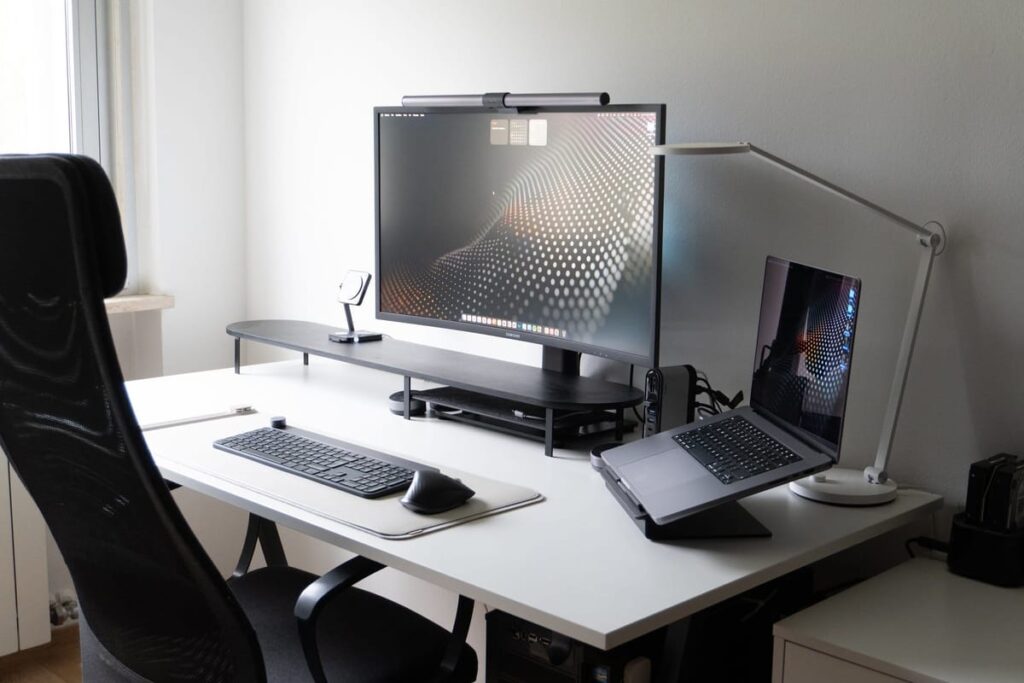
⚡ Quick Setup Checklist
- Monitor: Top of screen at eye level, arm’s length away
- Chair: Feet flat, thighs parallel to floor, lumbar support engaged
- Keyboard: Elbows at 90°, wrists neutral (not bent up or down)
- Mouse: Same height as keyboard, close to body
- Lighting: No glare on screen, bias lighting behind monitors
After 15 years of coding and two bouts of wrist tendonitis, I’ve rebuilt my workspace from scratch three times. The generic “office ergonomics” guides don’t cut it for developers. We have different needs: multi-monitor setups, keyboard-heavy workflows, 10+ hour sessions, and gear that actually fits how we work.
This guide covers the ergonomic desk setup for developers specifically. Not generic office advice. Real recommendations for people who spend their days writing code, debugging, and staring at terminals.
Disclosure: /SKILL is reader-supported. When you buy through links on our site, we may earn an affiliate commission at no extra cost to you. Learn more
📋 In This Guide
Why Developers Need Specific Ergonomic Setups
Developers aren’t typical office workers. A marketing person might type emails for 2 hours a day. You’re typing for 6-10 hours straight, often in bursts of intense focus. That difference matters.
RSI (repetitive strain injury) hits developers hard. A Stack Overflow survey found 35% of developers report some form of work-related pain. Carpal tunnel, tennis elbow, neck strain, lower back issues. These aren’t theoretical. I’ve watched three colleagues go on medical leave for RSI.
What makes developer ergonomics different:
- Multi-monitor setups require different positioning than single-screen offices
- Keyboard-heavy work means wrist and finger positioning is critical
- Long uninterrupted sessions amplify small problems into big ones
- Context switching between terminal, IDE, browser, and docs requires quick screen movement
- Late night sessions mean lighting becomes a real concern
Generic advice like “take breaks” is fine. But the actual hardware setup matters more. A properly configured workspace lets you work longer with less fatigue. An improper one guarantees problems.
The Chair: Your Most Important Investment
If you only upgrade one thing, make it the chair. Your chair affects your entire posture chain. Bad chair equals bad back, bad neck, bad shoulders. No amount of keyboard ergonomics fixes a chair that destroys your spine.
What actually matters in a chair:
- Adjustable lumbar support that matches your spine’s curve
- Seat depth adjustment so the edge doesn’t cut into your thighs
- Armrests that adjust in height, width, and angle
- Tilt mechanism that lets you recline slightly (100-110° is ideal)
- Breathable material for long sessions
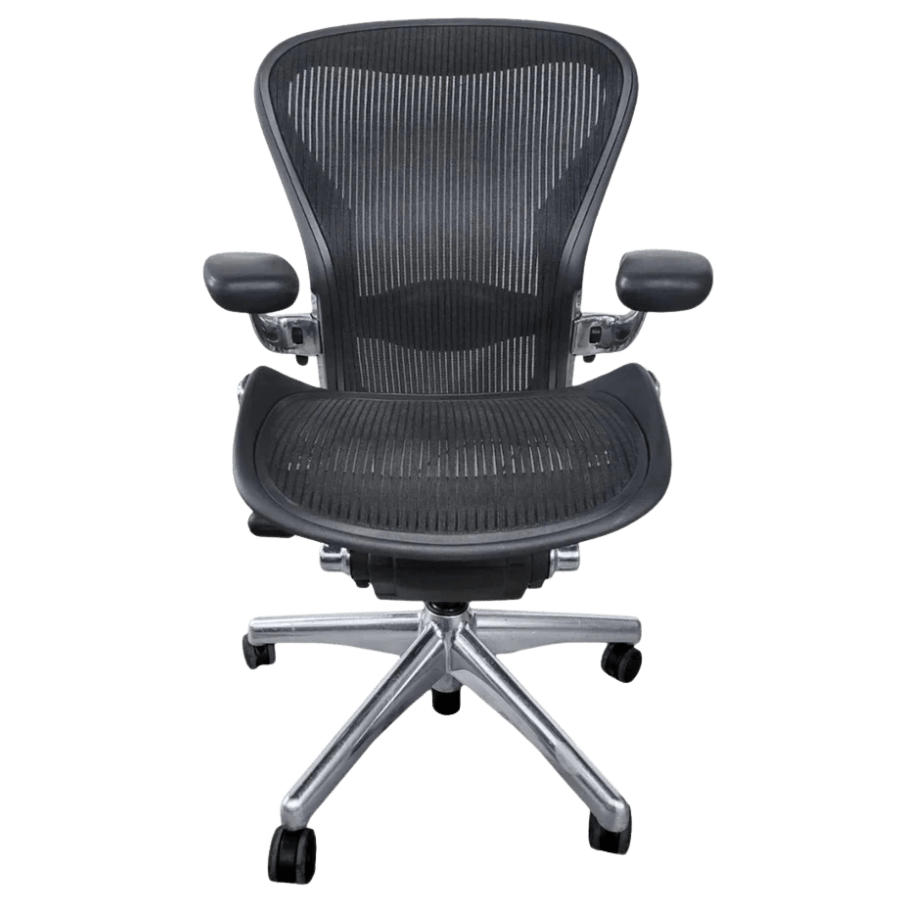
Herman Miller Aeron
12-year warranty. Holds resale value. The industry standard for a reason.
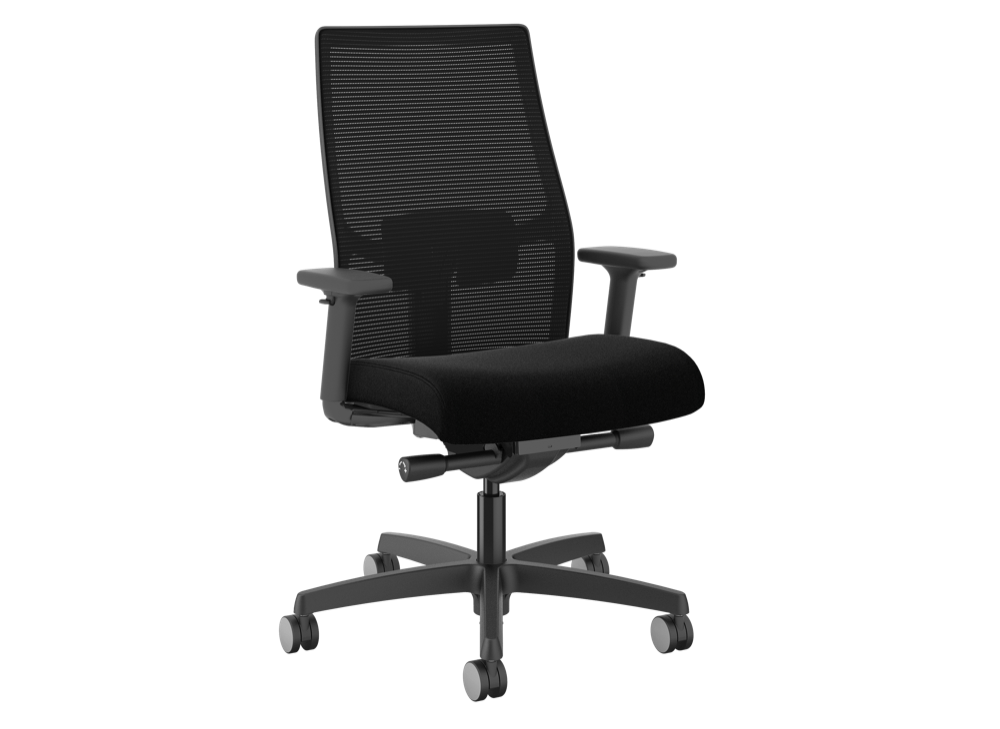
HON Ignition 2.0
Best value under $500. Solid adjustability, good build quality.
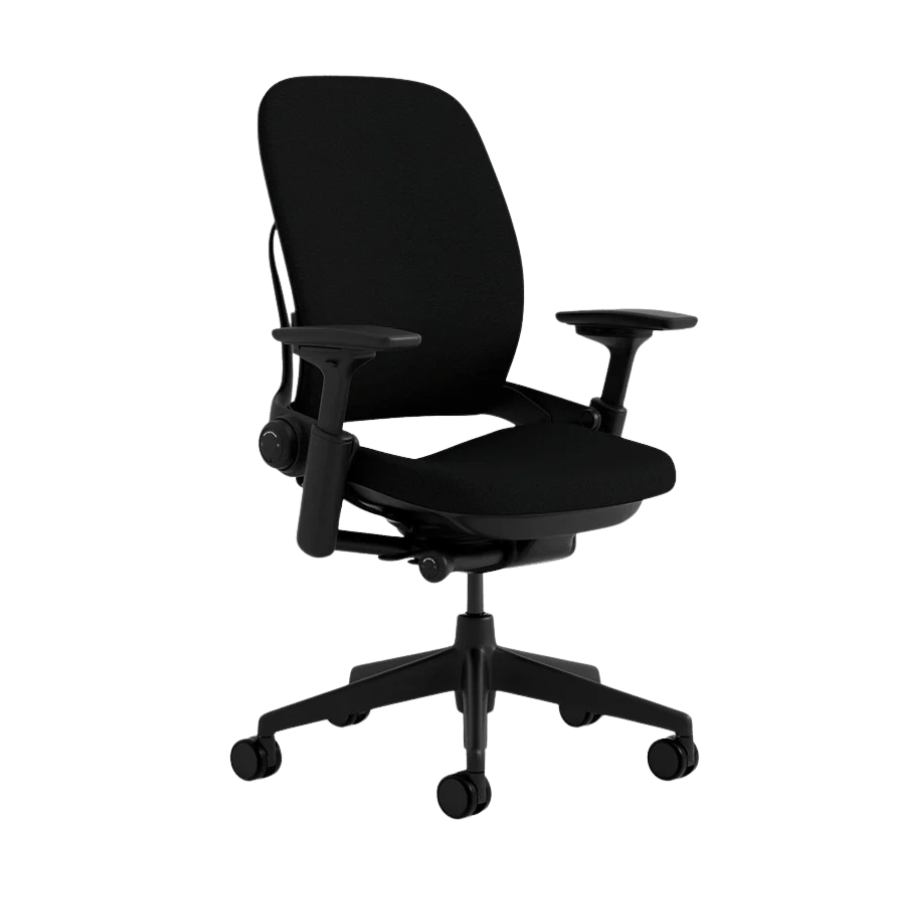
Steelcase Leap V2
Better for larger frames. Excellent back flex system.
Skip the “gaming chairs.” They’re designed for looks, not long-term ergonomics. The bucket seat design actually fights proper posture. Same goes for cheap Amazon chairs with “executive” styling. You’re paying for padding and aesthetics, not actual ergonomic design.
Budget tip: Buy used. Herman Miller and Steelcase chairs flood the used market when companies downsize. A $1,400 Aeron in great condition often sells for $400-600 on Facebook Marketplace or office furniture liquidators.
Desk: Sitting, Standing, or Both
Standing desks got overhyped. Standing all day is just as bad as sitting all day. The real benefit comes from variation. The best setup lets you switch between sitting and standing throughout the day.
A sit-stand desk with electric adjustment is the move. Manual cranks are annoying enough that you’ll stop using them. With electric, you can switch positions in seconds without thinking.
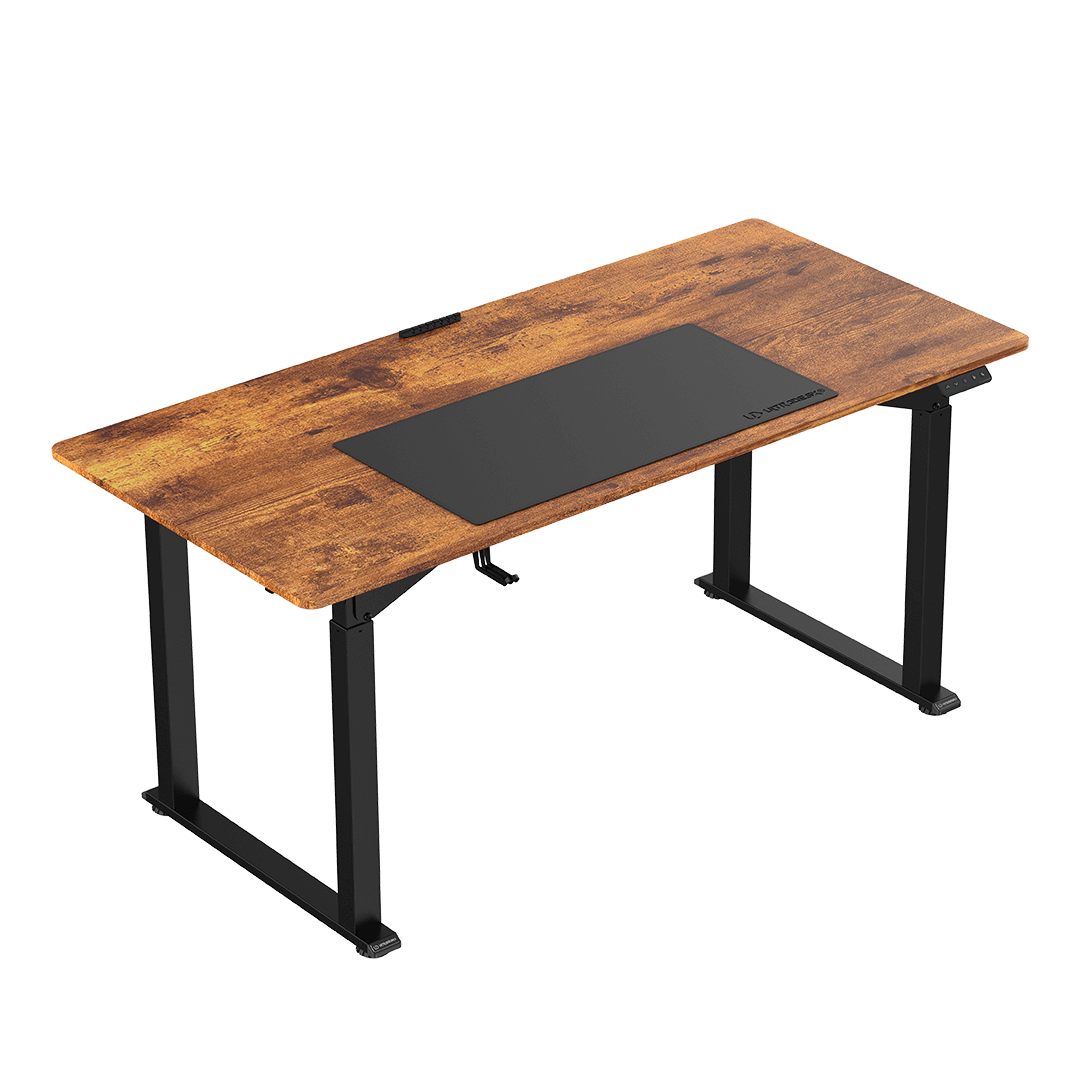
Uplift V2 Standing Desk
Rock solid at any height. Great cable management options.
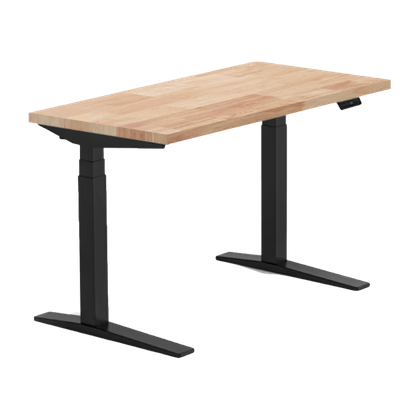
FlexiSpot E7
Best value electric frame. Handles heavy setups well.
Developer-specific desk considerations:
- Depth matters: 30″ deep minimum for monitor arms plus keyboard space
- Cable management: You have more cables than average. Get a desk with built-in trays or plan for a cable raceway
- Weight capacity: Multi-monitor setups with arms can hit 100+ lbs. Check the rating
- Width: 60″ minimum for dual monitors plus room to spread out
If budget is tight, a solid fixed-height desk at proper sitting height works fine. Pair it with a standing desk converter or just take walking breaks. Perfect setup later beats no setup now.
Monitor Setup for Code
Monitor positioning is where most developers mess up. Too low, too far, or at the wrong angle. Here’s what actually works:
The golden rules:
- Top of screen at eye level when sitting upright
- Arm’s length away (roughly 20-26 inches)
- Slight tilt back (10-20°) so you’re not craning your neck
- Primary monitor directly in front, not off to the side
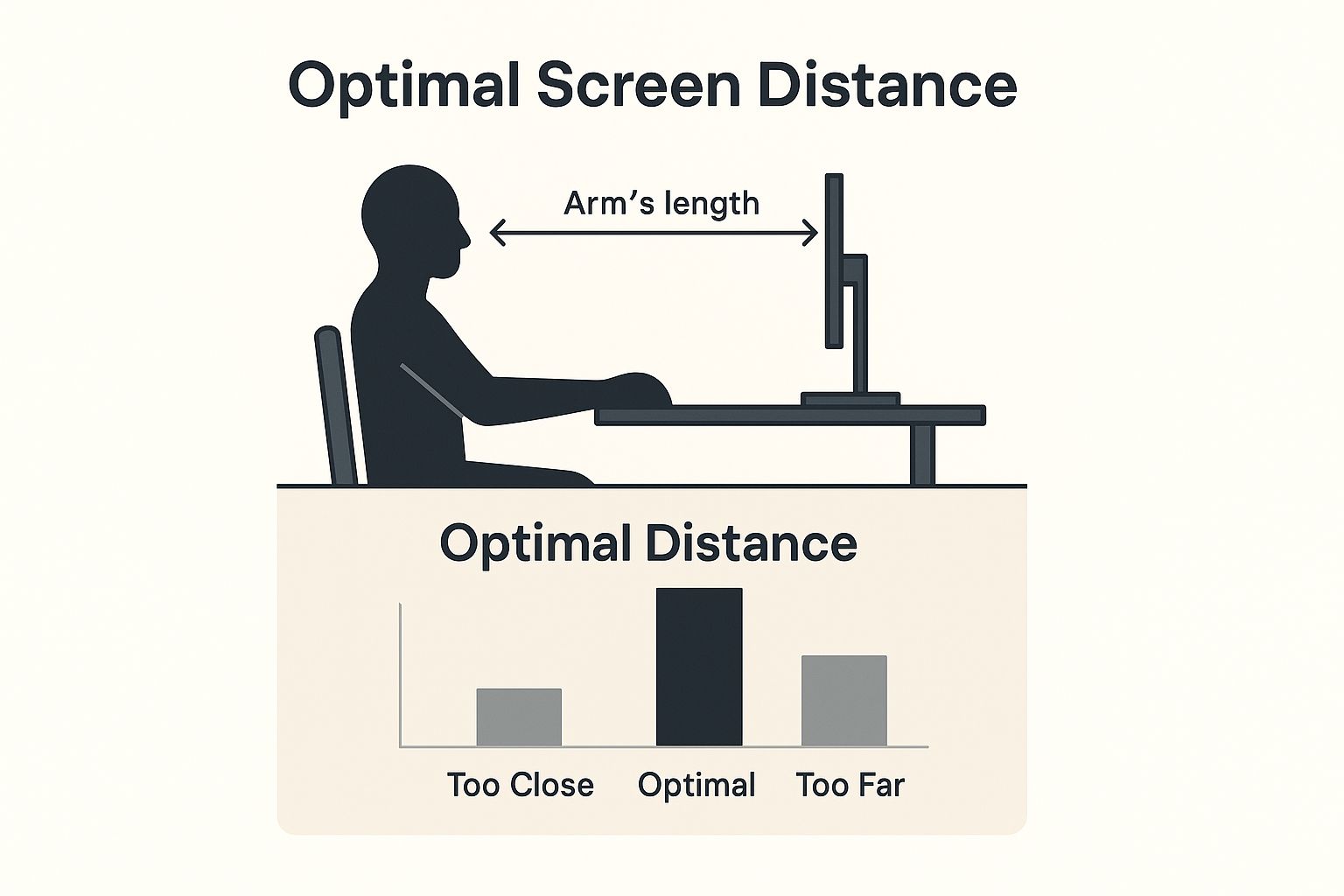
Single Ultrawide vs Dual Monitors
Both work. Ultrawides eliminate the bezel gap for seamless window tiling. Dual monitors let you dedicate one screen to specific tasks. My preference: a 34″ ultrawide as primary plus a vertical 27″ for documentation and terminals.
✅ Single Ultrawide If:
- You want seamless window management
- Desk space is limited
- You prefer simplicity
✅ Dual Monitors If:
- You dedicate screens to specific apps
- You need more total pixels
- Budget for two monitors beats one ultrawide
Monitor Arms: Non-Negotiable
Ditch the stock stands. Monitor arms let you position screens exactly right and free up desk space. The Ergotron LX ($180) is the standard. The AmazonBasics arm ($110) is a solid budget option made by the same manufacturer.
Vertical Monitor for Docs
Rotate a secondary monitor to portrait orientation. Fits more code or documentation per scroll. Game changer for reading API docs while coding. Most 27″ monitors rotate fine. Cheaper monitors might have viewing angle issues in portrait; test before committing.
Keyboards: The Case for Going Ergonomic
Your keyboard is where RSI lives. Standard flat keyboards force your wrists into unnatural positions. Your hands aren’t designed to be flat and parallel. They want to be slightly tented and angled.
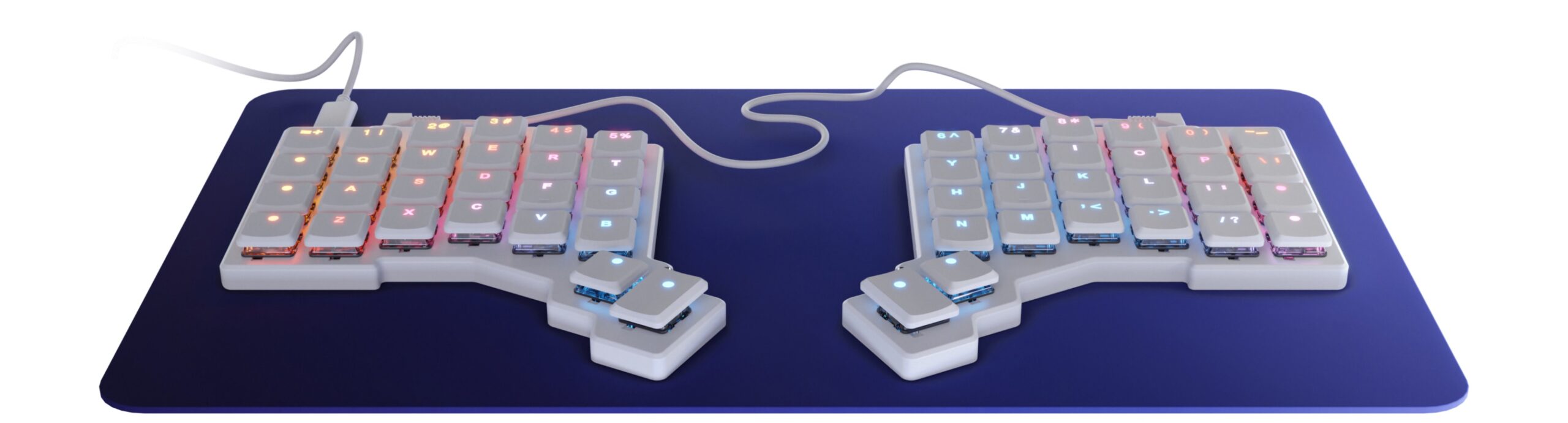
Split Keyboards
Split keyboards separate the two halves, letting you position each at shoulder width. This eliminates the awkward wrist angles of standard keyboards. Learning curve is 2-4 weeks, then you’ll never go back.
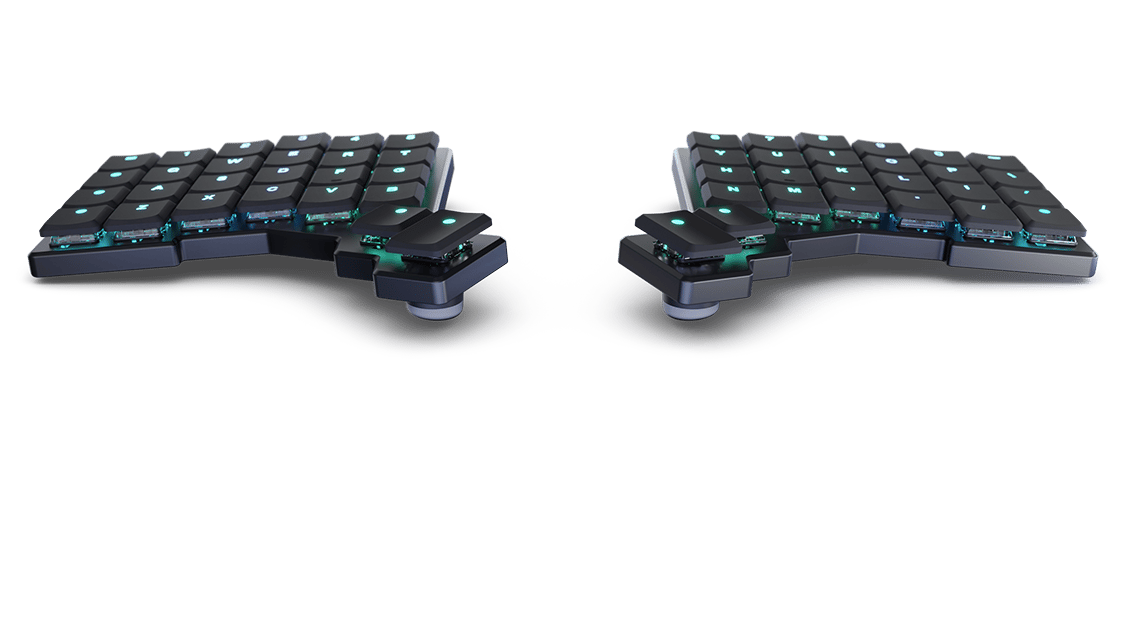
ZSA Voyager
Low profile, hot-swappable, incredible build quality. Fully programmable.
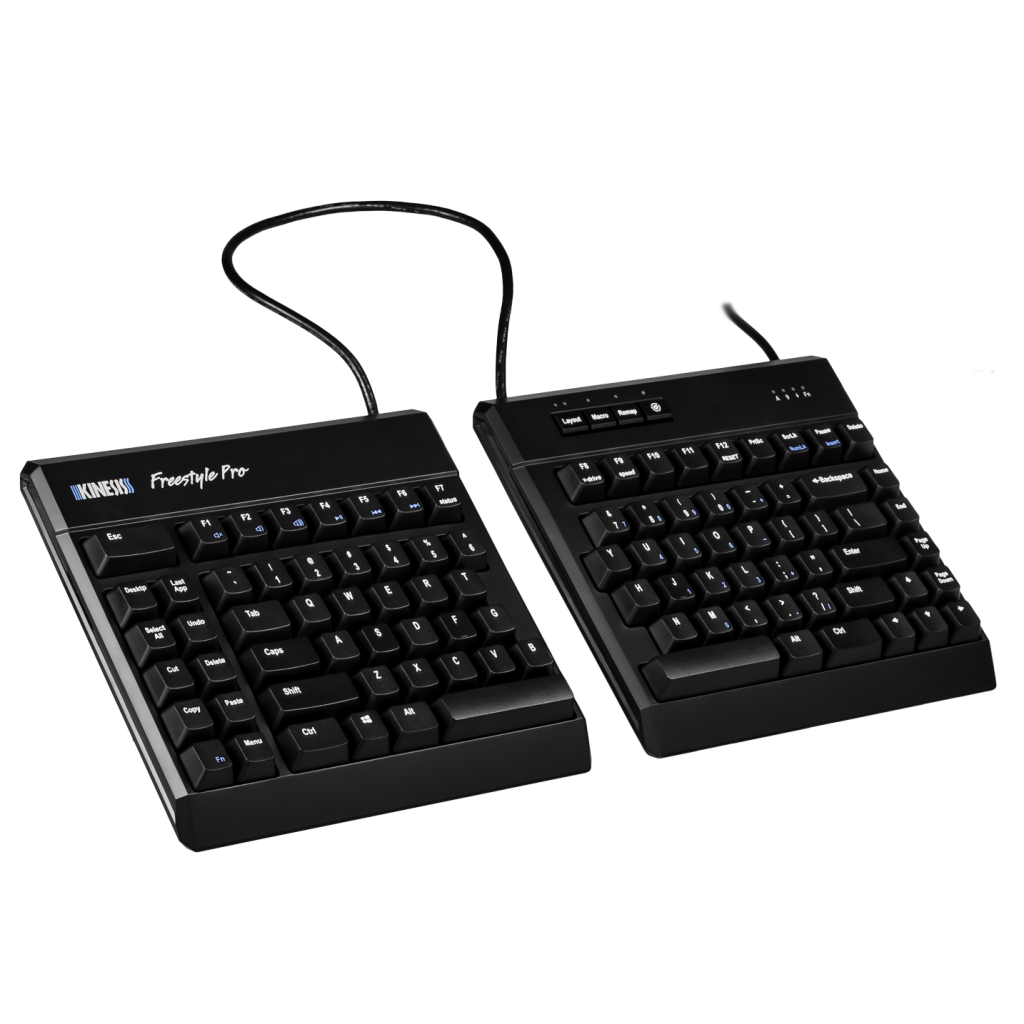
Kinesis Freestyle Pro
Traditional layout in split form. Easier transition from standard keyboards.
If Split Feels Too Extreme
The Microsoft Sculpt ($60) is a gentle introduction. Fixed split angle, built-in palm rest, familiar layout. Not as adjustable as true splits, but miles better than a flat keyboard.
Mechanical vs Membrane
Mechanical switches with lighter actuation force reduce finger fatigue. Look for 45g or lighter switches (Cherry MX Reds, Gateron Clears). Heavier switches feel satisfying but add up over millions of keystrokes.
Mouse and Pointing Devices
Standard mice force your forearm into pronation (palm down), which puts strain on your wrist and elbow. Two solutions: vertical mice or trackballs.
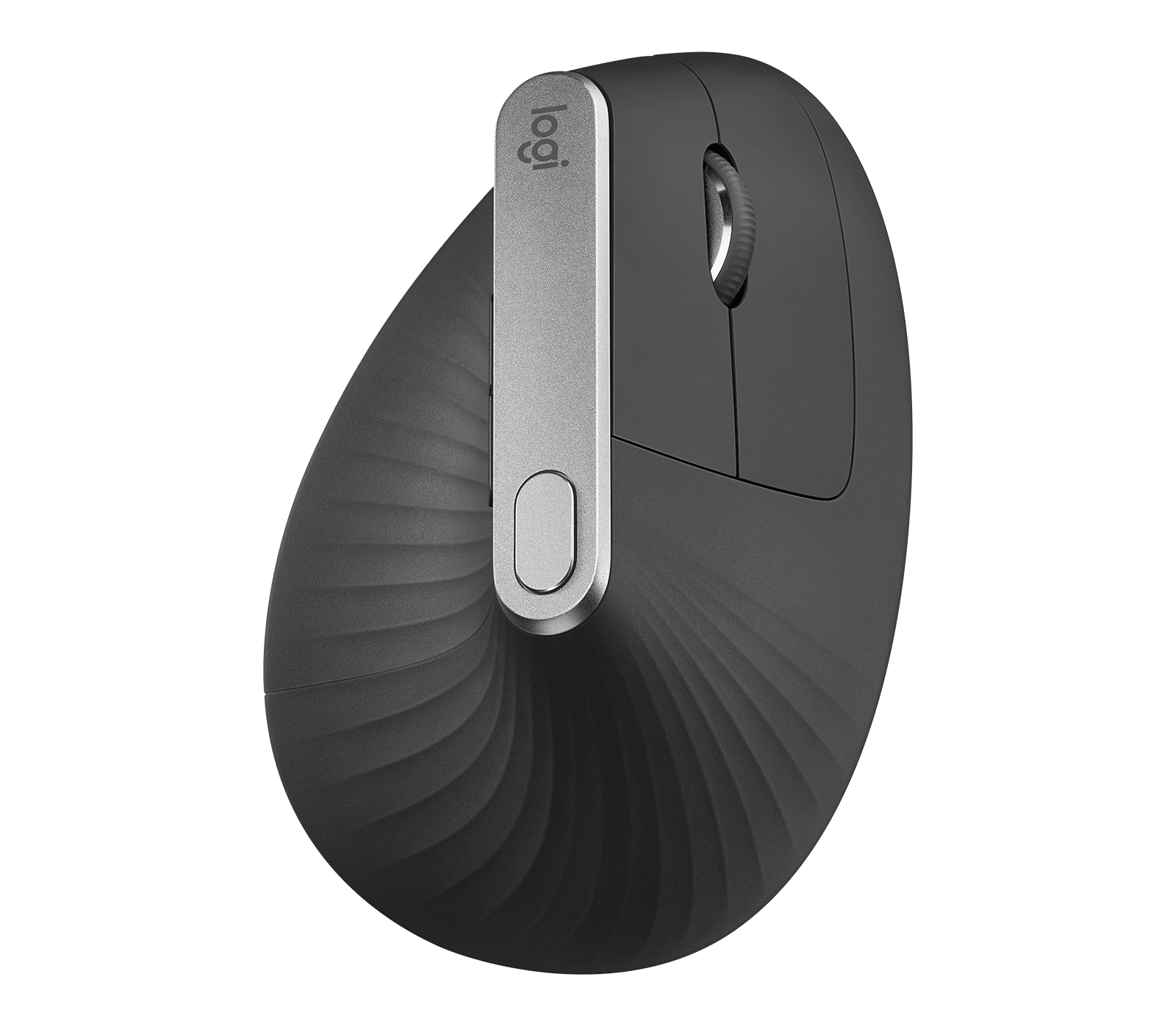
Logitech MX Vertical
57° angle puts arm in natural handshake position. Excellent sensor.
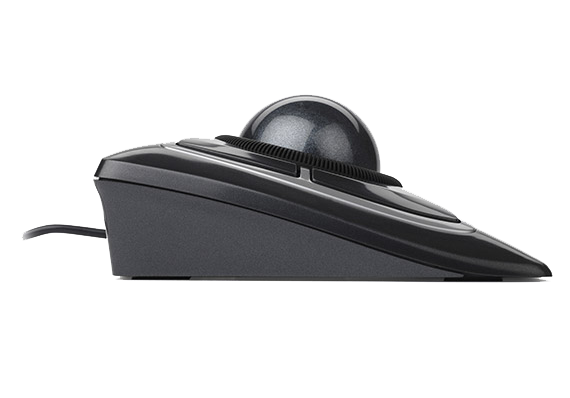
Kensington Expert Mouse
Large ball for precision. No arm movement required.
Key positioning rule: Mouse should be at the same height as your keyboard and close to your body. Reaching for a mouse placed far away causes shoulder strain. Consider a keyboard with a shorter right side or get a left-handed mouse if you use the numpad.
Lighting That Reduces Eye Strain
Bad lighting causes eye strain, headaches, and fatigue. Good lighting is invisible. You don’t notice it because your eyes aren’t fighting it.
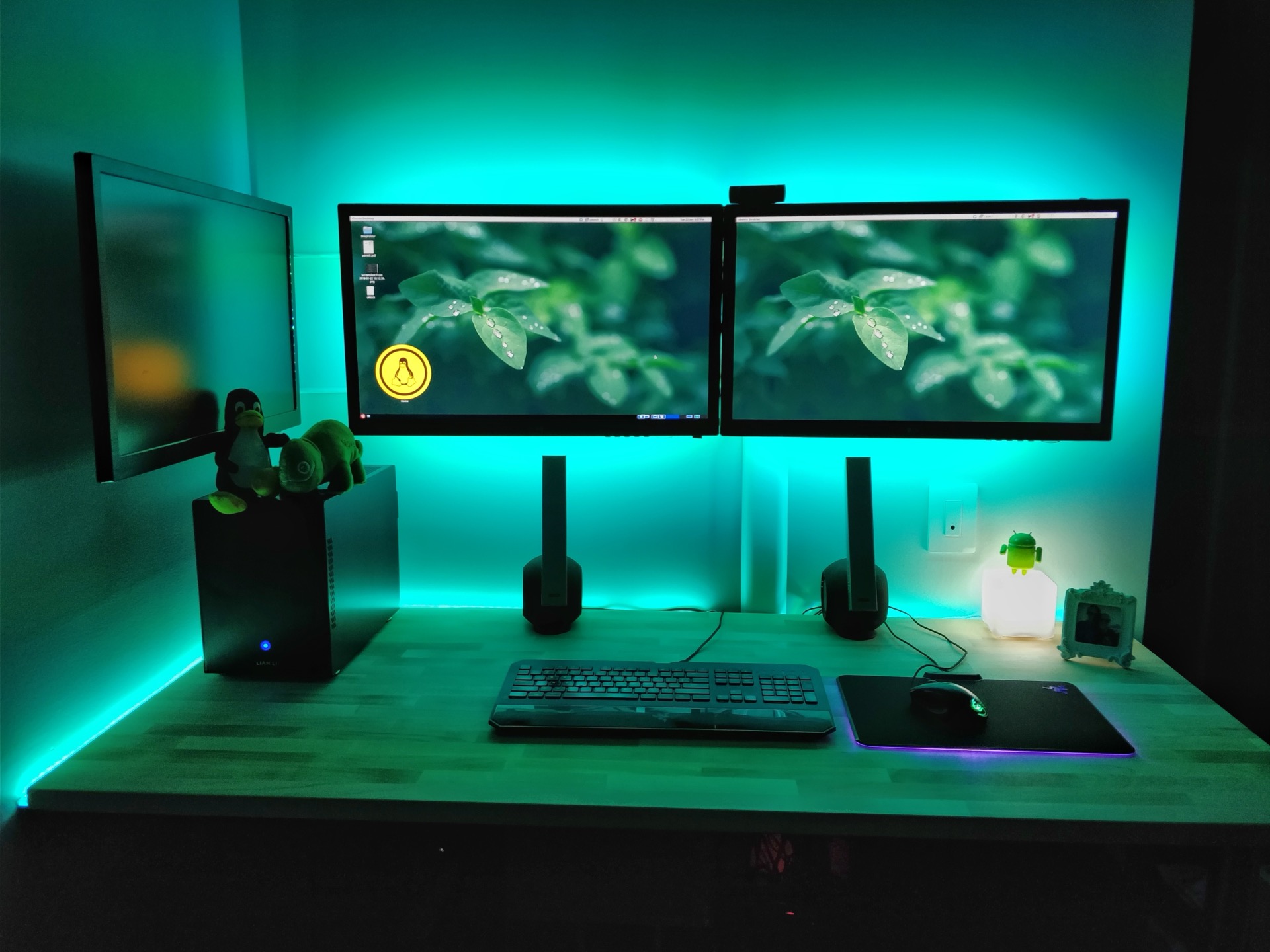
Bias Lighting
The single best upgrade for eye comfort. Put LED strips behind your monitors to light the wall. This reduces the contrast between your bright screen and dark surroundings. Your pupils don’t have to constantly adjust.
Use 6500K (daylight) color temperature to match most monitors. Warm white looks cozy but creates a color mismatch that strains your eyes. The Govee RGBIC strips ($25) are cheap and work great.
Monitor Light Bars
The BenQ ScreenBar ($109) sits on top of your monitor and lights your desk without any glare on screen. Useful for referencing physical documents or just having good task lighting. Not essential, but nice to have.
Room Lighting
- Avoid overhead lights directly above your monitor (causes reflections)
- Natural light from the side is best (not directly behind or in front)
- Match ambient light to screen brightness. Dark room + bright screen = strain
Ergonomic Desk Setup Builds: Three Budget Tiers
Here’s what I’d buy at three different budget levels. Prices rounded and approximate.
Budget Build (~$600)
| Item | Pick | Price |
|---|---|---|
| Chair | HON Ignition 2.0 | $380 |
| Keyboard | Microsoft Sculpt | $60 |
| Mouse | Anker Vertical Mouse | $25 |
| Monitor Arm | AmazonBasics Arm | $110 |
| Bias Lighting | Govee LED Strip | $25 |
| Total | $600 |
This covers the essentials. Use your existing desk and monitor. The chair is your priority spend.
Mid-Range Build (~$1,500)
| Item | Pick | Price |
|---|---|---|
| Chair | Herman Miller Aeron | $500 |
| Desk | FlexiSpot E7 | $479 |
| Keyboard | Kinesis Freestyle Pro | $179 |
| Mouse | Logitech MX Vertical | $100 |
| Monitor Arm | Ergotron LX | $180 |
| Lighting | Govee strips + BenQ ScreenBar | $134 |
| Total | $1,572 |
This is the sweet spot. Proper sit-stand desk, quality ergonomic peripherals, and excellent seating. Will last 10+ years.
Premium Build (~$3,000+)
| Item | Pick | Price |
|---|---|---|
| Chair | Herman Miller Aeron | $1,395 |
| Desk | Uplift V2 72″ | $799 |
| Keyboard | ZSA Voyager | $365 |
| Mouse | MX Vertical + Kensington Trackball | $180 |
| Monitor Arms | 2x Ergotron LX | $360 |
| Lighting | Govee RGBIC strips + BenQ ScreenBar | $200 |
| Total | $3,299 |
Endgame setup. Everything is best-in-class with warranty coverage. This is what I’d recommend if budget isn’t a constraint and you’re treating this as a 10-15 year investment.
Common Mistakes to Avoid
Monitor too low. Most people put monitors at desk height. Your neck bends down, your shoulders round forward. Fix: monitor arm, laptop stand, or literally stack books until the top of screen hits eye level.
Chair too high. If your feet don’t rest flat on the floor, you’re creating pressure on your thighs and lower back. Either lower the chair or get a footrest.
Keyboard on desk surface. Most desks are 29-30″ high. That’s too high for typing if your chair is properly adjusted. Use a keyboard tray or get an adjustable desk that goes lower.
No breaks. The best setup in the world won’t save you from 8 hours of frozen posture. Move every 30-60 minutes. Even just standing up for 30 seconds helps.
Buying gaming chairs. They look cool. They destroy your posture. The bucket seat design forces your spine into positions it shouldn’t hold for hours. Just don’t.
Frequently Asked Questions
Is standing all day better than sitting?
No. Standing all day causes its own problems (varicose veins, foot pain, lower back strain). The key is variation. Alternate between sitting and standing throughout the day. A sit-stand desk makes this easy.
How often should I take breaks?
Every 30-60 minutes, stand up and move for at least a minute. Every 2 hours, take a longer break away from your desk. Use the Pomodoro technique or set a timer. Your body wasn’t designed for 4-hour frozen coding sessions.
What’s the best budget chair under $300?
At that price, buy used. A $300 new chair usually cuts corners on adjustability. A $1000+ chair bought used for $300 gives you proper ergonomic features. Check Facebook Marketplace, Craigslist, and office furniture liquidators.
Are split keyboards hard to learn?
Expect 2-4 weeks of reduced productivity. The main adjustment is learning to use the correct hand for each key (no more reaching across the split). After the learning curve, most people type faster and with less fatigue.
Ultrawide or dual monitors for coding?
Either works well. Ultrawide gives seamless window management. Dual monitors let you dedicate one screen to specific apps. Many developers prefer a hybrid: one ultrawide primary plus a vertical secondary for documentation. Try both if you can before committing.
Summary
A proper ergonomic desk setup for developers isn’t a luxury. It’s injury prevention. Start with the chair. Get your monitor at eye level with an arm. Consider a split keyboard if you type heavily. Add bias lighting behind your screens. Take breaks.
You don’t need to buy everything at once. The chair alone will make a massive difference. Build out from there as budget allows. Your 10-years-from-now self will thank you for not destroying your wrists and back today.
| Priority | Recommendation |
|---|---|
| Chair (First) | Herman Miller Aeron or used equivalent |
| Monitor Position | Ergotron LX monitor arm |
| Keyboard | ZSA Voyager (split) or Microsoft Sculpt (intro) |
| Mouse | Logitech MX Vertical |
| Desk (If Upgrading) | Uplift V2 sit-stand |
Last updated: February 2026