
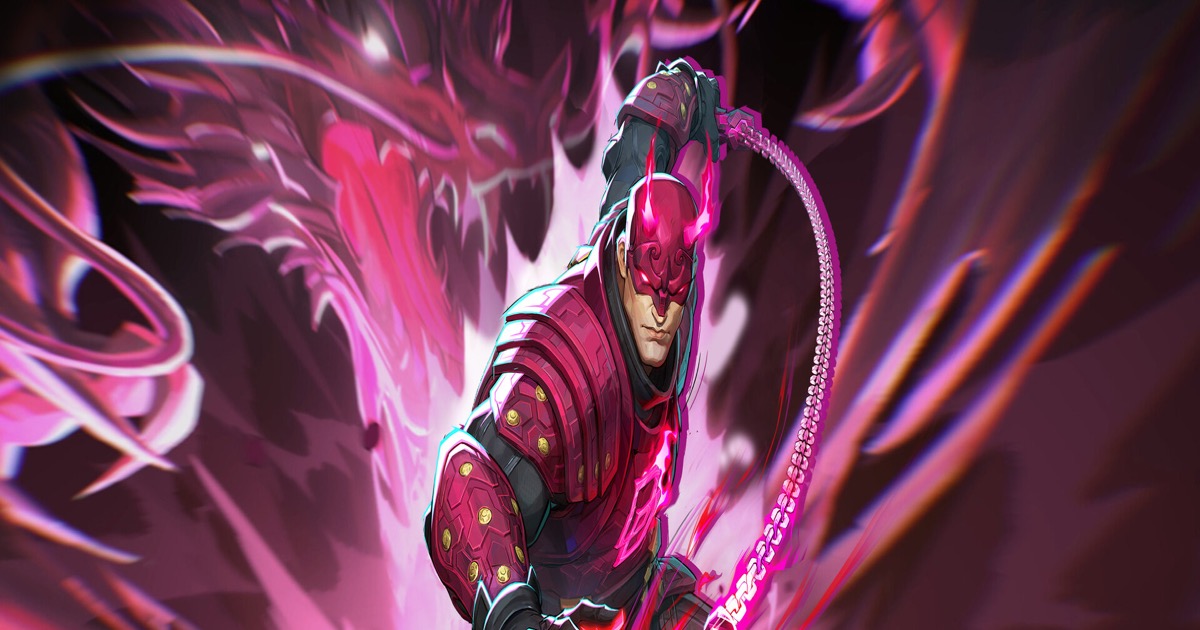
After hundreds of hours in Marvel Rivals and extensive testing across different hardware configurations, I've dialed in the optimal settings for Season 6. Whether you're running a mid-range rig or a high-end build, these settings will give you smooth, competitive gameplay without making the game look like a blurry mess.
Quick Answer
For most players, here's the TL;DR:
- Resolution: Native (1080p or 1440p)
- Display Mode: Fullscreen (not borderless)
- V-Sync: Off
- DLSS/FSR: Quality or Balanced
- Frame Gen: On if you have RTX 40-series
- Anti-Aliasing: TAA or DLAA
- Everything else: Medium
This setup targets 120+ FPS on mid-range hardware while keeping the game visually sharp enough to track enemies in chaotic team fights.
Display Settings
The display settings have the biggest impact on both performance and competitive play.
Resolution and Display Mode
Fullscreen is mandatory for competitive play. Borderless windowed adds input lag—sometimes 5-10ms extra. That's the difference between landing Iron Man's Unibeam or whiffing completely.
Native resolution is ideal if your GPU can handle it. Dropping to 1080p on a 1440p monitor introduces blur that makes tracking fast-moving heroes like Spider-Man harder.
Tip: If you need more frames, use DLSS/FSR at Quality instead of dropping resolution.
V-Sync and Frame Rate
Turn V-Sync off. It adds input lag and caps your framerate. Use your GPU's control panel to cap frames at your monitor's refresh rate minus 3 (e.g., 141 FPS for a 144Hz monitor) to prevent screen tearing without the lag penalty.
Reflex Low Latency: Set to On + Boost if you have an NVIDIA card. This reduces render queue latency and makes the game feel snappier.
Graphics Settings Breakdown
Here's where most guides get it wrong—they tell you to slam everything to Low. That works for raw FPS, but Marvel Rivals' readability suffers when effects are too low.
Settings That Matter for Visibility
| Setting | Recommended | Why |
|---|---|---|
| Texture Quality | High | Minimal FPS impact, helps identify heroes |
| Shadow Quality | Medium | Low removes important depth cues |
| Effects Quality | Medium | Too low and you can't see ability tells |
| Post-Processing | Low | Removes blur effects that hurt visibility |
| Ambient Occlusion | Off | Pure FPS gain with minimal visual loss |
Settings to Lower
Volumetric Quality: Set to Low. The fog and light shafts look nice but tank performance and obscure sightlines.
Foliage Quality: Low or Medium. Trees and plants aren't strategic—they're just GPU cycles.
Reflection Quality: Low. SSR reflections are expensive and you won't notice them mid-fight.
Anti-Aliasing
TAA is the best balance for most players. It smooths edges without the performance hit of MSAA.
DLAA (NVIDIA) looks sharper than TAA if you have frames to spare. Use this at 1440p or higher.
FXAA is a last resort—it blurs the image noticeably.
NVIDIA-Specific Optimizations
If you're running an NVIDIA GPU, these settings in the NVIDIA Control Panel make a real difference:
- Low Latency Mode: Ultra (if not using Reflex)
- Power Management: Prefer Maximum Performance
- Texture Filtering Quality: High Performance
- Threaded Optimization: On
DLSS Settings
Season 6 added DLSS 4.5 support with improved quality at lower performance modes:
- RTX 20-series: Use Quality mode
- RTX 30-series: Balanced works great
- RTX 40-series: Enable Frame Generation for 30-50% more FPS
Frame Generation caveat: It adds ~1 frame of latency. For casual play, it's fine. For high-level ranked, you might prefer raw frames.
AMD-Specific Optimizations
AMD users should enable FSR 3.1 in-game:
- FSR Mode: Quality or Balanced
- Anti-Lag: Enable in Radeon Software
- Sharpening: 50-60% to counteract FSR blur
In Radeon Software:
- Radeon Boost: Off (adds blur during movement)
- Radeon Chill: Off (caps framerate unpredictably)
- Surface Format Optimization: On
Windows Optimizations
A few OS-level tweaks that actually help:
- Game Mode: On (Windows Settings > Gaming)
- Hardware-Accelerated GPU Scheduling: On
- Variable Refresh Rate: On if you have a compatible monitor
- Background apps: Close Discord overlays, streaming software when tryharding
Rebuild shaders after driver updates: Graphics Settings > scroll down > Rebuild Shaders. Takes 2-3 minutes but prevents stuttering.
Pro Tips
- Cap your framerate at your monitor's refresh rate minus 3 for best frame pacing
- Disable motion blur—it's on by default and hurts visibility in fast combat
- Set Enemy Outline Color to bright orange or yellow for better visibility against dark maps
- Lower your mouse polling rate to 1000Hz if you're on wireless to reduce battery drain
- Use borderless windowed only if you need to Alt-Tab frequently for streaming
FAQ
Q: What FPS should I target for competitive play?
A: 120+ FPS is the sweet spot. Above that, you get diminishing returns. Below 90 FPS, you're at a disadvantage in ranked.
Q: Is DLSS better than FSR?
A: DLSS Quality looks slightly sharper than FSR Quality, but FSR 3.1 has closed the gap significantly. Use whichever your GPU supports.
Q: Why does my game stutter after updates?
A: Shader cache needs rebuilding. Go to Graphics Settings and click "Rebuild Shaders." This fixes most post-patch stuttering.
Q: Should I use Ray Tracing?
A: No. The performance hit isn't worth the visual improvement in a fast-paced shooter. Save RT for single-player games.
Q: What's the best resolution for competitive play?
A: 1080p gives you the highest FPS and is still used by many pros. 1440p is the sweet spot if your GPU can maintain 120+ FPS.
Summary
Marvel Rivals Season 6 runs well on most hardware with the right settings. Start with Medium across the board, enable DLSS/FSR at Quality, turn off V-Sync, and fine-tune from there based on your framerate. The goal is consistent frames above your monitor's refresh rate—not maximum visual fidelity.
For competitive ranked play, prioritize framerate and low input lag over graphics. Your opponents running optimized settings will have an edge if you don't.